When your phone buzzes in your pocket, can you tell — without looking — whether it's a call or just a message? If not, your notification sound and ringtone are probably too similar, or you've been changing the wrong one. Android keeps them as two separate settings, and the menus do a good job of making them look like the same thing.
Fixing it takes about a minute — but one app with its own sound setting can undo your work, and that's the part most guides skip.
The main switch: Pixel and most Android phones
- Open Settings.
- Tap Sound & vibration.
- Open Default notification sound. On newer Pixels, Google calls this item just Notification.
- Preview something clearly different from your current tone. Previewing matters — a sound that looks fine in a list can be irritating at full volume.
- Select it, and tap Save if your phone shows that button.
If your phone's labels don't match, search Settings for "notification sound" and open the sound-selection result. Whatever you do, don't tap Ringtone — that's calls, and changing it is how people end up with a message tone as their ringtone and a ringtone as their message tone.
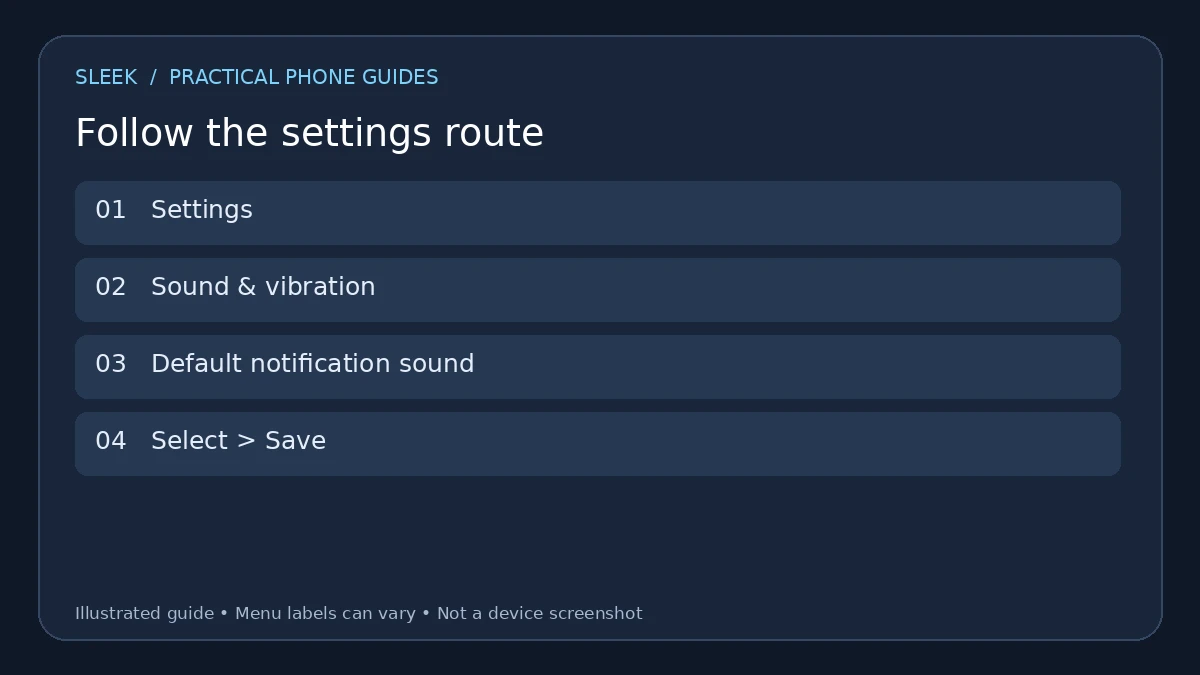
A general Android route. Pixel and other manufacturers may label the sound control differently.
Samsung Galaxy: a different menu, same idea
On a Galaxy, go to Settings → Sounds and vibration → Notification sound, then preview and pick a preset. The Ringtone control sitting right next to it is for calls — ignore it for this job. And if a preview or alert sounds too quiet, check Samsung's Volume screen: it has separate sliders for each sound type, and notification volume may be sitting low while everything else is loud.
A setup that actually works: quiet messages, familiar calls
Say your call ringtone is distinctive, but your message alert is a long, loud jingle that goes off forty times a day. Pick a short notification chime and leave the ringtone alone. Then test with one real call and one real message, back to back.
One caveat: hearing the sound in the picker proves the file plays — not which notification category an app will use when a real message lands. That needs a real notification.
Why one app refuses to change
Here's the scenario. You change the default. WhatsApp changes. Your banking app changes. But Gmail — or Telegram, or whatever — keeps playing the old sound, mocking you.
That's because an app or a notification *category* can carry its own explicit sound that overrides the system default. On a Pixel, the route is Settings → Notifications → App notifications → the app → Notification categories → the category → Sound. The key detail: pick the category that sends the alert you care about. A messaging app can have separate categories for messages, calls, and background activity, and they can each have their own sound.
On Galaxy phones where the category controls are hidden, first open Notifications → Advanced settings and switch on Manage notification categories for each app. Then open App notifications, pick the app and its category. Samsung notes the category needs to allow notifications and use the Alert type before its Sound setting means anything.
Some apps just do their own thing — their own in-app sound setting, or no exposed categories at all. The system setting genuinely can't reach those; check inside the app. And a group chat, a direct message, and a background-service alert from the *same* app can be three different categories — that's usually why "some alerts changed and some didn't".
The menu differences, in one place
- General Android: Google's guide uses Default notification sound, and notes some instructions apply to Android 12 or later.
- Pixel: the newer guide uses Notification for the system sound and documents per-app categories.
- Galaxy: Samsung uses Sounds and vibration → Notification sound. Category visibility and menus vary with device and software.
- Everything else: use the manufacturer's equivalent controls when the Google or Samsung labels don't match.
These are route differences. None of them means one version will magically change every app's sound on its own.
Proving it works
- Confirm the new sound is actually selected in the picker.
- Get a real notification from the app you care about — not a preview, a real one.
- If it sounds different from what you picked, go dig into that app's category or in-app setting.
- If you also want to confirm your call ringtone, test that separately with a real phone call.
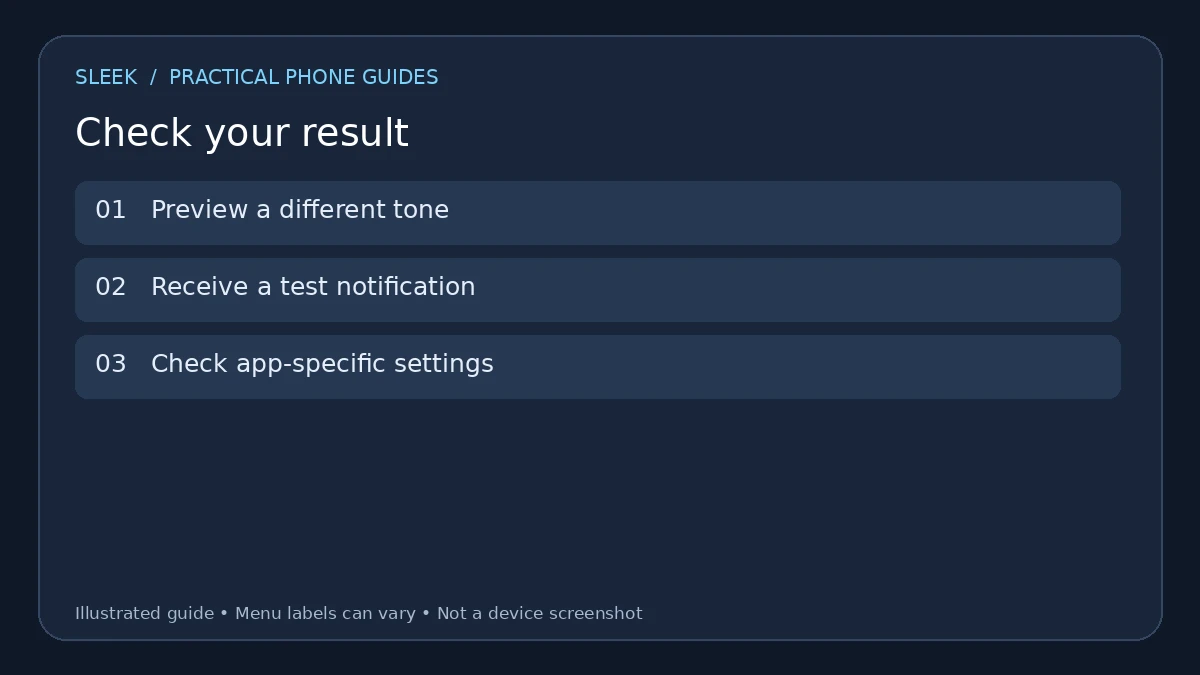
Check the actual app alert separately from the sound preview and from calls.
Notification appears, no sound
Run through these: sound mode, notification volume, whether the category is set to Silent instead of Alerting, and any active Do Not Disturb. On Samsung, there's one more suspect — the Mute all sounds setting under Accessibility. It's the kind of thing someone switches on while exploring settings and forgets for months.
No notification at all
That's a delivery problem, not a sound problem — no audio file fixes an alert that never arrives. Check the app can send notifications and the category is enabled. On Galaxy, Deep sleeping apps can swallow notifications from apps you haven't opened in a while. Fix delivery first.
Can't find the category controls
On Galaxy, use the Advanced settings switch if it's offered. Some apps simply don't have a category section; some keep their sound settings internally. Follow the options that actually exist on your phone rather than resetting every app's preferences in frustration.
Your downloaded sound is missing
First, confirm the file is real audio and plays locally. Then look for the picker's own Add or My Sounds control, if your phone has one. Custom-file import is device-dependent — don't assume a plus button exists in every manufacturer's notification picker, because on some phones it genuinely doesn't.
Quick answers
Does changing the notification sound change the call ringtone? No. Notification sound is for alerts, Ringtone is for calls. If you're unsure what you changed, review both.
Will every app use the new default? Only the ones without their own explicit sound or in-app setting. Check the app whose alert matters to you.
Why do the volume buttons change media instead? Android's volume buttons act on context, and often land on media. Open the expanded volume controls or sound settings to reach notification volume directly.
Can I silence one app but keep calls audible? Yes — use that app or category's silent notification controls. That's completely different from muting the whole phone.
Official sources
- Google Android: default notification sound and separate volumes
- Google Pixel: default and per-app notification sounds
- Samsung: ringtone, notification sound and volume
- Samsung: notification categories and custom app sounds
- Samsung: missing notifications and sound troubleshooting
- Google Android: notification controls
Documentation reviewed on 8 October 2026. Menu names and available options depend on the software version and device.