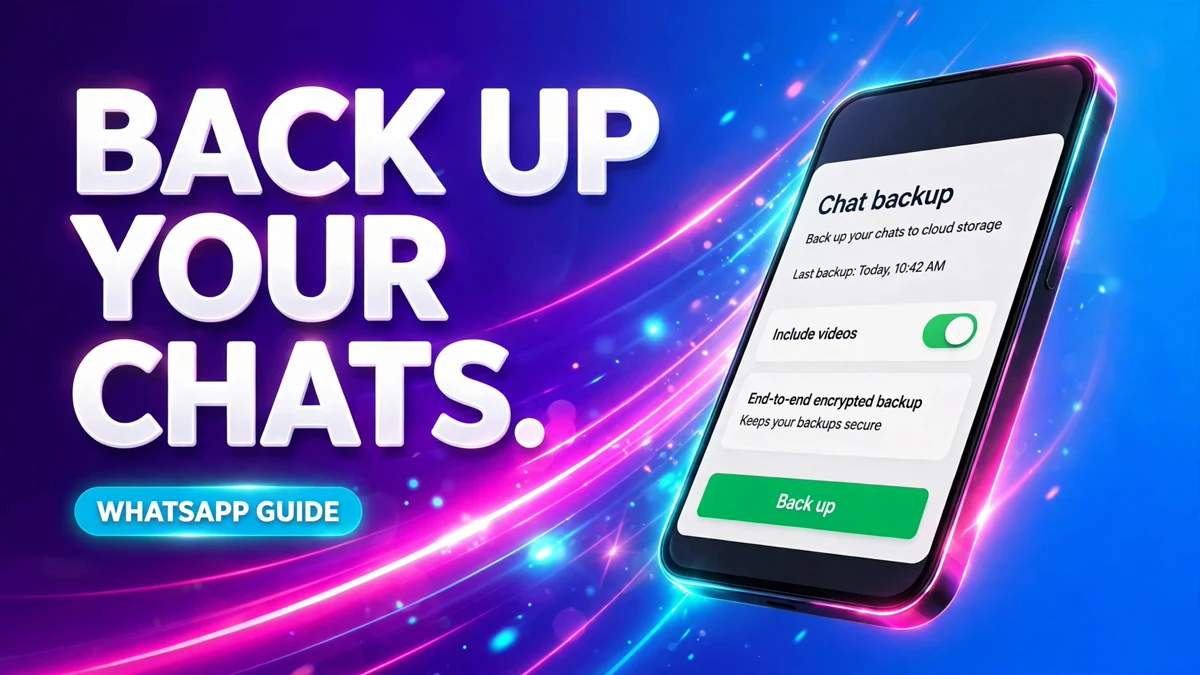
WhatsApp keeps your chats on your phone, not on its servers. Once a message is delivered, WhatsApp has no copy of it to hand back. So if the phone breaks, gets stolen, or you switch to a new one without a backup, those conversations are gone — photos, voice notes, years of messages, all of it. A backup is the only way back, and it only works if it was made before you needed it.
The good news is that the setup takes about two minutes. The rest of this guide walks through both phones, what the backup does and does not include, how to lock it with encryption, and how the restore actually works when you get a new phone.
Where your WhatsApp backup actually goes
WhatsApp offers two places to keep the copy, and the choice depends on your phone:
| Phone | Backup destination | What it needs |
|---|---|---|
| iPhone | iCloud | Apple ID signed in, iCloud Drive turned on, enough free iCloud storage |
| iPhone | WhatsApp cloud storage | WhatsApp updated to the latest version |
| Android | Google Account | A Google Account on the phone, Google Play services, enough free Google storage |
| Android | WhatsApp cloud storage | WhatsApp updated to the latest version |
WhatsApp cloud storage is the newer option. Backups there are always end-to-end encrypted, so not even WhatsApp or Meta can read them. It is still rolling out, so it may not be available on your phone yet — if you do not see it, use the iCloud or Google Account option and keep WhatsApp updated.
Back up WhatsApp on Android
- Open WhatsApp, tap the three dots at the top right, then tap Settings.
- Tap Chats > Chat backup. The top of the screen shows the date, time and size of your last backup — if it says Never, nothing has been saved yet.
- Tap Cloud backup and choose WhatsApp or Google. On older versions of the app the same screen may say Back up to Google Drive instead — same job, older labels.
- If you chose Google, pick the Google Account the backup should go to, or tap Add account to connect one.
- Tap Back up and leave the phone on Wi-Fi while it finishes. The first backup is the slow one; later ones only add what changed.
- Set the schedule to Daily so it keeps happening on its own. With a daily schedule, WhatsApp saves your chats every night, after the local backup it makes on the phone.
WhatsApp also saves a local copy of your chats on the Android phone itself each night, before the cloud upload. That local copy is a useful fallback if the cloud copy is missing, but it lives on the phone — it does not help if the phone itself is gone. The cloud backup is the one that protects you.
Back up WhatsApp on iPhone
- First, make sure iCloud is ready. Open the iPhone Settings app, tap your name at the top, then iCloud > iCloud Drive. Turn on Sync this iPhone, and make sure WhatsApp is turned on in the list of apps syncing to iCloud Drive.
- Open WhatsApp and tap Settings at the bottom right, or your profile picture.
- Tap Chats > Chat backup.
- Tap Cloud backup and choose WhatsApp or iCloud, then tap Turn on backups.
- If you chose iCloud, pick how often WhatsApp backs up — daily, weekly or monthly. Daily is the safe choice.
- Tap Back up now to make the first copy straight away, and keep the phone on Wi-Fi while it uploads.
If you choose WhatsApp cloud storage, you cannot also create an iCloud backup — it is one or the other. And if you use both iCloud options (the WhatsApp backup and the iPhone's own iCloud backup), both copies need their own iCloud storage.
Choose what the backup includes
The backup screen has a few switches that decide how big the copy gets and how much data it uses:
- Include videos in chats. Videos are the bulk of a backup's size. Leaving them off keeps the backup small and fast, and it is the first thing to try when a backup fails for lack of space. If your chats are mostly text, you will barely notice they are missing.
- Include status archive. This backs up your archived status photos and videos along with your chats.
- Back up over mobile data (Android) / Back up using cellular. Leave this off and backups only run on Wi-Fi, so a big first backup never eats your mobile data.
Storage is the usual reason backups stop working. Android backups count toward your Google storage — 15 GB free, shared with Gmail, Google Drive and Google Photos. iPhone backups count toward iCloud — 5 GB free, shared with your photos and the iPhone's own backup. When either one fills up, the backup fails. Our guide to freeing up storage on iPhone and Android walks through clearing space, and our guide to stopping WhatsApp photos from saving to your gallery cuts down the media piling up in the first place.
Lock the backup with end-to-end encryption
A backup in WhatsApp cloud storage is always end-to-end encrypted. A backup in your Google Account or iCloud is not encrypted end to end by default — anyone who gets into that cloud account could restore your chats. You can lock it:
- Go to Settings > Chats > Chat backup > End-to-end encrypted backup.
- Tap End-to-end encryption.
- Choose a passkey, or tap More options to use a 64-digit encryption key or create a password instead.
- Tap Create and wait for the process to finish.
One side effect worth knowing: once end-to-end encrypted backup is turned on, your chat history is no longer included in the iPhone's own device backup. The encrypted WhatsApp backup becomes the only copy, so keep its password safe.
How to restore your WhatsApp chats on a new phone
Restoring only happens during setup — there is no restore button in Settings. The steps are the same on both phones:
- First, check that a backup exists. On the old phone, open Settings > Chats > Chat backup and look at the time and size of the last backup. If it says Never, make one now and wait for it to finish before you switch phones.
- Install WhatsApp on the new phone and verify the same phone number the backup belongs to.
- Sign in to the same Google Account (Android) or the same Apple ID (iPhone) that the backup was made with. On iPhone, also make sure iCloud Drive is turned on.
- When WhatsApp offers it, tap Restore (Android) or Restore Chat History (iPhone). Enter your encryption password or key if the backup is end-to-end encrypted.
- Wait for the restore to finish before sending new messages — WhatsApp only starts backing up your chats again once the restore is complete.
A few hard limits to know before you start:
- Only the last successful backup can be restored. Each new backup replaces the old one, so there is no way back to an older copy.
- Messages sent or received after the last backup are not in it. That is why a daily schedule matters.
- If your most recent backup is more than 120 days old, restoring it may not be possible, even if your account is still active.
- If chats are already missing, do not create a new backup, delete the existing backup, or factory reset the phone. A new backup permanently replaces the one that still contains your missing chats — check that a backup exists first.
Save one important chat as a file
For a single conversation you want to keep outside WhatsApp — a receipt, an address, a conversation worth keeping — you do not need a full backup. Open the chat, tap the three dots (Android) or the contact name (iPhone), then More > Export chat. Choose whether to attach the media or send just the text. WhatsApp creates a file with the chat history that you can save or send to yourself. It is a snapshot of one chat, not a restore point for the whole account.
If the backup fails or the restore option never appears
- Backup fails or never finishes. Check the free space in your Google Account or iCloud, and the free space on the phone itself. Exclude videos, or clear space and try again on stable Wi-Fi.
- Restore is never offered. The restore prompt only appears when the phone number and the cloud account match the backup exactly. A different Google Account or Apple ID, or a different number, means WhatsApp sees no backup at all.
- The backup screen says Never. No backup was ever made, or an old one was deleted. WhatsApp's help pages note that Google may automatically delete backups that have not been updated in 5 months. Run a fresh backup now and set it to Daily.
- Backup is stuck halfway. Keep the phone on Wi-Fi and charging, make sure WhatsApp is updated, and try again. A first backup with years of media can take a while — that is normal, not a failure.
FAQ
Can I back up WhatsApp chats to Google Drive on an iPhone?
No. On iPhone, WhatsApp backs up to iCloud or to WhatsApp cloud storage. A Google Account backup can only be restored on an Android phone.
Can I restore an Android WhatsApp backup on an iPhone?
No. Cloud backups do not cross platforms — an iPhone cannot restore a Google Account backup and Android cannot restore an iCloud backup. When you switch platforms, use WhatsApp's chat transfer during the new phone's setup instead.
How often should WhatsApp back up?
Daily, over Wi-Fi. A daily backup means the most you can ever lose is one day of messages, and it happens overnight without you thinking about it.
Do WhatsApp backups include videos?
Only if you turn on Include videos in chats. Videos make the backup much bigger and slower, so many people leave them off and keep the text, photos and voice notes instead.
Can I back up WhatsApp from WhatsApp Web?
No. Backup and restore are only available in the WhatsApp app on your phone. WhatsApp Web and the desktop apps mirror your chats but cannot make or restore a backup.
What happens if I lose my encrypted backup password?
The backup is lost with it. WhatsApp cannot reset the password or key, and neither can Google or Apple. That is the point of end-to-end encryption — and the reason to store the password in a password manager the day you set it.
Why does my WhatsApp backup keep failing?
Usually storage. Check the free space in your Google Account or iCloud, and on the phone itself. Turning off Include videos in chats is the fastest fix; clearing space is the lasting one.
Sources checked on 2026-11-10: WhatsApp Help Center: How to back up your chat history (iPhone), WhatsApp Help Center: How to back up your chat history (Android), WhatsApp Help Center: How to restore your chat history (iPhone), WhatsApp Help Center: How to restore your chat history (Android), Sinch: WhatsApp backup — How to back up and restore your messages, GetKanal: WhatsApp Backup — How to Back Up and Restore Your Chats.