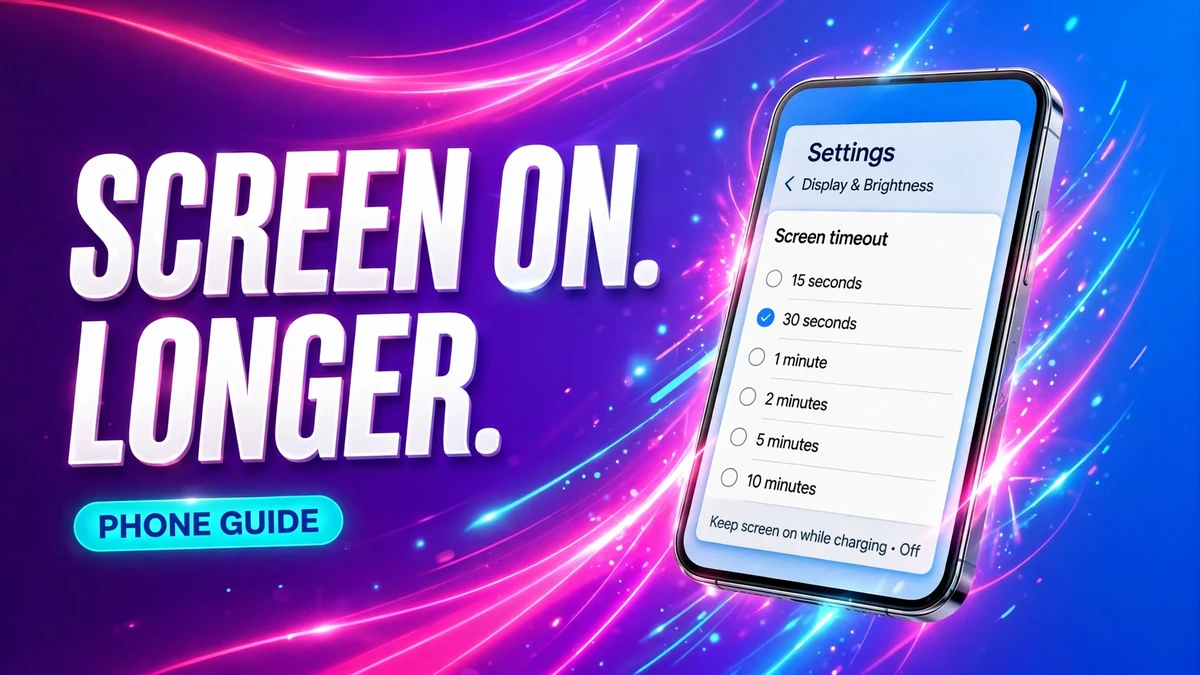
You are reading a recipe, following a map, or watching a timer, and the screen goes dark right in the middle of it. Or the opposite problem: you set the phone down, and the screen stays lit for minutes, quietly draining the battery. Both problems come from the same setting — screen timeout, called Auto-Lock on iPhone. It is one switch, it lives in a different place on every phone, and the right value depends on how you actually use your phone.
What screen timeout actually controls
Screen timeout is not a limit on how long you can use your phone. It only counts idle time: the stretch after your last tap, swipe, or keypress. While you are actively scrolling, typing, or watching a video, the timer keeps resetting, so a short timeout does not interrupt active use.
What happens when the timer runs out also differs by phone. On iPhone, the screen dims briefly first, then turns off and locks, so you need your passcode, Face ID, or Touch ID to get back in. On Android, the screen turns off and the phone locks according to your lock-screen security setting. That is why a short timeout is also a security setting: a phone left lit on a table is a phone anyone can pick up and use.
On iPhone: change Auto-Lock
Apple calls this setting Auto-Lock, and it has stayed in the same place for years.
- Open Settings.
- Tap Display & Brightness.
- Tap Auto-Lock. The row shows the time you are using now, such as 30 Seconds.
- Tap the time you want: 30 Seconds, 1 Minute, 2 Minutes, 3 Minutes, 4 Minutes, 5 Minutes, or Never.
- Go back. The new time applies right away.
The default on a new iPhone is 30 seconds, which is the best choice for battery life and security. If you regularly follow recipes, read long articles, or use maps, 2 or 3 minutes is a comfortable middle ground: long enough that the screen rarely goes dark while you are reading, short enough that a forgotten phone does not stay lit for long.
If Auto-Lock is greyed out
If you can only pick 30 seconds and the other options are greyed out, Low Power Mode is almost certainly on. Low Power Mode forces Auto-Lock to 30 seconds to save battery. Turn it off under Settings, then Battery, then Low Power Mode, and the full list comes back. A work or school phone managed by an organisation can also lock this setting — in that case, only the administrator can change it.
Keep the screen on while you are looking at it
If your screen keeps going dark while you are still reading, you do not necessarily need a longer timeout. On iPhones with Face ID, Attention Aware Features can keep the screen lit while you are looking at it: go to Settings, then Face ID & Passcode, and turn on Attention Aware Features. This works best paired with a short timeout, because the phone then goes dark quickly when you set it down, but stays on while you read. On supported Pro models, the Always On display shows a dimmed lock screen after the phone locks — it does not extend Auto-Lock itself, it only changes what the locked screen looks like.
On Pixel and stock Android: change Screen timeout
On Pixel phones, the setting is called Screen timeout and sits under the display settings. Exact menu names vary slightly by Android version.
- Open Settings.
- Tap Display & touch (on older Pixels, just Display).
- Tap Screen timeout.
- Choose how long the phone waits before the screen goes dark.
Pixel offers a range from 15 or 30 seconds up to 30 minutes on some models, depending on the version. If you cannot find the setting, use the search bar at the top of Settings and type screen timeout.
On the same Screen timeout page, newer Pixels offer two helpers worth knowing. Screen attention (Pixel 4 and later) keeps the screen on while you are looking at it, using the front camera to check — the same idea as Apple's Attention Aware Features, and it works best with a short timeout. Adaptive timeout, on newer models, can turn the screen off sooner when you are not looking at it. Neither helper replaces the timeout itself; they only adjust how strictly it is applied.
On Samsung Galaxy: change Screen timeout
Samsung's route is the most straightforward of the three, but it has one important limit: there is no Never option.
- Open Settings.
- Tap Display.
- Tap Screen timeout.
- Choose a duration between 15 seconds and 10 minutes.
Samsung recommends 1 minute or less for battery saving, and that is sensible for everyday use. If you need the screen to stay on longer — for navigation, a workout timer, or a recipe — 5 or 10 minutes covers most cases without leaving the phone lit indefinitely.
Pick the right time for how you use your phone
There is no single best timeout. The right value is the shortest one that does not annoy you during your normal use.
| Situation | Suggested timeout | Why |
|---|---|---|
| Maximum battery and security | 30 seconds | Least screen-on time, and the phone locks fastest if left unattended |
| Everyday messaging and browsing | 1 to 2 minutes | Rarely interrupts active use, still locks quickly when forgotten |
| Reading, recipes, and maps | 2 to 5 minutes (10 on Samsung) | Long enough for hands-free glances without constant unlocking |
| One long session at home | Never on iPhone, 10 minutes on Samsung, then switch back | Covers the session without becoming your permanent setting |
| Shared or children's phone | 30 seconds to 1 minute | Limits what someone else can do with an unlocked phone left lying around |
If you are torn between two values, pick the shorter one and add a looking-at-the-screen helper (Attention Aware Features on iPhone, Screen attention on Pixel, Keep screen on while viewing on Samsung where available). That combination usually beats a long timeout on both battery and convenience.
If the screen still locks too early
A timeout change that seems to do nothing usually has a second setting overriding it.
- Low Power Mode or Battery Saver is on. On iPhone, Low Power Mode forces 30 seconds. On Android, Battery Saver can shorten the timeout or dim the screen sooner. Turn the saver off and check again.
- A work profile or device-management policy controls it. Company and school phones can enforce a maximum timeout. The setting may be greyed out or reset itself, and only the administrator can loosen it.
- You are watching the lock screen, not the home screen. On Samsung, the lock screen can turn off sooner than the main screen timeout. Wake the phone and check whether the problem is the lock screen itself rather than the timeout.
- An app is keeping the screen awake, or failing to. Video players, navigation apps, and video calls normally keep the screen on while they are in the foreground. If one app goes dark mid-video, that is usually the app's own behaviour, not your timeout setting — and if an app never lets the screen sleep, that app is the battery drain to investigate, not the timeout.
- The phone is hot or nearly out of battery. Phones can dim or turn off the screen early to protect the battery or cool down. That is temporary and not a timeout problem.
To test a new timeout, set the phone down inside an app without touching it and watch: the screen should dim a few seconds before your chosen time, then turn off and lock. If it locks much sooner, one of the overrides above is at work.
FAQ
Does a longer screen timeout drain the battery?
Yes, but only in proportion to how long the screen actually stays on. A longer timeout costs nothing while you are using the phone, because the timer keeps resetting. It costs battery when the phone sits idle with the screen lit — which is exactly what a short timeout prevents. Apple notes that delaying or preventing Auto-Lock may increase power consumption.
Can I keep the screen on forever on Samsung?
Not with the standard setting. Samsung's screen timeout tops out at 10 minutes and cannot be turned off completely. For a single long session, use an app that keeps the screen awake (navigation or video apps do this on their own) or your model's keep-screen-on-while-viewing option if it offers one, rather than hunting for a hidden Never switch that does not exist in standard settings.
Why does my iPhone screen dim before it locks?
That dimming is a warning, not a fault. A few seconds before Auto-Lock runs out, the screen dims to signal that it is about to turn off. Touch the screen during that dim phase and the timer resets. If the dimming itself bothers you, it is tied to the timeout and cannot be switched off separately — a longer timeout pushes the dimming later too.
Does screen timeout affect alarms, calls, or music?
No. An incoming call wakes the screen regardless of timeout, alarms still sound, and music or podcasts keep playing with the screen off. Timeout only controls the display and the lock, not background audio or alerts.
Will changing screen timeout on my phone change my tablet too?
No. Screen timeout is a per-device setting. Changing Auto-Lock on your iPhone does not change it on your iPad, and changing it on one Android phone does not change it on another, even on the same account.
How do I go back to the default?
On iPhone, go back to Settings, then Display & Brightness, then Auto-Lock, and pick 30 Seconds. On Pixel, go to Settings, then Display & touch, then Screen timeout, and pick 30 seconds. On Samsung, go to Settings, then Display, then Screen timeout, and pick 30 seconds or 1 minute, whichever your model offered as standard.
For the official steps, see Keep the iPhone display on longer from Apple Support, Manage screen and display settings on a Pixel phone from Google Pixel Phone Help, and Change the screen timeout on your Samsung Galaxy to save power from Samsung Support.