With Google Clock, it's easy to set your bedtime, assume the morning alarm is sorted, then sleep through it — because the two were never really connected.
The Bedtime tab looks like one feature. It isn't. It's three separate choices wearing one outfit — an evening reminder, a quiet-phone wind-down, and a morning alarm — and each one can be right while another is wrong. ## First: are you actually in Google's Clock?
This sounds silly, but it trips people up constantly. Plenty of Android phones ship with a second app also called Clock — Samsung's, Xiaomi's, OnePlus's. They look similar and they do *not* have the same tabs. If you're following these steps and there's no Bedtime tab anywhere, you're probably in the manufacturer's app, not Google's.
Google's Clock is "Clock by Google" in the Play Store. Heads-up: some newer features need Android 14 or later, so installing the app doesn't guarantee every option appears.
Setting the schedule, one piece at a time
- Open Google Clock and tap Bedtime.
- On the Schedule card, tap the time under Bedtime. Pick your evening time and the days it applies to. Switch the reminder or Bedtime mode on if you want them — but notice these are optional extras, not the alarm itself.
- Now tap the time under Wake up. Choose the morning time and its days *separately*. This is the step people skip, and it's the one that actually wakes you.
- Look at Sound and Vibrate. If you see Sunrise alarm, that gently brightens your screen for the 15 minutes before the alarm goes off — nice if you wake in a dark room, pointless if your phone charges face-down.
- Hop over to the Alarm tab. Your Bedtime wake-up alarm shows up there too. Check it's enabled, and — this is the bit that matters — check what its *next* occurrence is. If it says Thursday and you need Tuesday, something's off with your days.
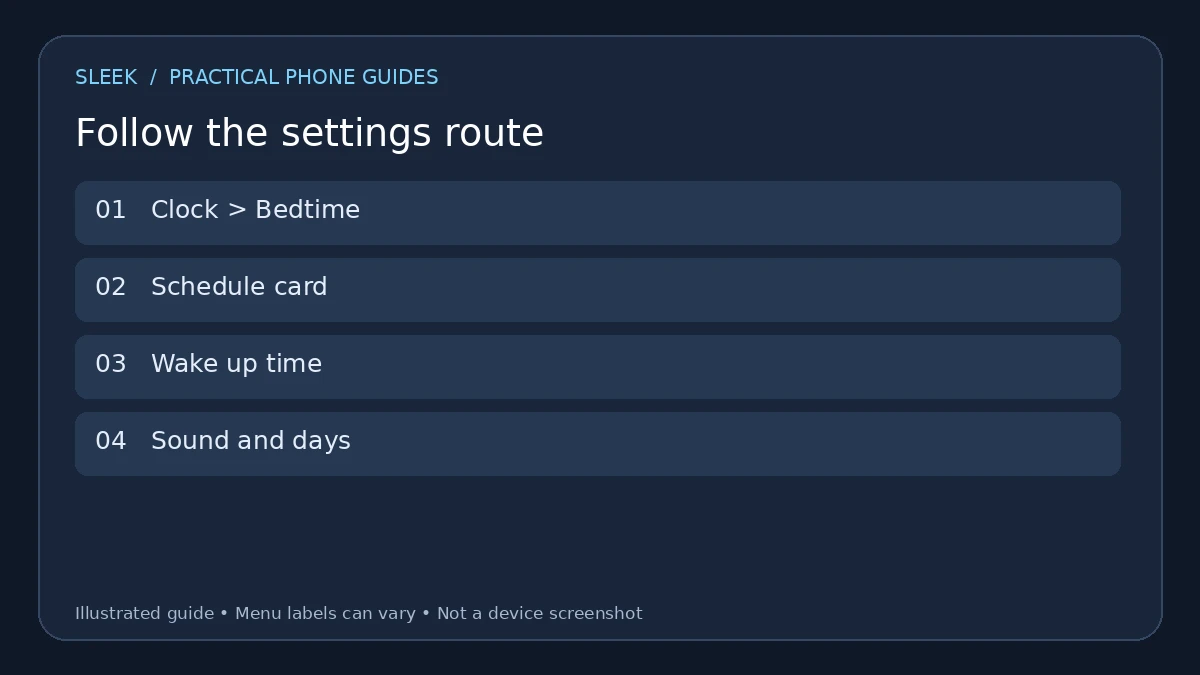
Review the evening routine and morning alarm independently.
The weekday trap: Sunday night is Monday morning
Say you want to wind down at 22:30 and get up at 06:30 for work. You set the evening routine for Monday to Friday and the alarm for Monday to Friday, and feel organised. Then Sunday night comes, no reminder, no alarm Monday morning.
Why? Because Sunday night's wind-down belongs to Monday morning. The evening routine runs on the nights *before* your working mornings, so your evening days and your morning days are offset by one. A Sunday evening routine plus a Monday morning alarm are the same overnight period, even though the weekday labels don't match.
After setting it up, write down three things — next evening reminder, next morning alarm, wake-up sound — and check them against your actual week. Revisit that checklist after a holiday or a shift change.
Picking a wake-up sound (including your own file)
In the Alarm tab, open the wake-up alarm and tap its sound. You can pick a device sound, or use Add new to choose a local audio file from your phone. Google also supports some music-app integrations, but those come with their own account requirements — and an alarm that depends on a streaming login is an alarm with an extra way to fail.
A local file is the boring, reliable choice — it doesn't care whether your subscription lapsed or the Wi-Fi dropped overnight.
Sleep sounds, Bedtime mode, and that activity chart
Three more things live in this tab, and they're all optional:
- Sleep sounds start when you turn them on in the Bedtime tab. They're separate from the wake-up sound — one helps you drift off, the other hauls you out of bed.
- Bedtime mode runs through Digital Wellbeing and handles quiet-time and screen settings. What exactly it offers depends on your phone.
- Recent bedtime activity needs Digital Wellbeing plus the right permissions. And be honest about what it is: it estimates time in bed from device activity, motion, and light. That's not the same as knowing you were asleep.
If all you need is a reliable morning alert, start with the schedule and the alarm. Add the extras later, when they're actually useful to you.
The five-minute test that saves a ruined morning
Don't trust a brand-new schedule blind. Set a throwaway alarm a few minutes ahead with the same sound and wait for it to go off. Then — the step everyone forgets — confirm your *real* wake-up time is still there. A test alarm has a nasty habit of becoming the one you actually wake up to.
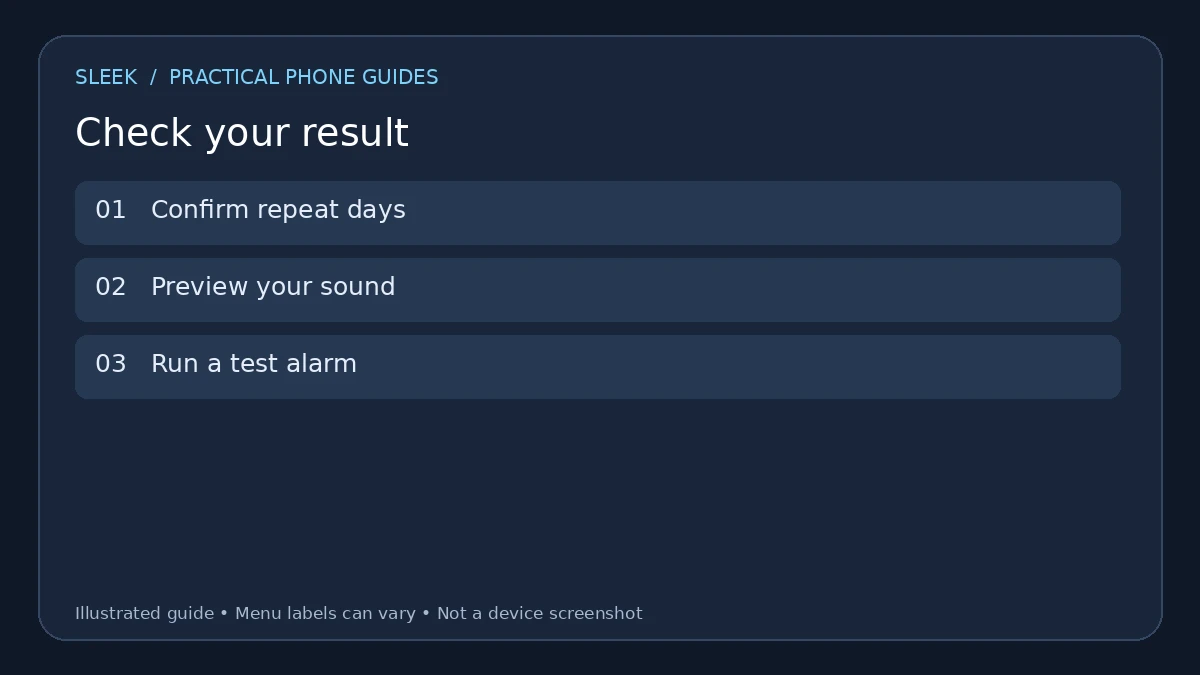
Check the sound, volume and next occurrence while you can still correct them.
No Bedtime tab at all?
Confirm the app is actually Google's Clock, check for updates and your Android version, and don't follow Google Clock's menu route inside another maker's Clock app. If Bedtime genuinely isn't available, a plain repeating alarm does the same job with less decoration.
Alarm shows up but you can't hear it
Google's own troubleshooting runs through the usual suspects: a silent alarm sound, low alarm volume, blocked Clock notifications, Do Not Disturb, and Battery Saver. Start with whatever warning Clock itself is showing you — it usually points at the exact setting that's wrong.
One specific trap: the media-volume slider is *not* the alarm volume. You can have YouTube blasting and still sleep through an alarm set to near-zero. Check the alarm volume specifically.
Wrong time, wrong day
Check AM/PM first — it's embarrassing how often that's the whole story. Then the repeat days, then the next occurrence. And if you've just travelled, check the device time zone. Google puts those controls in Clock's settings, though the exact route varies by software.
Two alarms five minutes apart? Don't.
Google advises leaving at least five minutes between alarms, because the first can get cancelled when they're too close. Stacking three nearly identical alarms "just to be safe" can leave you with *no* alarm.
Quick answers
Are the bedtime reminder and the wake-up alarm the same alert? No. Different times, different days, different sound. Check each one.
Do sleep sounds start on their own? Google says they play when you turn them on. The wake-up sound is chosen separately.
Why is my bedtime activity chart empty? Check the schedule and the Digital Wellbeing permissions. An empty chart is a different problem from a disabled alarm — don't conflate them.
Can I use this on weekends? Pick the days that fit. If weekends need a different wake-up time, use a separate alarm and check the next occurrence of both, so they don't fight each other.
Official sources
- Google Clock: bedtime schedule
- Google Clock: alarm sounds and troubleshooting
- Google Clock: installation and version availability
- Google Clock: time, date and time zone
- Google Pixel: Digital Wellbeing and bedtime
Documentation reviewed on 8 October 2026. Menu names and available options depend on the software version and device.