Your phone rings in your pocket. You can't see the screen. Is it your mum, or is it another spam call you don't want to pick up?
The 20-second version
Open Contacts, tap the person, hit Edit, then Ringtone. Pick something unmistakable, tap Done, and tap Done again on the contact card if it asks. That's it. The Text Tone setting right underneath is a separate thing — it controls their messages, not their calls.
Setting it up, step by step
- Open Contacts and find the person whose calls you want to recognise.
- Check the number on their card is actually the number they call you from. People change numbers, get work phones, call from a partner's phone — and then wonder why the special tone never plays.
- Tap Edit, then Ringtone.
- Pick something that sounds nothing like your normal ringtone. Two similar chimes are impossible to tell apart through a coat pocket. A bright marimba against a low, mellow default? That you'll notice.
- Go back with Done, and tap Done on the contact card if another save prompt appears.
Resist the urge to give fifteen people fifteen different tones — after the fourth one, you'll forget which is which, and the whole system collapses.
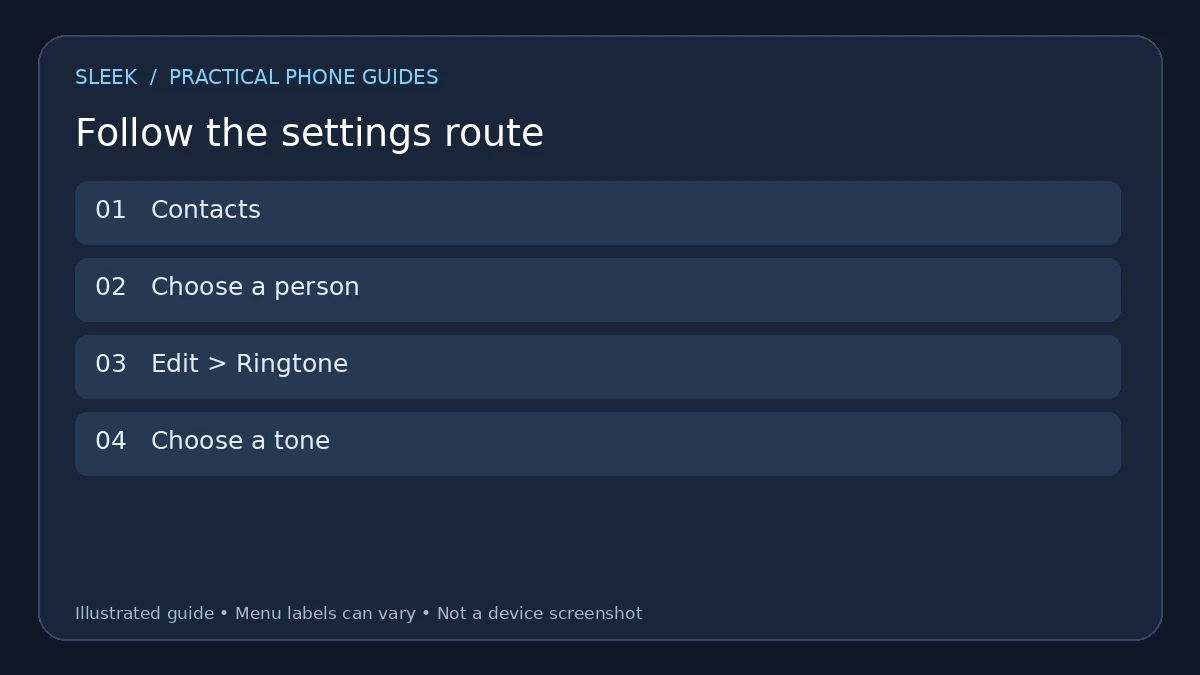
Contact ringtone route. This is an illustrated guide, rather than a screenshot of a specific iOS version.
Ringtone, Text Tone, and your main ringtone — don't mix them up
Your iPhone has three separate sound settings that people constantly confuse:
- One person's calls: Ringtone, inside that contact.
- That person's messages: Text Tone, inside the same contact.
- Everyone else's calls: Settings → Sounds & Haptics → Ringtone.
Changing one does nothing to the others. So if you set a contact ringtone and then their *text* still sounds the same, nothing is broken — you just changed the call sound, not the message sound.
And one more thing: whether the phone rings out loud at all depends on the ringer volume, the mute switch or Action Button, and whatever Focus mode is running. A contact ringtone can't override a silenced phone on its own.
Using your own audio instead of a built-in tone
A file sitting in your Files app is not a ringtone yet. It has to be exported as one, and on iPhone that means GarageBand.
The rough shape of it: open GarageBand, start an audio-recording project, open Tracks and the Loops browser, and pull your file in through Files. Drag it to the start of the track, trim the bit you want, then go back to My Songs, hold the project, and choose Share → Ringtone. Name it, export, and pick Assign to contact. Apple's export caps ringtones at 30 seconds, and GarageBand will shorten a longer selection for you — but trimming it yourself gives you the exact opening you want.
Two gotchas: protected songs tied to a streaming subscription won't work here, and don't pick "Use as standard ringtone" by accident if you only meant one person.
The test that actually tells you something
Ask the person to call you — a normal phone call, not WhatsApp, not FaceTime Audio — while you're standing next to your phone. Watch the name that appears. Listen for the sound. Then get someone *else* to call you, so you can hear the contrast with your regular ringtone.
WhatsApp calls use WhatsApp's own sound settings, not your iPhone contact ringtone — testing with WhatsApp and concluding "it doesn't work" is probably the most common false alarm with this feature.
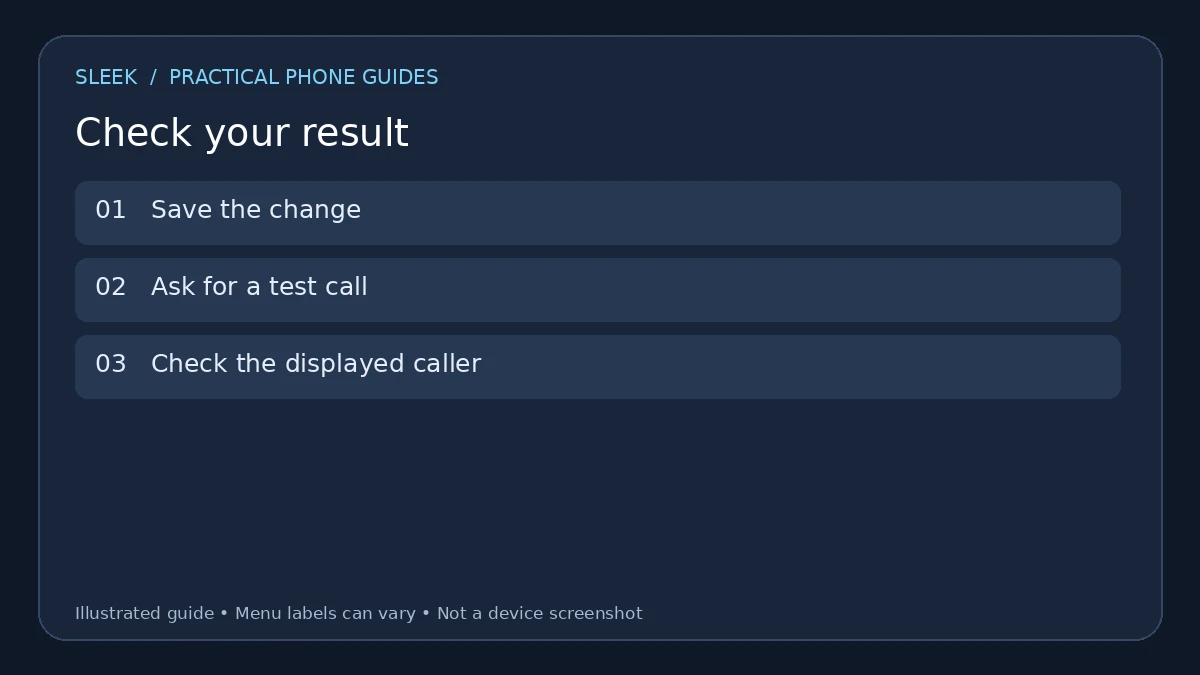
Compare the incoming caller with the contact you edited before changing another setting.
Still hearing your normal ringtone?
Nine times out of ten, it's one of these:
You're editing the wrong card. The person has two contact cards and you decorated the one they never call from. Check the number against the one that actually shows up when they call, and fix the right card.
The change didn't save. Reopen the contact and look at what the Ringtone field actually says. If it shows your old tone, the edit never stuck. Set it again and watch for the second Done button.
They called from a different number. A work phone, a borrowed phone, a new SIM. The special tone only fires when the incoming number matches the card.
Call shows up, but no sound at all
Check the ringer volume in Sounds & Haptics first. On iPhones with an Action Button, check the mute state in Control Center or what the button is configured to do. On older models, there's the physical Ring/Silent switch on the side — the one that gets flipped by accident in a bag. Then check whether a Focus mode is active and whether it allows calls through.
You want one person to get through even when the phone is silenced
A custom sound alone won't do that. You need Emergency Bypass: Contacts → the person → Edit → Ringtone (or Text Tone), and switch it on there. That lets that contact's sounds and vibrations come through when the phone or notifications are silenced. It's deliberately tucked away — use it for the one or two people who genuinely need to reach you at 3am, not for everyone.
Your exported or bought tone has vanished
If you made the tone in GarageBand, go back and make sure the export actually finished — a half-done export won't show up in the picker. For purchased tones, Apple's "Download All Purchased Tones" option sometimes appears in ringtone settings, though whether a given tone can be redownloaded varies.
Three things people always ask
Do I need an app for a built-in contact ringtone? No. Contacts has the control built in. GarageBand only enters the picture when you want your own audio as a ringtone.
Will this change their text messages too? No. Set Text Tone separately in the same contact card.
Can I do this for several people? Sure — repeat the same steps per person. Just keep the set small and the sounds clearly different from each other.
Official sources
- Apple: tones and contact ringtones
- Apple: create a custom ringtone with GarageBand
- Apple: sounds and vibration settings
- Apple: Focus and Emergency Bypass
- Apple: ringtone controls on different iPhone models
Documentation reviewed on 8 October 2026. Menu names and available options depend on the software version and device.