Unlocking your phone to a photo you forgot you took — a lake from last summer, a street in Lisbon — is the whole appeal of Photo Shuffle. Set it up carelessly, though, and your own face ends up cropped behind the clock for a week.
The trick is that Photo Shuffle has two settings pretending to be one: *which* photos are in the mix, and *when* they change. Get both right and it's lovely. Get either wrong and it feels broken.
The route
Settings → Wallpaper → Add New Wallpaper → Photo Shuffle. Fair warning: the gallery and button shapes shift between iOS releases, so if your screen looks slightly different from a tutorial screenshot, you're probably not doing anything wrong.
Start with four photos, not forty
Before you build a giant collection, try three or four pictures that look nothing alike — a lake, a forest, a mountain. Why? Because when your wallpaper changes and you can't even tell, the feature feels pointless. Distinct photos make the shuffle visible, and they make problems obvious: if one of them crops badly, you'll spot it immediately.
Two things to check on each photo:
- Is there room around the subject? A portrait crop is tall and narrow. Faces and important details parked at the edges will slide behind the clock and widgets.
- Does it survive the clock? A gorgeous photo with a bright, busy patch exactly where the time sits becomes an unreadable mess. A dedicated album ("Scotland trip", "film photos") helps keep a theme together, and keep the originals in Photos while you set this up.
Building your first shuffle
- Open Settings → Wallpaper, then Add New Wallpaper.
- Choose Photo Shuffle.
- Pick from the featured categories or an album. For real control, choose Select Photos Manually and hand-pick your images.
- Choose On Tap, On Lock, Hourly, or Daily. If you picked photos manually, the frequency control hides under the three-dot menu in the preview — easy to miss.
- Check the crop and the clock layout, then tap Add.
- Choose Set as Wallpaper Pair, or open Customize Home Screen if you want a different Home Screen look.
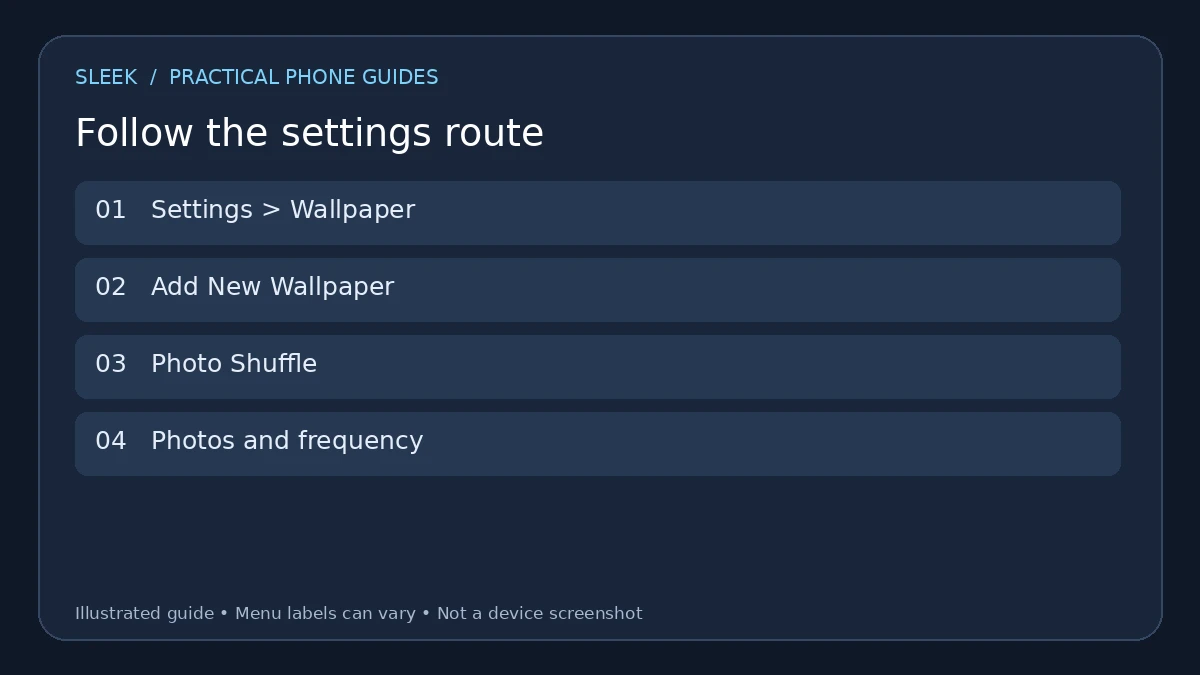
Choose the collection and the shuffle trigger before adding the wallpaper.
On Tap, On Lock, Hourly, Daily — which one actually suits you?
- On Tap — a new photo every time you tap the Lock Screen. Best for right now, while you're testing a small collection and want to flick through it.
- On Lock — changes when you lock the phone. Good everyday setting: you see a fresh photo each time you pick the phone up, without it churning while you're using it.
- Hourly — the picture stays put for a while. Pick this if you like a photo enough to live with it for an hour.
- Daily — one photo per day. The calm option. Your wallpaper becomes a slow rotation instead of a slot machine.
One caution: the frequency setting is a *trigger*, not a promise. Daily means the shuffle advances once a day — not "a brand-new photo every single morning". And if you're judging Daily by tapping repeatedly for a few seconds, you'll conclude it's broken. You'd just be testing the wrong trigger. Start with On Tap while curating, then switch to On Lock or Daily once the collection is settled.
Changing a shuffle you already made
You don't have to start over. From the Lock Screen, open the wallpaper gallery, pick your shuffle wallpaper, and tap Customize. Apple's guide points to the photo thumbnail for changing the selection and the three-dot menu for the frequency. Hit Done when you're finished.
One subtlety: a tap on the ordinary Lock Screen and a tap inside the editing preview are two different contexts. If the phone is locked, authenticate first. If nothing seems to respond, you're probably tapping in the wrong layer.
A collection that actually looks good together
Try this as a test set: a forest, a coastline, and a night-sky shot. Check each one at the exact crop the phone will use. Make sure the clock reads cleanly against both the bright coastline and the dark sky — a wallpaper that works on one extreme and fails on the other will annoy you every other day.
You don't need matching photos — a mix of close and wide scenes beats five versions of the same sunset. Just keep the clock area calm in all of them.
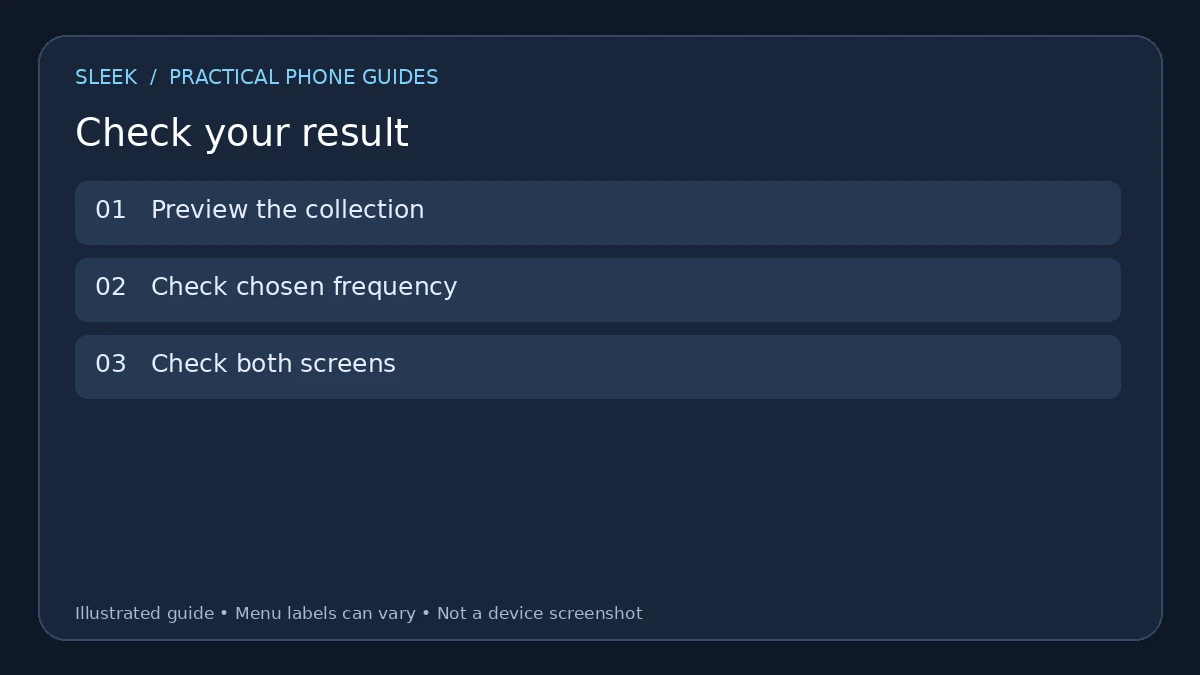
Review several images and both screen previews instead of judging the first photo only.
Can't find Photo Shuffle?
Start from Add New Wallpaper, not the controls for editing a single static photo. Also check your iOS version: Photo Shuffle needs iOS 16 or later — no amount of menu-hunting will summon a feature that isn't there.
"It never changes!"
Before rebuilding: is the shuffle you edited actually the *active* wallpaper? People often edit one while a different one is applied. Check the active one, its frequency, and test with the matching action outside the editing preview.
The menus look nothing like the tutorial
Follow whatever your version actually offers. Apple's current guide includes featured categories, albums, and manual selection. If the album control is missing on your phone, manual selection still lets you build a small collection — don't assume your phone is broken because its menu layout differs from a screenshot taken on another iOS version.
Faces cut off, clock unreadable
Open the customiser and inspect each photo. Apple's guide describes zooming and repositioning within it. If a subject just won't fit the portrait frame comfortably, no amount of nudging will save it — pick a different image. Some photos are landscape-shaped at heart, and that's fine. They just aren't wallpaper photos.
The phone keeps switching to a different wallpaper
This one has a sneaky cause: a Focus mode linked to a different Lock Screen. Apple documents that linked Focus settings can decide which Lock Screen appears. So your shuffle might be perfect — it's just not the wallpaper that Focus is showing you. Check that relationship before you delete and rebuild the whole shuffle.
Quick answers
Can I pick my own images instead of the featured ones? Yes — Select Photos Manually, or the album option where available.
Is this a slideshow with a custom seconds timer? No. The choices are On Tap, On Lock, Hourly, and Daily. There's no "every 30 seconds" option hiding anywhere.
Will the Home Screen look identical? Not necessarily. Check the wallpaper-pair and Home Screen options when you add it, and look at both screens afterwards.
Should I add loads of similar photos? Start small. Clearly different images make cropping and trigger problems visible. Expand once the setup works.
Official sources
Documentation reviewed on 8 October 2026. Menu names and available options depend on the software version and device.