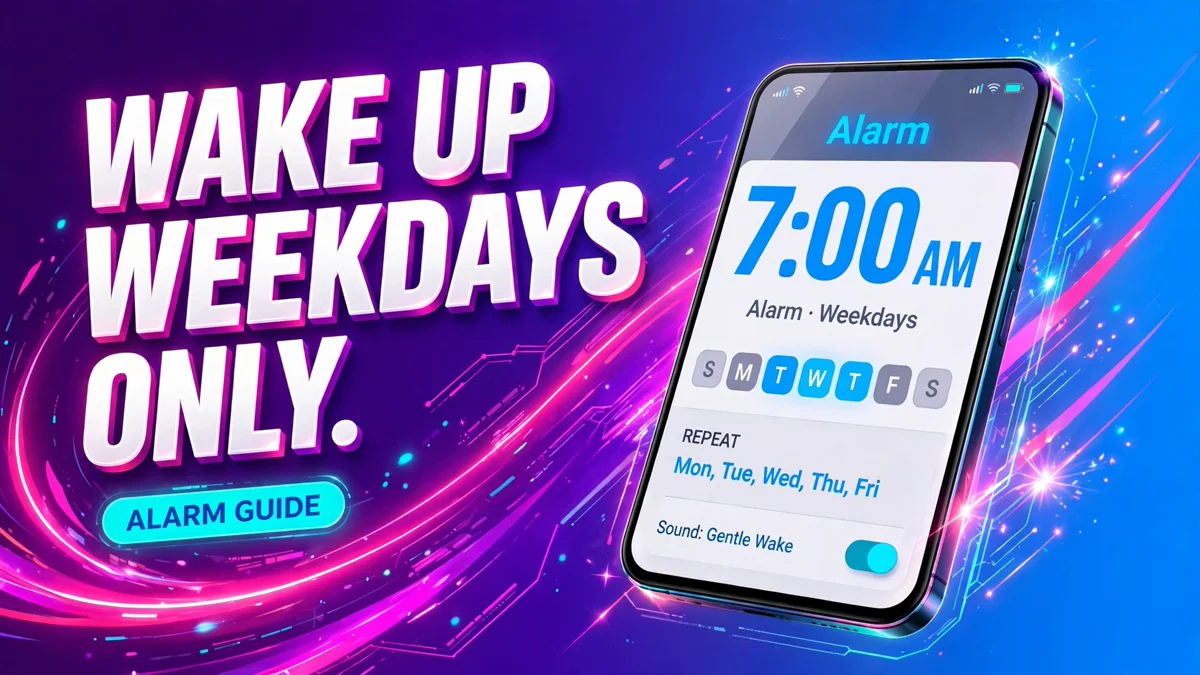
One alarm set for 7 AM should mean 7 AM on workdays — not 7 AM on a Saturday when you finally get to sleep in. The usual workaround is worse than the problem: delete the alarm on Friday night, recreate it on Sunday, and hope you remember. Every phone already has the fix built in. It is a row of weekday letters hiding under the time picker, and once you tick Monday to Friday, the alarm rings on weekdays and stays quiet on weekends until you change it.
iPhone: set a weekday alarm with Repeat
Apple's own alarm guide describes the Repeat option in one line — choose the days of the week you want the alarm to repeat — and that is the whole trick:
- Open the Clock app and tap Alarms at the bottom.
- Tap the + button in the top right.
- Set the time, checking AM or PM on a 12-hour clock.
- Tap Repeat and tick Monday, Tuesday, Wednesday, Thursday and Friday. Leave Saturday and Sunday unticked.
- Add a Label if you want one, such as "Work", and pick a Sound.
- Tap Save (the checkmark). The Alarms list now shows "Weekdays" under your alarm.
To change the days later, tap the alarm time in the list, tap Repeat, and tick or untick days. To stop it ringing for a while without deleting it, tap the switch next to the alarm time — the alarm stays saved and you switch it back on when you need it.
Android: tap the days in Google Clock
Google's Clock app, the one on Pixel phones and most Android phones, puts the repeat days right under the time. Google's own help page says it plainly: to make the alarm repeat, tap the days of the week.
- Open the Clock app and tap Alarm.
- Tap the + button and set the time.
- Tap OK. Below the alarm you will see the days of the week.
- Tap M T W T F — Monday to Friday — and leave S S unticked.
- Set the alarm sound and label, then the alarm saves with those days highlighted.
The same screen lets you pause a repeating alarm without deleting it: tap the alarm block, choose Pause alarm, and select the dates on the calendar — useful for a week off work. The alarm resumes on its own after the pause ends.
Samsung Galaxy: pick the day letters
Samsung's Clock app works the same way, with the days shown as letters under the time:
- Open the Clock app and make sure the Alarm tab is selected.
- Tap Add alarm (the plus sign) and set the time.
- Tap the day letters you want the alarm to repeat — M T W T F for weekdays. Leave them all off for a one-time alarm.
- Choose an alarm sound and name, then tap Save.
Samsung also offers a calendar icon next to the days: tap it to pick specific dates instead of repeating weekdays, which is the right tool for a one-off early start. If your routine changes, tap the saved alarm and change its repeat days — you never need to delete it and start over.
A different time on weekends: use two alarms
One alarm holds one time, so a lie-in needs a second alarm of its own. Each alarm keeps its own time, sound, label and snooze setting:
| Alarm | Days | Time |
|---|---|---|
| Work | Monday to Friday | 7:00 AM |
| Weekend | Saturday and Sunday | 9:00 AM |
Set the weekend alarm the same way, ticking only Saturday and Sunday. If you work shifts, the same pattern scales: one alarm per schedule, each with its own days. The alarm list shows the repeat days under each time, so a quick glance tells you which alarm does what.
Pausing for a holiday without deleting anything
Deleting a weekday alarm before a holiday means rebuilding it afterwards — days, sound, label and all. Pausing is better, and every phone offers it:
- iPhone: open Clock > Alarms and tap the switch next to the alarm to turn it off. It stays saved. Tap the switch again when you are back.
- Google Clock: tap the alarm block, choose Pause alarm, and select the holiday dates on the calendar. It resumes by itself.
- Samsung: tap the switch next to the alarm in the Alarm tab to turn it off, and back on when you need it.
If you use a sleep schedule in the Health app on iPhone, remember it is separate from a regular Clock alarm — Apple says any alarm you set up in Clock is unrelated to a sleep schedule. Pausing one does not pause the other, so check both before a week off.
If the alarm rings on the wrong days
This is almost always a ticked-day mistake, not a broken alarm:
- It rang on Saturday. Open the alarm and check Repeat — Saturday is probably still ticked. Untick it and save.
- It only rang once. The alarm was saved with no repeat days, so it was a one-time alarm. Open it, tap Repeat, and tick Monday to Friday.
- It rang at the wrong time on the right days. Check AM/PM on a 12-hour clock — a 7 PM alarm set by mistake looks identical in the list until you read the small print.
- It did not ring at all on Android. Google's own troubleshooting lists three causes: the alarm sound is set to silent with vibration off, Do Not Disturb silenced the alarm (allow alarms in DND settings), or Battery Saver prevented it (turn Battery Saver off or add Clock as an essential app). Our guide to scheduling Do Not Disturb covers the DND side, including what to allow through it.
- It did not ring at all on iPhone. Apple says an alarm sounds even in Silent mode and even with Do Not Disturb on, so check the alarm volume instead: Settings > Sounds & Haptics, under Alarms and Timers, and make sure the slider is up. If you want a different sound, our guide to changing your alarm sound covers songs, tones and your own audio files. And if the snooze gap is the problem rather than the alarm itself, our guide to changing snooze time covers the 9-minute default and the per-alarm setting on newer iPhones.
FAQ
How do I set an alarm for weekdays only on iPhone?
Open Clock > Alarms, tap +, set the time, tap Repeat, tick Monday to Friday, and tap Save. The alarm list will show "Weekdays" under the alarm. Leave Saturday and Sunday unticked and it will not ring on weekends.
How do I set a weekday alarm on Android?
In Google Clock, open Clock > Alarm, tap +, set the time and tap OK, then tap the days M T W T F under the alarm. On Samsung, open Clock > Alarm > Add alarm, set the time, and tap the day letters M T W T F before saving.
Can I set a different alarm time for weekends?
Yes — create a second alarm and tick only Saturday and Sunday, with its own time. Each alarm keeps its own time, sound, label and snooze setting, so a 7:00 AM weekday alarm and a 9:00 AM weekend alarm can live side by side.
How do I pause my weekday alarm for a holiday?
On iPhone and Samsung, switch the alarm off in the Alarms list — it stays saved and you switch it back on afterwards. In Google Clock, tap the alarm block, choose Pause alarm, and select the holiday dates on the calendar; it resumes on its own.
Will my alarm still ring on silent mode or Do Not Disturb?
On iPhone, yes — Apple says an alarm sounds even in Silent mode and with Do Not Disturb on, though the alarm volume still matters. On Android, check two things: the alarm sound must not be set to silent with vibration off, and alarms must be allowed through in your Do Not Disturb settings.
Can I set an alarm for every two weeks?
No — the built-in Clock apps repeat by days of the week only, so there is no fortnightly option. For something every two weeks, use a repeating reminder in Google Tasks or a calendar event with a notification instead of an alarm.
Sources checked on 2026-11-07: Apple Support: Set an alarm in Clock on iPhone, Google Android Help: Set, cancel, or snooze alarms on your Android device, Samsung Support: Set and edit alarms on your Galaxy phone or tablet.