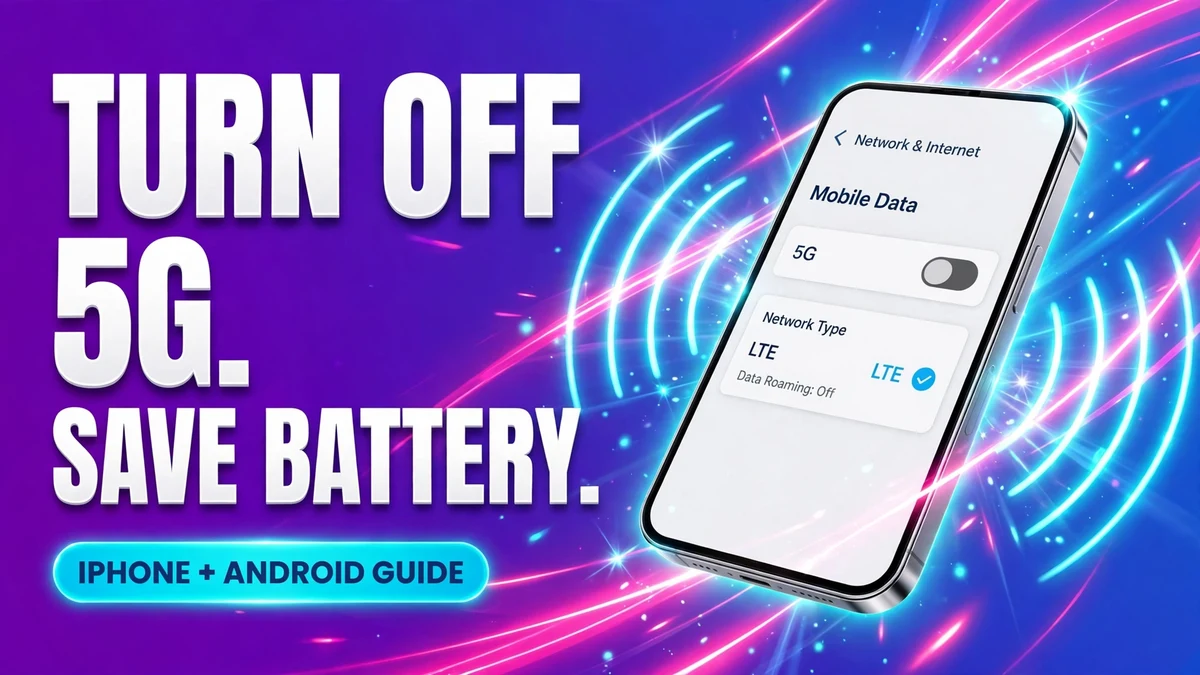
Your phone proudly shows 5G in the status bar, but the battery drains faster than it used to, the signal drops in and out, and pages do not load any faster than they did on 4G. In a weak-signal area your phone can spend more energy hunting for a 5G connection than actually using it. The fix is one setting: tell your phone to stay on LTE until you actually need 5G speed.
Turn off 5G on iPhone
Apple puts the 5G choice under Voice & Data, and it only appears on a 5G iPhone — iPhone 12 or later, including iPhone SE (3rd generation) — with a carrier and a plan that include 5G.
- Open the Settings app.
- Tap Cellular. In some regions this is called Mobile Data.
- If you have two lines, tap the line you want to change under SIMs first. Each line has its own Voice & Data setting.
- Tap Cellular Data Options (or Mobile Data Options).
- Tap Voice & Data. You will see three options: 5G Auto, 5G On and LTE.
- Tap LTE. There is no Save button — the change applies immediately.
When you are off Wi-Fi, the status bar should now show LTE instead of a 5G icon. If it still shows 5G after a few seconds, toggle Airplane Mode on and off once so the phone re-registers on the network.
5G Auto is Apple's Smart Data mode: the phone uses 5G when it noticeably helps and drops back to LTE when it does not, which saves battery. It is the default, and for most people it is the better choice — only pick LTE when you want 5G off completely. 5G On forces 5G whenever it is available, even when it drains the battery faster.
Turn off 5G on Samsung Galaxy
Samsung's path is the same across most Galaxy phones, though the exact wording changes slightly between One UI versions.
- Open the Settings app.
- Tap Connections.
- Tap Mobile networks.
- Tap Network mode.
- Choose LTE/3G/2G (auto connect) instead of the option that lists 5G.
Your phone now uses 4G LTE. If the Network mode list has no option without 5G in it, your carrier has hidden the choice — see the section below on missing settings.
Turn off 5G on Google Pixel
On a Pixel the setting is tied to the SIM, so if you have two SIMs or an eSIM, open the one you want to change.
- Open the Settings app.
- Tap Network & internet.
- Tap SIMs, then tap your carrier's name.
- Tap Preferred network type.
- Select LTE.
On Pixel phones running Android 14 or later, this screen may show a 5G toggle instead of a network-type list. Turn the 5G toggle off and the phone stays on LTE. To turn 5G back on later, return to the same screen and choose the option with 5G in its name — on a Pixel it is called 5G (recommended).
Turn off 5G on other Android phones
Android menus vary by brand, but the idea is always the same: find the mobile network setting and pick a network type that does not include 5G.
- OnePlus: Settings > Wi-Fi & Network > SIM & Network > Preferred network type > LTE.
- Xiaomi / Redmi: Settings > SIM cards & mobile networks > your SIM > Preferred network type > LTE.
- Motorola: Settings > Network & internet > Mobile network > Preferred network type > LTE. Some Motorola phones show an Allow 5G switch instead — turn it off and you are done. Motorola's Maximum battery saver also has a Turn off 5G setting.
If none of these paths matches your phone, open Settings and type "network mode" or "preferred network" in the search bar at the top. The setting is always under the mobile network or cellular section, whatever your brand calls it.
iPhone vs Android: where the setting lives
| Phone | Path to the setting | Pick this to turn 5G off |
|---|---|---|
| iPhone (12 or later) | Settings > Cellular > Cellular Data Options > Voice & Data | LTE |
| Samsung Galaxy | Settings > Connections > Mobile networks > Network mode | LTE/3G/2G (auto connect) |
| Google Pixel | Settings > Network & internet > SIMs > Preferred network type | LTE |
| OnePlus | Settings > Wi-Fi & Network > SIM & Network > Preferred network type | LTE |
| Xiaomi / Redmi | Settings > SIM cards & mobile networks > SIM > Preferred network type | LTE |
| Motorola | Settings > Network & internet > Mobile network > Preferred network type | LTE, or turn off Allow 5G |
Should you turn off 5G, or just use 5G Auto?
Turning 5G off completely makes the most sense in three situations: your battery is draining fast and you are often in a weak 5G area, you are on a limited data plan and 5G's speed tempts you into heavier use, or 5G in your area is slower than LTE — which happens more often than carriers admit, since a crowded or distant 5G signal can underperform a strong LTE one.
For everyday use, though, the automatic option is usually the smarter pick. On iPhone, 5G Auto already drops to LTE when 5G would not help, so you keep the speed for large downloads and skip the battery cost the rest of the time. On Pixel, the 5G (recommended) option works the same way. Only switch to LTE full-time if you have checked and the automatic mode is not helping — for example, your battery still drains fast in an area where the phone keeps switching between 5G and LTE.
One thing turning off 5G does not do is cut your data usage. LTE loads the same pages, videos and updates as 5G — just a little slower. If your data plan is the problem, the fix is data-saving settings, not the network type. And if your battery is the real worry, 5G is only one piece of it: checking your battery health and limiting charging to 80 percent do more for long-term battery life than any network setting.
Turn 5G back on
The change is not permanent, and turning 5G back on takes the same thirty seconds.
- iPhone: Settings > Cellular > Cellular Data Options > Voice & Data, then choose 5G Auto or 5G On.
- Samsung: Settings > Connections > Mobile networks > Network mode, then choose the option with 5G in its name.
- Pixel: Settings > Network & internet > SIMs > Preferred network type, then choose 5G (recommended).
If you turned 5G off through Battery Saver or Power saving instead, turning that mode off restores 5G automatically.
If the 5G setting is missing
Some carriers hide or remove the network-type choice on the phones they sell. On Samsung Galaxy phones, some US carriers — including Verizon and AT&T — have removed the Network mode options, and on a Pixel on Google Fi the Preferred network type setting is hidden entirely. If the setting is not there, it is not a fault with your phone, and no app or secret code reliably brings it back.
What you can still do:
- Use Battery Saver. On Samsung, Power saving's Turn off 5G option still works even when Network mode is hidden. On Pixel, Battery Saver may switch the phone to 4G on its own, depending on your carrier.
- Ask your carrier. Some carriers can enable the network-type menu from their side, or confirm whether your plan even includes 5G — if it does not, the phone is already on LTE and there is nothing to turn off.
- Check the phone itself. If your phone is older than the iPhone 12 or a pre-5G Android model, there is no 5G radio to turn off, and no 5G option will ever appear.
FAQ
Does turning off 5G save battery?
It can, especially in weak-signal areas where the phone keeps searching for 5G or switching between 5G and LTE. Apple built 5G Auto for exactly this reason — it uses 5G only when it noticeably helps and drops to LTE otherwise. If your battery drains fast mainly at home on Wi-Fi, 5G is not the cause, and turning it off will change little.
Will calls and texts still work on LTE?
Yes. Calls and texts work the same on LTE as on 5G — in fact, voice calls on most networks already run over LTE (VoLTE) even when the phone shows 5G. Turning off 5G changes only the data connection, not calling.
Does turning off 5G affect Wi-Fi?
No. Wi-Fi is a separate radio with its own switch. Your phone still connects to Wi-Fi networks exactly as before, and Wi-Fi calling is unaffected.
Why is there no 5G option in my settings?
Three possibilities: your phone does not have 5G hardware (iPhones older than the iPhone 12, and older Android phones), your carrier or plan does not include 5G, or your carrier has hidden the network-type setting on your phone. Check the phone model first, then ask your carrier.
Will my phone use less mobile data on LTE?
No. LTE loads the same content as 5G, just slower — a video, a download and an app update are the same size on either network. To use less data, turn on data-saving options in your apps and in your phone's Data Mode or Data Saver settings instead.
Can I turn off 5G only at night or in one place?
There is no built-in schedule for the network type on iPhone or Android. The closest option is Samsung's Power saving mode, which can turn 5G off while it is active, or an automation app that toggles Battery Saver on a schedule. Otherwise, switching is a manual thirty-second job in Settings.
Sources checked 2026-11-27: View or change cellular data settings on iPhone from Apple Support, How to Turn Off 5G on iPhone and Android from Android Authority, Is Your Android's 5G Service Slow? Here's How To Turn It Off from SlashGear, and How to Turn Off 5G on Android and iPhone from Reviews.org.