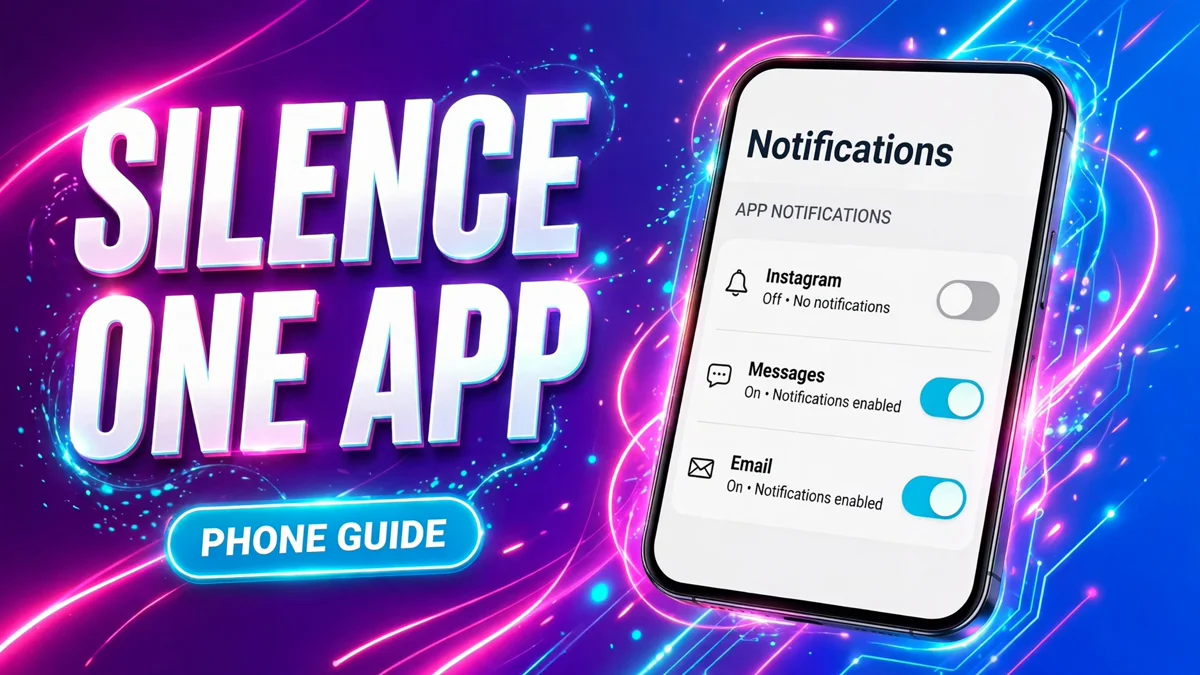
One app keeps buzzing while everything else on your phone behaves. It is usually not your most important app — it is a shopping app, a game, or a social app that treats every like, sale, and reminder as urgent. You do not need to silence your whole phone, delete the app, or switch on Do Not Disturb for the day. Both iPhone and Android let you cut off a single app while every other app keeps notifying you normally.
Turn off, or just quiet down: pick first
Turning a switch fully off is the strongest option, but it is not always the one you want. If the app sends a mix of useful and noisy alerts, a softer setting may fit better.
| What you want | Best setting | What changes |
|---|---|---|
| No alerts at all from this app | Turn off the app's notifications | No banners, sounds, or badges from that app |
| Alerts without sound or vibration | Silent delivery | Notifications arrive quietly in Notification Center or the shade |
| Only some types of alerts | Notification categories (Android) or the app's own settings | One kind of alert stops, the rest keep coming |
| Alerts later, in a batch | Scheduled Summary (iPhone) | Notifications arrive together at times you choose |
| Quiet for everything, for a while | Do Not Disturb or a Focus | All apps go quiet, not just one |
On iPhone: turn off notifications for one app
Apple's own notification guide gives this route, and it is the same for every app that has asked permission to notify you.
- Open Settings, then tap Notifications.
- Scroll to the app list under Notification Style and tap the app you want to silence.
- Turn off Allow Notifications.
That is the whole job. The app can no longer show banners, play sounds, or add a badge to its icon. Back on the Notifications screen, the word Off appears under the app's name, so you can spot silenced apps at a glance.
If the noisy alert is already on your screen, there is a faster route. Swipe left on the notification, tap Options, then tap Turn Off — this flips the same Allow Notifications switch without opening Settings.
Apple's guide to changing notification settings on iPhone also lists the per-app options that sit on the same screen, including Time Sensitive Notifications and Scheduled Summary delivery, so check there if your app shows extra rows that this guide does not mention.
On Pixel and stock Android: turn off notifications for one app
Google's Pixel guide gives two routes to the same switch — from Settings, or straight from a notification.
From Settings:
- Open Settings, then tap Notifications, then App notifications.
- Use the dropdown at the top to show All apps if the app you want is not in the recent list.
- Find the app and turn its switch off.
From a notification:
- When a notification from the app appears, touch and hold it.
- Turn the app's notifications off from the menu that appears.
Google's guide to controlling notifications on a Pixel phone confirms both routes, and Google's guide to controlling notifications on Android notes that settings can vary by phone — if your menu names look slightly different, search Settings for the app's name instead of hunting through menus.
On Samsung Galaxy: turn off notifications for one app
Samsung uses the same App notifications list as stock Android, with its own support page confirming the route.
- Open Settings, then tap Notifications.
- Tap App notifications.
- Find the app and turn its switch off. Tapping the app's name instead opens its detail screen, where you can also switch notifications off and adjust its categories.
Samsung's guide to managing app notifications on a Galaxy phone gives the same path through Settings, then Apps, then the app, then Notifications — a useful second route if you are already looking at the app in your app list.
Keep some alerts: turn off only one category
Many Android apps split their notifications into categories — for example, a shopping app may separate order updates from promotions, or a social app may separate direct messages from suggestions. Turning off one category keeps the useful alerts and stops only the noisy kind.
- Open Settings, then Notifications, then App notifications, and tap the app's name.
- Look for a list of notification categories below the main switch.
- Turn off only the categories you do not want, and leave the rest on.
On iPhone there is no system-wide category switch. Some apps offer a Customize Notifications row on their notification settings screen, and many others put the same choice inside the app itself — check the app's own Settings or Notifications menu for toggles like promotions, recommendations, or marketing before you silence the whole app.
If the app still interrupts you
A silenced app that keeps breaking through usually has one of a few explanations, and each has a different fix.
First, check Time Sensitive Notifications on iPhone. Some apps can mark alerts as time sensitive, which lets them break through a Focus — but not through Allow Notifications being off, so if the switch is truly off and alerts still arrive, you may be looking at in-app sounds rather than system notifications.
Second, check Focus and Do Not Disturb exceptions. An app or person added to a Focus allow-list can still reach you while that Focus is on. Removing it from the allow-list is a separate step from the per-app switch.
Third, remember that notification settings are per device. Turning an app off on your iPhone does not turn it off on your iPad, and turning it off on one Android phone does not change another. Repeat the same switch on each device you use.
Finally, reinstalling an app resets its notification permission. If you delete and reinstall a silenced app, it will ask for notification permission again, and tapping Allow turns the noise back on — tap Don't Allow if you want it to stay quiet.
FAQ
Does turning off notifications delete the app or its messages?
No. The app stays installed, your account stays signed in, and all messages, orders, and content stay inside the app. You only stop the app from pushing alerts to your lock screen, notification shade, sounds, and icon badge. Open the app whenever you like and everything is there.
Will I still see updates when I open the app?
Yes. Turning off notifications changes delivery, not content. The app refreshes normally when you open it, so new messages, orders, and posts appear as usual — you just check them on your own schedule instead of being interrupted by them.
Why is one app still buzzing after I turned its notifications off?
The most common causes are in-app sounds the app plays while it is open, a Focus or Do Not Disturb exception that lets the app through, or the switch having been changed on a different device. Reopen the app's notification screen and confirm the switch is off on the device that is buzzing, then check the app's own sound settings and your Focus allow-list.
Does turning notifications off on my iPhone also turn them off on my iPad?
No. Notification settings are per device. An app silenced on your iPhone can still notify you on your iPad, Apple Watch, or Mac until you change the setting on each device.
Can I turn off only promotional notifications and keep order updates?
On Android, yes, if the app uses notification categories — turn off the promotions category and leave order updates on. On iPhone there is no system-wide category switch, so look for the choice inside the app's own notification settings, or in the Customize Notifications row on its system notification screen if the app offers one.
How do I turn notifications back on for an app?
Reverse the same steps: on iPhone, go to Settings, then Notifications, tap the app, and turn Allow Notifications back on. On Android, go to Settings, then Notifications, then App notifications, and turn the app's switch back on. Most apps do not ask permission a second time, so this switch is the way back.