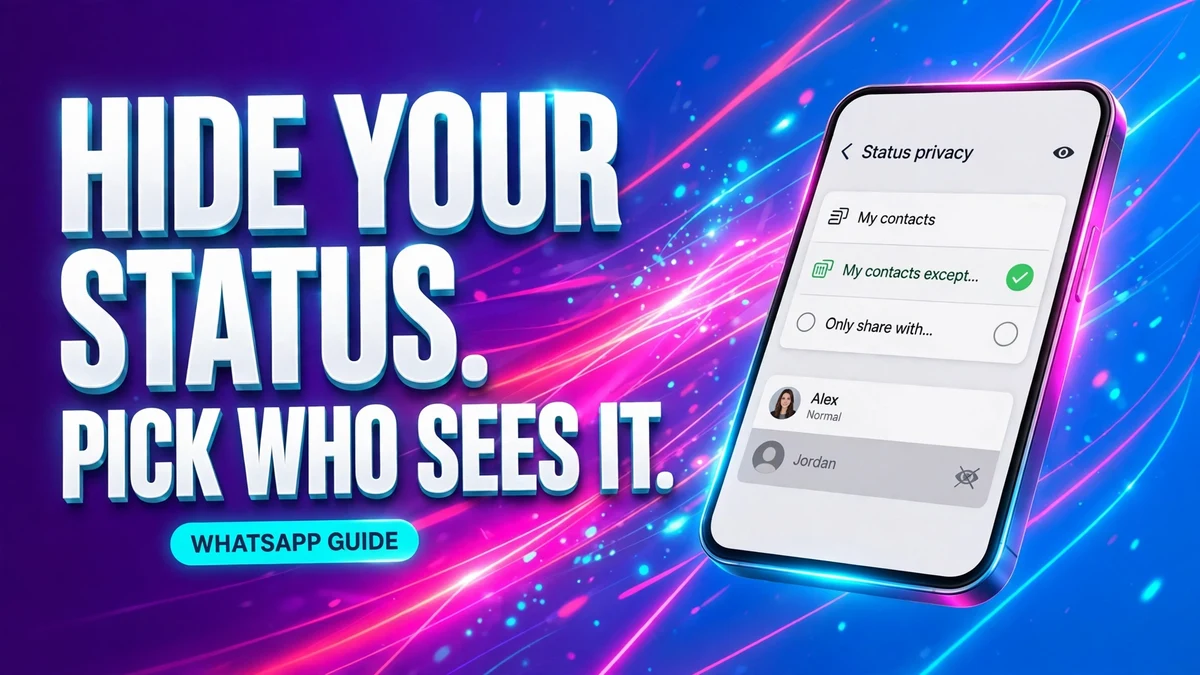
You post a WhatsApp Status for your friends, and your boss sees it too. By default, every contact who has your number can see your status updates — colleagues, clients, distant relatives, everyone. WhatsApp does have a switch for exactly this problem, and it takes less than a minute: you can hide your status from specific people without blocking them, and they will never be told.
The three audience options
WhatsApp gives you three choices for who can see your status. Only one of them is the default, and most people never change it:
| Option | Who sees your status | Best for |
|---|---|---|
| My contacts | Everyone saved in your contacts (the default) | People who are happy sharing with their whole contact list |
| My contacts except… | Everyone in your contacts except the people you pick | Hiding updates from a boss, a relative, or a client while everyone else still sees them |
| Only share with… | Only the people you pick, nobody else | A status meant for a small group, or for one person only |
The setting applies to every status you post after changing it. It does not matter whether the update is a photo, a video, a text post or a link — the same audience rule covers all of them.
Hide your status on iPhone
- Open WhatsApp and tap Settings in the bottom-right corner. In newer versions of the app this tab is labelled You instead.
- Tap Privacy.
- Tap Status.
- Tap My contacts except….
- Tap each contact you want to hide your status from, then tap Done in the top-right corner.
That is the whole setup. Your next status will be visible to all your contacts except the ones you selected, and the exclusion stays in place until you change it again.
Hide your status on Android
- Open WhatsApp and tap the three-dot menu in the top-right corner.
- Tap Settings, then tap Privacy.
- Tap Status.
- Tap My contacts except….
- Tap each contact you want to hide your status from, then tap the green checkmark in the bottom-right corner.
You can reach the same screen from the Updates tab: tap the three-dot menu there and choose Status privacy. Both routes open the same three options, so use whichever you remember.
Share with only a few people instead
Sometimes the problem is the other way around: you do not want to hide your status from two people, you want to show it to two people. That is what Only share with… is for. Follow the same path — Settings, then Privacy, then Status — and choose Only share with… instead of My contacts except…. Then select only the contacts who should see your updates.
Pick just one contact and you have, in effect, a private status that only that person can see. It is the simplest way to send a photo or a message to one person through Status instead of through a chat, and it avoids the group-chat reply-all problem entirely.
What hiding does — and what it does not do
Hiding your status is a narrow switch. It changes exactly one thing, and the rest of your WhatsApp privacy stays as it was:
| After you hide your status from someone | What happens |
|---|---|
| Your future statuses | They stop appearing in that person's Updates tab |
| Your already-posted statuses | Unchanged — the new setting applies only to statuses you post after changing it |
| Your profile photo | Still visible to them, under its own separate setting |
| Your Last Seen and Online | Still visible to them, under their own separate setting |
| Their messages and calls to you | Unaffected — hiding a status is not blocking |
| Whether they are notified | They are not. WhatsApp sends no alert when you change your status audience |
Who viewed your status — and the read-receipts catch
Hiding controls who can see your status. A separate setting controls whether you can see who looked at it. While a status is live, open it and tap the eye icon (or swipe up on Android) to see the list of viewers. The list is available for the same 24 hours the status itself lives, then disappears with it.
That viewer list is tied to Read Receipts, the same switch that controls blue ticks. If you turn read receipts off, your name stops appearing in other people's viewer lists — but you also lose your own viewer list, which will show zero views even when people have watched. Our guide to turning off read receipts on WhatsApp explains that trade-off in full. And if you want to tidy up the rest of your WhatsApp privacy while you are here, our guide to changing your WhatsApp DP and our guide to muting a WhatsApp chat cover the photo and the chat side of the same Settings screens.
Also check: resharing and cross-posting
In newer versions of WhatsApp, your status can travel further than your contact list. Other people may be able to reshare your status, and your own status can be cross-posted to Facebook Stories and Instagram Stories. If you do not want that, open the same Status privacy screen and look for Allow sharing and the Facebook Stories and Instagram Stories toggles — switch off anything you do not want. Resharing is off by default, so if you never turned it on, there is nothing to undo.
If someone still sees your status
Work through these in order before assuming the setting is broken:
- You posted before changing the setting. Delete that status and post it again. The new audience applies only to new posts, and deleting removes the old one from everyone's view at once.
- They changed their number. The exclusion list is tied to the phone number you selected. If a contact gets a new number, check the list and exclude the new one too.
- You are confusing mute with hide. Muting someone's status hides *their* updates from *you*. It does nothing to your own status. The audience switch is the only thing that hides yours from them.
- You are looking at the wrong setting. Open Settings, then Privacy, then Status, and read which option is actually selected. It is easy to tap My contacts except…, pick people, and then leave without confirming — on iPhone tap Done, on Android tap the green checkmark, or nothing is saved.
- They are viewing it from another account. The audience rule follows your account, but it cannot stop someone seeing a status on a different phone if you shared it there yourself, for example by cross-posting it to Facebook or Instagram.
FAQ
Will the person know I hid my status from them?
No. WhatsApp does not notify anyone when you change your status audience. The excluded person simply stops seeing your updates in their Updates tab. There is no message, no alert, and no visible change on their side that points to the setting.
Can I hide my status from just one person?
Yes. Choose My contacts except…, select only that one contact, and confirm. Everyone else in your contacts keeps seeing your statuses exactly as before, and the one person you picked sees none of them.
Does hiding my status also hide my profile photo or Last Seen?
No. Profile photo, Last Seen and Online, and Status each have their own setting under the same Privacy screen. Hiding your status changes only who sees your status updates. To hide your profile photo or Last Seen from the same people, change those settings separately.
If I change the setting, does it hide statuses I already posted?
No. The setting applies only to statuses you post after changing it. A status that is already live keeps the audience it had when you posted it. To take it away from someone, delete that status and post it again after the setting is in place.
Can I hide my status from everyone?
There is no Nobody option for Status, the way there is for Last Seen. The closest thing is choosing My contacts except… and selecting all your contacts — then nobody in your contact list sees your updates. If you only post for one or two people, Only share with… is the tidier route.
If I block someone, can they still see my status?
No. A blocked contact cannot see your status updates at all, regardless of your audience setting. Blocking also stops their messages and calls and hides your profile photo and Last Seen from them, which is a much bigger step than hiding a status — use it only when you want the contact cut off entirely.
Sources checked on 2026-11-05: Techtippr: 7 Ways to Stay Private on WhatsApp Status, GroupsOP: WhatsApp Status — How It Works + Privacy Settings Explained (2026 Guide), Wondershare MobileTrans: Status Under Wraps — How to Hide Status from Someone on WhatsApp, TechPP: The Ultimate WhatsApp Privacy Setup Guide, WhatsApp Help Center.