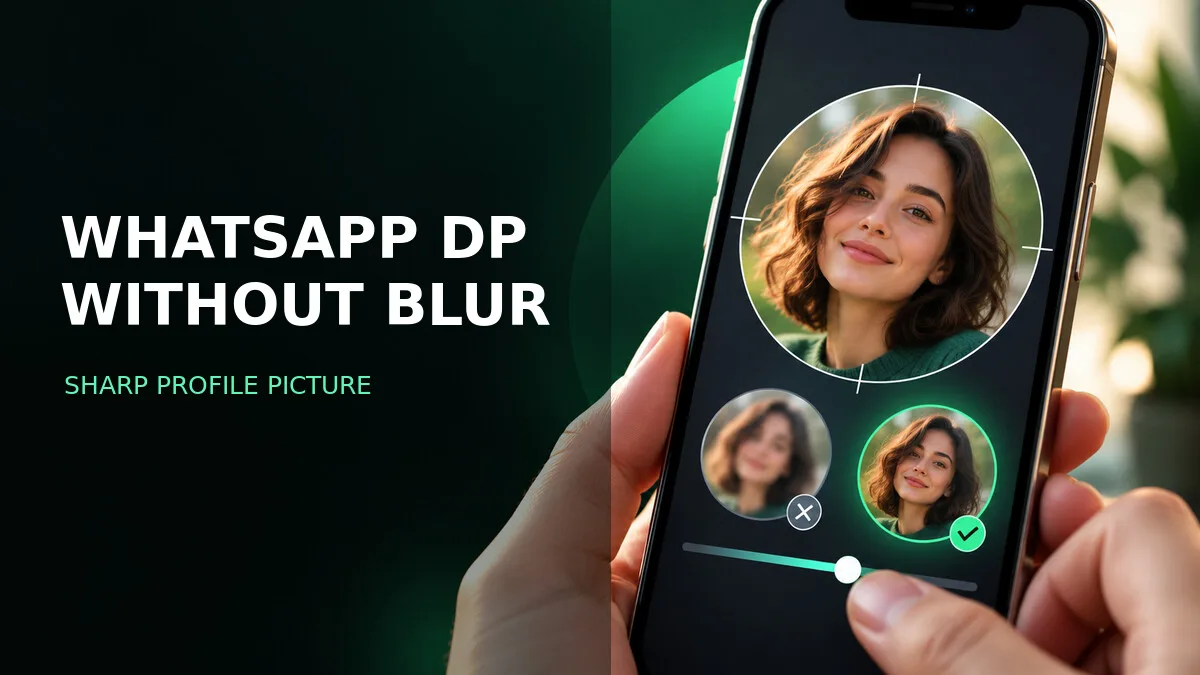
You pick a great photo. You set it as your WhatsApp DP. And in the chat list, it's... a smudge. Soft, slightly pixelated, somehow worse than the photo in your gallery. What happened?
Usually, the source, the crop or the small display size is the problem. WhatsApp may also process an uploaded image. You can improve the file you start with and its composition, even though you cannot control every part of how the app displays it.
Why a WhatsApp DP can look blurry
A profile picture may lose detail when the original is very small, heavily compressed, or cropped several times. Repeated resizing, aggressive cropping or re-encoding with lossy compression can reduce clarity. Copying a file without changing it does not by itself reduce image quality, and the result depends on how the file was processed.
WhatsApp also displays the final image inside a circle, so corners are not visible. That matters more than people realise: if the important detail is near a corner, it's gone — not blurred, gone. And the chat-list version is tiny, often no bigger than a fingernail on screen. At that size, fine detail doesn't survive anyway; bold shapes and clear contrast do.
So the goal isn't to upload the highest-resolution file possible. It's to upload a clean, well-composed image that survives WhatsApp's processing and still reads clearly at thumbnail size.
Use a square image first
Prepare a square image. Around 900 × 900 pixels is a practical editing starting point if the original has that much detail, rather than an official WhatsApp requirement. Keep the face, icon, or main subject near the centre. Leave breathing room around it so the circular crop does not cut off important details.
That breathing room is the part most people skip. If a face fills the entire frame edge to edge, the circular crop will slice off the top of the hair and the sides of the ears. It still looks like the person — just slightly wrong, in a way that's hard to put your finger on. Pull back a little. A bit of background around the subject costs nothing and saves the composition.
Also: start from the original photo, not from a version that's already been through WhatsApp once. If someone sent it as a compressed photo, the chat copy may have less detail than the original. Go back to the camera roll, the original download, or the photographer's file if you can.
Changing your profile picture
- Open WhatsApp on your phone. On Android, open More options and Settings. On iPhone, open Settings.
- Open your profile photo and use the edit or camera control.
- Choose an existing image from your gallery or photo library.
- Adjust the crop while keeping the subject centred, then save.
- Check your profile thumbnail and, if needed, ask a trusted contact how the small image appears.
Menu names can vary by app version. The official WhatsApp profile instructions let you select your platform.
Step 5 is the useful composition check. The large editor preview can hide how much detail disappears in a small circle. If your subject is difficult to recognise at thumbnail size, try a simpler image or a less aggressive crop before searching for an upload setting.
If another person still sees an old photo, first confirm that the new picture saved in your own profile. Avoid repeatedly editing and exporting the source while checking a display or refresh problem.
The quality checklist
- Download the original image instead of taking a screenshot of the preview. A screenshot records what is displayed on your screen and can include interface bars, extra cropping or fewer pixels than the source file.
- Keep a copy of the original. Sending an image as a photo may resize or compress it; sharing it as a document can help preserve the file. Forwarding or copying an unchanged file does not automatically mean another loss of quality.
- Use even lighting and clear contrast. A dark, low-contrast photo gets murkier with every round of compression. Bright, well-lit images survive much better.
- Do not place small text near the edges. Small text blurs first and gets cropped by the circle anyway. If your DP has text, make it large, bold, and central — or leave it out.
- Preview the circular crop before saving. Check the corners, not just the centre. What's in the corners is what's getting cut.
| Check | Ready to upload | Change it if needed |
|---|---|---|
| Source detail | The original looks clear at normal viewing size | Return to the original instead of enlarging a tiny preview |
| Circular crop | Face, icon or main shape fits with space around it | Pull back or use a simpler composition |
| Small preview | The subject is recognisable as a thumbnail | Remove fine text and distracting background detail |
| Export | One clean export from the original | Avoid repeated resizing or low-quality JPG exports |
For a graphic or logo, a PNG source can preserve clean edges before upload. A good-quality JPG is also suitable for a photo. Neither choice guarantees that WhatsApp will deliver the uploaded file without further processing.
A quick word on privacy
Only use a personal photo if you are comfortable showing it to the audience selected in your WhatsApp privacy settings. Your DP is visible to the audience allowed by your privacy setting. App restrictions may limit some screen captures, but privacy settings cannot prevent every form of copying, such as photographing a screen with another camera. If there's any doubt, an original illustration or abstract DP is a useful alternative. It can give you a recognisable profile style without showing your face.
That also goes for photos of children, your home, or anything with identifying details in the background. A quick scan of what's behind you in the photo — a house number, a school sign, a car plate — is worth ten seconds before you set it.
Find a new profile style
Compare our anime DP ideas, then use the crop checks above before saving your favourite. A simple illustration with bold shapes may remain readable at small sizes. The final result still depends on source quality, crop and any processing applied by the app.
Frequently asked questions
What is the best image size for a WhatsApp DP?
A clear square source gives you control over the circular crop. Around 900 × 900 pixels is an editing starting point used in this guide, not an official requirement or a guarantee of the displayed resolution. Do not enlarge a tiny picture just to reach that number.
Will sending a photo as a document make my DP lossless?
It can help you obtain an unchanged source file from another person. Uploading that file as a profile picture is a separate process, so it does not guarantee a lossless DP.
Why does a sharp photo still look unclear as a small profile picture?
Fine detail, small text and a busy background are difficult to read at thumbnail size. Try a simpler crop with a clear subject and enough contrast, then compare the small preview again.
Does changing my profile photo change who can see it?
Check the profile-photo audience in your WhatsApp privacy settings separately. Choose an audience you are comfortable with and avoid including private details in the background. Privacy controls cannot prevent every way of copying what someone can see.
Official profile instructions
Official profile instructions were checked on 17 October 2026. The composition and source-quality advice above is editorial guidance, not a promised WhatsApp upload specification.
Related downloads and guides
- Browse WhatsApp DP images, then apply the circular-crop checks before saving one.
- Choosing a full-screen background? See the wallpaper size guide.