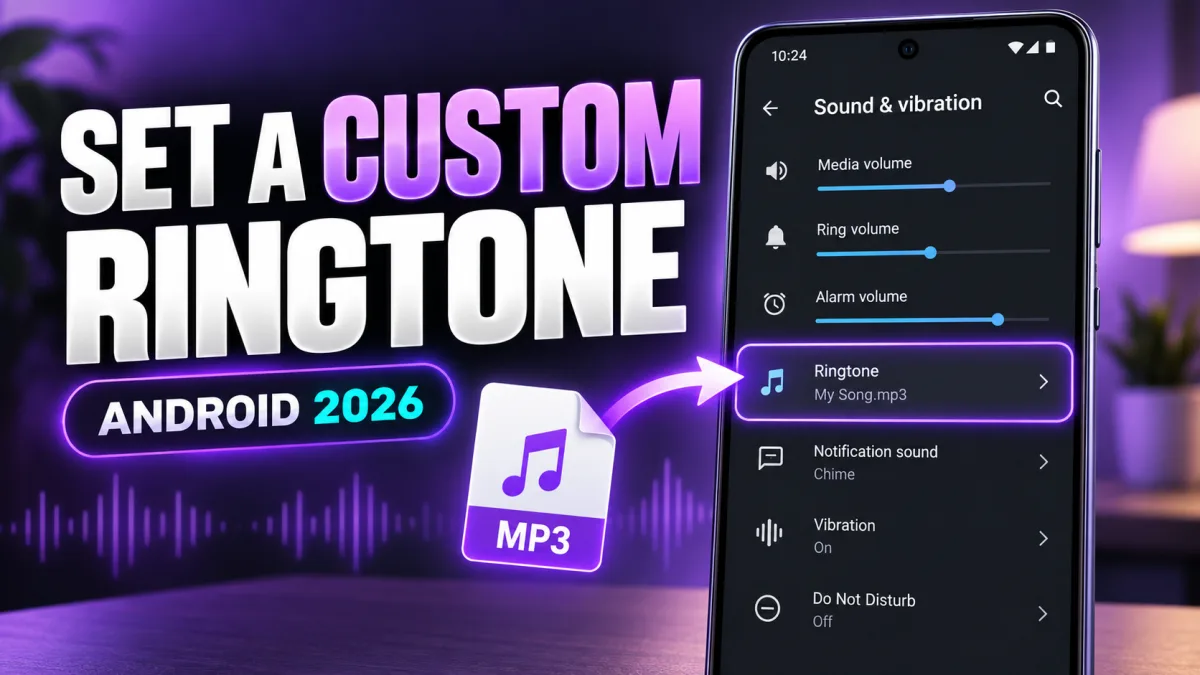
You downloaded a sound you love. Now it's sitting in your Downloads folder doing nothing, and your phone is still playing the same default ringtone it came with.
Getting it from "file on my phone" to "the sound that plays when someone calls" is a five-minute job — but the route depends on your phone, and the one mistake that sinks most attempts is putting the file in the wrong place. Let's sort it.
First: pick a clip that works as a ringtone
Before any settings, look at the file itself. The best ringtones are 15 to 30 seconds long, start quickly, and sound clean through a phone speaker. A song with a 20-second slow fade-in means you'll miss the call before the recognisable part even starts. A clip with a long silent intro is the same problem.
Keep the original file somewhere safe until you've confirmed the new tone works. And use audio you created, downloaded legally, or have permission to use — a short extract from a commercial song or film can still be protected by copyright, even as a ringtone.
Method 1: set it straight from Settings
This is the route to try first.
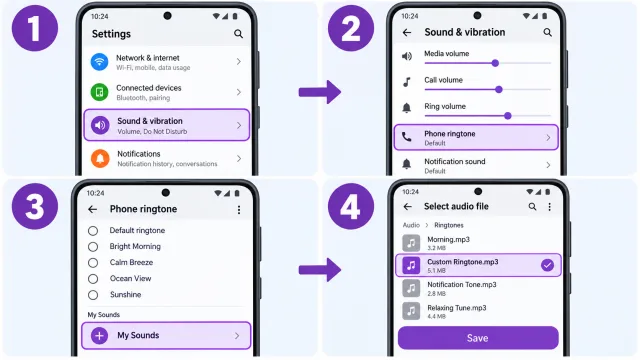
- Download the MP3 to your phone.
- Open Settings.
- Tap Sound & vibration (or Sounds and vibration, or whatever your brand calls it).
- Tap Phone ringtone or Ringtone.
- Choose Add ringtone, My Sounds, the plus button, or Select from files.
- Find the MP3 in Downloads, Audio, or wherever you saved it.
- Select it, preview it, tap Save or Done.
Two-SIM phone? Android may ask which SIM gets the tone. Set both if you want both numbers to sound the same — the second SIM won't inherit it automatically.
Method 2: drop the file in the Ringtones folder
Some phones simply don't show audio from the Downloads folder inside the ringtone picker. The file exists; the picker just can't see it. The fix is old-fashioned but reliable: open the Files app, find the MP3, and move or copy it to Internal storage → Ringtones. Then go back to Settings and open the ringtone list again — it should be sitting there with the built-in sounds.
Two warnings here. Don't put personal audio in a shared folder if other people use the device. And don't rename some other file to .mp3 and expect it to work — changing a name doesn't convert audio. A file with a renamed extension will either fail to play or fail to appear.
One person gets their own sound
You can give a single contact a different ringtone, and it overrides your default for calls from that person only:
- Open the Contacts app.
- Select the person.
- Tap Edit or the three-dot menu.
- Choose Set ringtone or Change ringtone.
- Pick your custom MP3 and save the contact.
Contact-menu wording depends on the phone maker and which app stores your contacts — if the option isn't where you expect, it's usually in the three-dot menu or under an expanded "view more" area.
On a Samsung Galaxy
On many Galaxy phones: Settings → Sounds and vibration → Ringtone. Pick a SIM if asked, then tap the plus icon in the upper-right corner. Choose the audio file and tap Done.
One Samsung-specific gotcha: the sound picker may offer Play selected highlights only. When it's on, the phone picks a section from the middle of a song. Turn it off when you want your ringtone to start at the beginning of the clip you prepared — otherwise you'll wonder why your carefully trimmed intro never plays.
On a Pixel or stock Android
Settings → Sound & vibration → Phone ringtone → My Sounds. Tap the plus icon, select the MP3 with the file picker, then choose it from My Sounds and tap Save. That's the whole route — Pixel keeps it simple.
"The ringtone doesn't appear"
Work through these before assuming the file is broken:
- Does the file actually play in a music or Files app?
- Move the MP3 into Internal storage → Ringtones.
- Does the filename end in .mp3, and is it a complete download — not a half-finished one?
- Restart the phone so Android rescans the audio.
- Is the file stored locally, not only in cloud storage? The picker can't see cloud-only files.
- Try a shorter filename without unusual symbols.
"It's set, but I can't hear it"
Raise the ringtone volume under Settings → Sound & vibration → Volume — and note that this is *ringtone* volume, not media volume. Check the phone isn't in Silent, Vibrate, or Do Not Disturb. If a Bluetooth device is connected, disconnect it temporarily and test again — a paired headset or car can swallow the ringing. And check whether the caller has a separate contact ringtone assigned, which would override the one you're testing.
Safety and quality, quickly
Preview every file before setting it, and watch out for unexpectedly loud clips — a ringtone that seems fine on headphones can be shocking through a speaker in a quiet room. Download audio only from sources you trust, and never install an unknown app just to open an ordinary MP3. A reputable ringtone download should not need access to your contacts, messages, or other unrelated personal information.
Quick answers
Can Android use an MP3 as a ringtone? Yes — most current Android phones support it, either through sound settings or via the Ringtones folder.
Why doesn't my downloaded ringtone show in settings? Usually the file is still in Downloads or cloud storage and hasn't been indexed as ringtone audio. Move a local copy to the Ringtones folder, reopen Settings, or restart.
Can I use a different ringtone for each contact? Yes, on most Android phones. Open the contact, choose Edit or the menu, and look for Set ringtone. Wording varies by device and contacts app.
How long should an Android ringtone be? About 15 to 30 seconds. Shorter clips are easy to recognise and usually start before a call goes to voicemail.
Will changing my ringtone affect notification sounds? No. Phone ringtone and notification sound are separate settings — change one without touching the other.
The final test
Ask someone to call you, or call yourself from another phone. Check the volume, the starting point, and the selected SIM. If the tone is too quiet or starts too slowly, pick a better-edited MP3 and run the same steps again. Five minutes, done properly, beats an hour of guessing.
Where to go next
For device-specific steps, see the Samsung Galaxy ringtone guide. If the saved file is missing from the picker, use the downloaded ringtone troubleshooting guide.