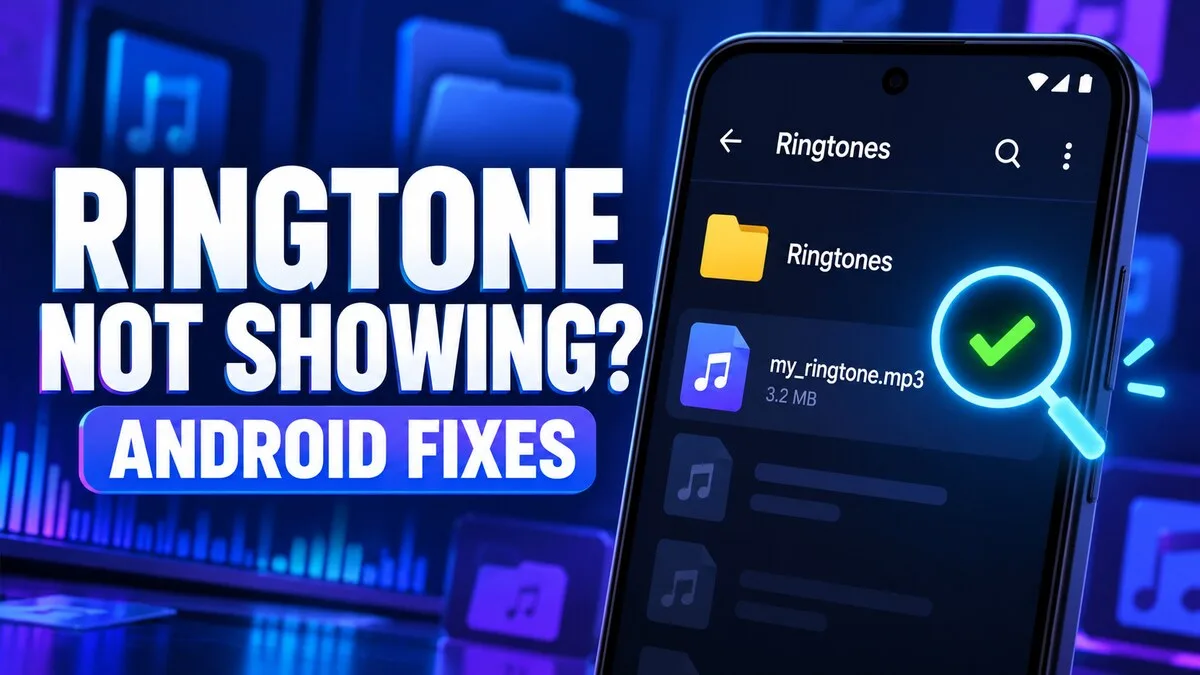
You downloaded the ringtone. You can see it in your Files app. You can play it. And yet when you open the ringtone picker in Settings, it's not there. It's as if the phone is pretending the file doesn't exist.
This is one of the most common Android annoyances, and it's almost never a broken download. It's usually a folder problem, a scanning problem, or a picker problem — three things that all look identical from the outside. The good news: each one has a simple fix, and you can work through them in about five minutes.
First: confirm the download actually completed
Open the Files app and look in Downloads. The file should have a useful name, a non-zero size, and an audio extension such as MP3, M4A, OGG, or WAV. Tap it once. If it cannot play in a normal audio player, download a fresh copy before changing settings.
That "non-zero size" check matters. A download that got interrupted can leave behind a file with a name and a 0 KB size — it looks like a file, but there's nothing in it. And a file with a name like "tone.mp3.zip" or "tone.mp3.crdownload" isn't a finished MP3; it's a zip archive or a partial download wearing an MP3-adjacent name. If the extension looks odd, the download didn't finish properly.
Move it to the Ringtones folder
Many Android phones scan specific folders for system sounds. In Files, select the audio, choose Move, and place it in Internal storage/Ringtones. Create the Ringtones folder if it does not exist. Use Notifications for short alerts and Alarms for alarm audio. Restart the Sound settings screen after moving the file.
This is the fix that works most of the time, and it's the one people skip because it sounds too simple. Android's sound pickers are folder-based: each picker mostly shows the contents of its own folder. A ringtone sitting in Downloads is invisible to the ringtone picker — not because the phone can't see it, but because the picker isn't looking there.
The folder names matter and they're case-sensitive in practice: Ringtones, Notifications, Alarms. A folder called "Ringtone" (singular) or "ringtones" (lowercase) may not be picked up. If you're creating the folder yourself, spell it exactly: Ringtones.
Add it from the ringtone picker
Open Settings, then Sound & vibration, and Phone ringtone. Look for a plus sign, Add ringtone, My Sounds, or Choose local ringtone. Labels differ across Samsung, Pixel, Xiaomi, Oppo, and other devices. Select the file through the picker rather than expecting it to appear automatically.
This is the second path to the same result. On some phones — Samsung in particular — the picker has a plus icon at the top of the ringtone list that lets you browse to any file, wherever it lives. On Pixel, the equivalent is My Sounds. If your phone has this button, you don't strictly need the Ringtones folder trick. But if the button isn't there or doesn't work, the folder method is the reliable fallback.
Check file and app permissions
A file manager or ringtone app may need permission to access music and audio. Open Settings, Apps, select the relevant app, and review Permissions. Grant only the media permission needed for this task. Android 13 and later separate music-and-audio access from photos and videos, so an app can have photo permission and still be blocked from seeing your audio files.
This one is easy to miss because it fails silently. The app doesn't crash or show an error — it just shows an empty list, and you assume there are no files. If a ringtone app shows nothing at all, permissions are a prime suspect. But grant only what's needed: a ringtone app needs audio/media access, not your contacts, not your location, not your camera. If an app demands unrelated permissions to set a ringtone, that's a reason to use a different app.
Refresh Android's media index
Sometimes the file is in the right folder, permissions are fine, and the picker still doesn't show it. That's usually because Android's media index — the catalogue the system keeps of what's on the phone — hasn't caught up with the file yet.
Rename the file with simple letters and numbers, move it out of the Ringtones folder, then move it back. Rebooting the phone can also trigger a fresh scan. Avoid names that contain many symbols or an incorrect double extension such as tone.mp3.zip — unusual characters in filenames can confuse the scanner, and a double extension can make the system misidentify the file type.
A reboot sounds like a cliché fix, but for media-index problems it genuinely works: the system rebuilds its catalogue on startup, and files that were invisible often appear immediately afterwards.
If the file still does not appear
Convert an unusual format to a standard MP3 using a reputable offline editor. Some formats — certain flavours of FLAC, AAC in odd containers, or files with unusual codecs — play fine in a music player but don't register in the system sound pickers. MP3 is the format every Android sound picker understands. Converting to MP3 removes the format question entirely.
Make sure the audio is stored locally rather than only inside a cloud app. Work profiles and restricted user accounts may also prevent personal files from appearing in system settings — if your phone has a work profile, files in the personal profile may not be visible to work-profile apps, and vice versa. If everything else checks out and the file still won't appear, the profile boundary is worth investigating.
Device-specific final check
Dual-SIM phones can have a separate picker for each SIM. Samsung devices may show the plus icon at the top of the ringtone list, while Pixel phones commonly use My Sounds. Select the correct SIM, preview the file, and place a test call before considering the setup complete.
That dual-SIM detail is a real trap: you can successfully set a ringtone for SIM 1, then receive a call on SIM 2 and hear the default tone — and conclude the whole thing failed. Check both SIMs if your phone has them. And always finish with a real test call from another phone. The picker showing your file is not the same as the phone actually playing it when a call comes in.
Related reading
Check the recommended audio format and ringtone length, then return to the Android setup guide.