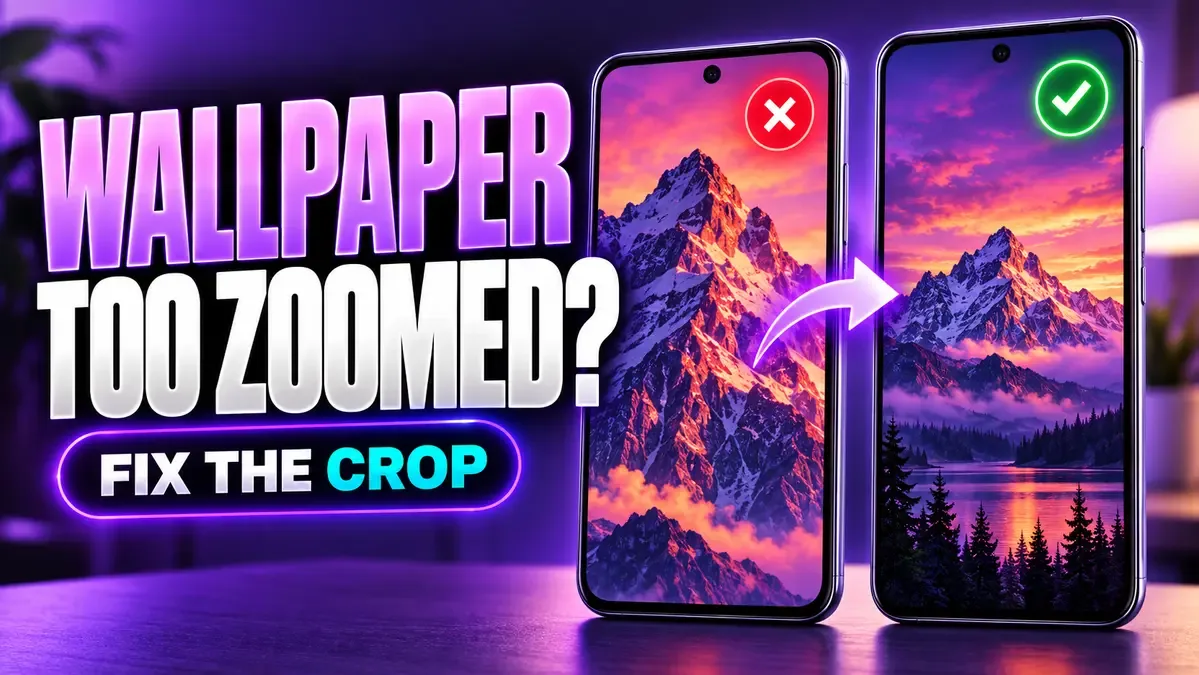
You found the perfect wallpaper. You set it. And now your phone is showing a giant close-up of someone's elbow.
It's not broken, and the file isn't corrupt. What's happening is geometry — your phone is filling a screen shaped differently from your image, and something has to give. Usually what's giving is the sides, or the top and bottom, or both.
Once you understand that, the fix is usually thirty seconds away. Let's get there.
Why it looks zoomed in
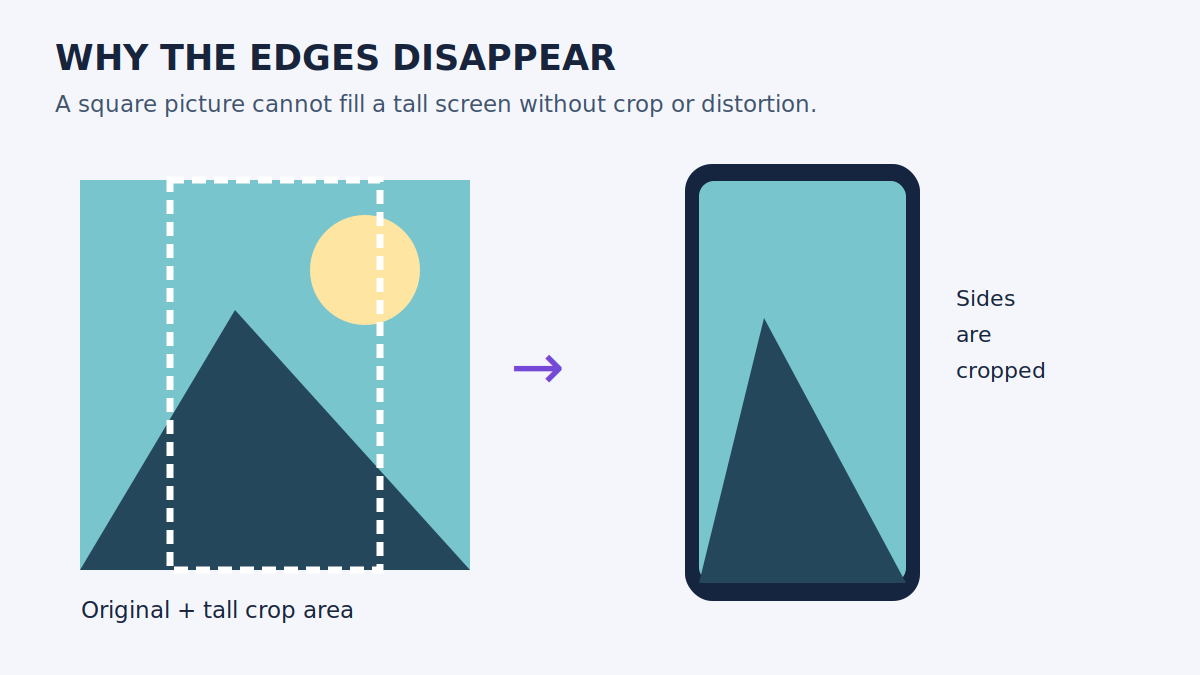
Your phone's job is to fill every pixel of the screen with no empty borders. If your image is square and your screen is tall and narrow, the phone can't show the whole square *and* fill the screen — those two things are physically incompatible. So it crops. Sides, top and bottom, whichever the editor decides — and a pinch-to-zoom adjustment on top of that can enlarge things further.
A picture that looks complete in your gallery can absolutely look cropped as a background. That's not a contradiction. The gallery shows the whole image; the wallpaper shows the image after the screen's shape has had its say.
Before you change any setting, check four things
- Open the downloaded image in your gallery. Does it *already* look cropped there?
- Is it the original image — or a screenshot of a preview? Screenshots carry the browser's framing, and you can't recover what's outside it.
- Is the problem on the Home screen, the Lock screen, or both? Different screens can have different crops.
- How do the image's dimensions compare with your screen's proportions?
Step 1 decides everything. If the gallery version is already tightly cropped, no wallpaper setting on earth can restore the missing content — go back to the download page and get the full image. Only if the gallery version looks fine and the wallpaper preview is cropped should you keep going.
Fixing the crop on iPhone
Open Settings → Wallpaper and add a new photo wallpaper, or customise an existing photo Lock screen. In the editor, use pinch and drag to reframe the picture — Apple documents moving it with two fingers and pinching to adjust size. Finish the preview before saving.
Check the Home screen preview separately when you're choosing a wallpaper pair. And remember that your iPhone version and the wallpaper type decide which options appear — a setting from a tutorial made for a different iOS release may simply not exist on your phone.
Fixing the crop on Samsung Galaxy
Touch and hold an empty Home screen area, open Wallpaper and style, then Change wallpapers, and pick a picture from Gallery. Choose the screen you want to update. In the preview, reposition the picture and adjust the zoom before tapping Done. On supported models you can also start from the Lock screen's customisation controls.
Samsung notes that pictures are cropped to fit the display. Two practical consequences: start with the uncropped original wherever possible, and don't pre-crop tightly in Gallery first — that leaves you no room to reposition later. Menu labels and effects vary by One UI version.
Other Android phones and launchers
Look for Wallpaper or Wallpaper & style in Settings, then pick a saved photo. Use whatever controls the preview actually offers rather than hunting for a universal "disable zoom" switch — on most phones, there isn't one.
One launcher-specific quirk: some launchers move the wallpaper as you swipe between Home screen pages. If your picture shifts when you swipe, that's the launcher's wallpaper behaviour, not a bad file. Check the launcher's own wallpaper settings.
When the whole picture just won't fit
You have three honest options, and only three:
- Keep the fill crop. Move the important subject into view and accept losing the edges.
- Pick a closer-shaped image. A tall image for a tall screen. The easiest fix, and the one people resist most.
- Add padding. Place the whole picture on a larger background in an image editor, with space around it. The full composition survives — but you'll see visible borders.
What *doesn't* work is stretching. Stretching keeps every edge visible by distorting the image, and faces and circles go wobbly. A square image on a tall portrait screen cannot fill every pixel while keeping its shape and every edge. Something has to change: the crop, the surrounding space, or the proportions. That's geometry, not a damaged file.
Fixing the crop won't fix the blur
One more disappointment to head off: zooming out can reduce how much the source gets enlarged, but it can't add detail that was never there. Our current anime and manga wallpaper downloads are 768 × 1376 pixels — they'll look softer on a higher-resolution display, and no crop setting changes that. Use the original file, judge the result on your own screen, and check the wallpaper dimensions guide before choosing your next image.
Where this comes from
This is a documentation-based guide, not a claim that every step was tested on every phone. For model-dependent controls, see Apple's wallpaper instructions and Samsung's photo wallpaper guide.
Two things people ask
Does a bigger file stop the cropping? No. More pixels can improve sharpness, but aspect ratio decides how the picture fits. A huge square image still loses its sides on a tall display.
Will resetting my phone help? Please don't factory-reset your phone over wallpaper cropping. Check the original file, the preview controls, and the proportions first — that's where the answer lives.