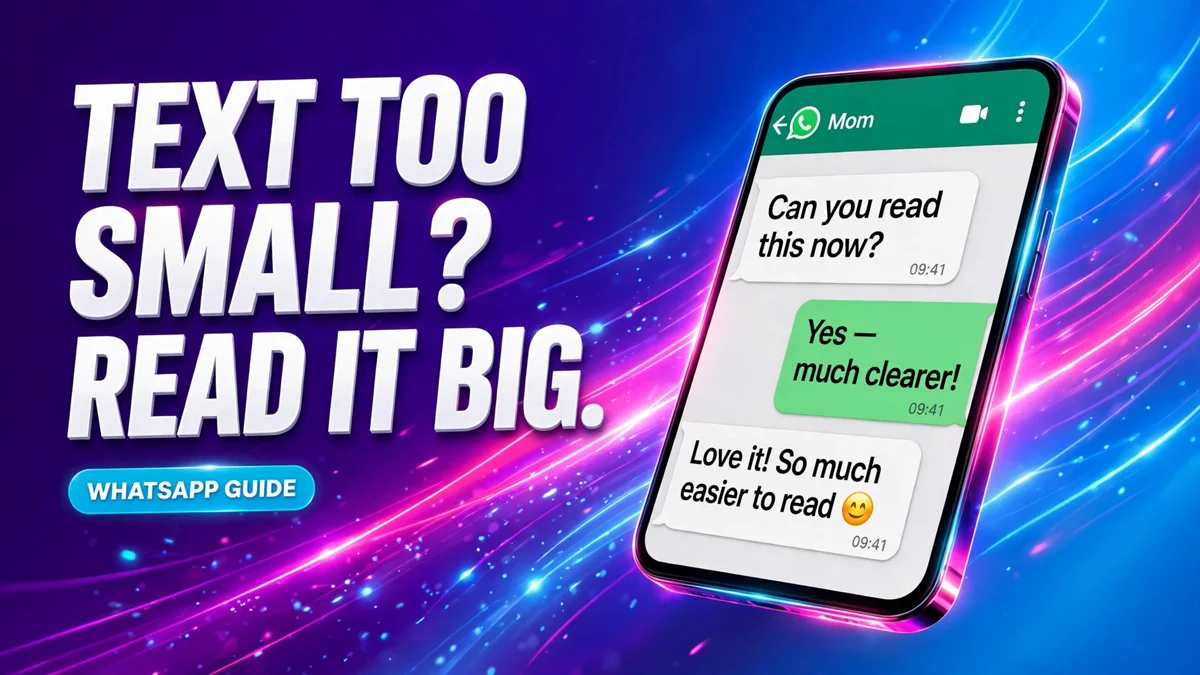
You open WhatsApp and the messages are printed so small you have to squint — or so large that only three messages fit on the screen. Either way, the fix takes less than a minute. On Android, WhatsApp has its own font-size setting hidden in the Chats menu. On iPhone, there is no setting inside WhatsApp at all — the app follows your phone's text size instead. This guide covers both, plus what to do when Large still is not large enough.
Change the font size on Android
WhatsApp documents this route in its own how to change font size help page, and it works the same on Pixel, Samsung, Xiaomi, OnePlus and other Android phones.
- Open WhatsApp and tap the three dots in the top-right corner.
- Tap Settings, then Chats.
- Tap Font size.
- Choose Small, Medium or Large, then tap OK if the screen asks.
The change applies immediately to every chat on your phone — incoming and outgoing messages alike. Your chat list, menus and Settings screens do not change, because WhatsApp's help page says the font size on the other screens in the app follows your device settings. Only the text inside chats uses the size you pick here.
Change the font size on iPhone
On iPhone there is no Font size option inside WhatsApp. The app follows iOS, so you change the size in the phone's settings and WhatsApp obeys. Apple documents the route in its adjust the text size on iPhone support page.
- Open the iPhone Settings app.
- Tap Display & Brightness.
- Tap Text Size.
- Drag the slider to the right to make text larger, or to the left to make it smaller.
Go back to WhatsApp and open any chat — the messages are already the new size. Because this is a system setting, it also changes the text in other apps that support it, not just WhatsApp.
For even bigger text, open Settings, tap Accessibility, then Display & Text Size, then Larger Text. Drag the slider, and turn on Larger Accessibility Sizes for the biggest steps. Apple documents this route in its make text larger with accessibility settings support page.
WhatsApp only, nothing else. On recent iOS versions you can also set the size for WhatsApp alone: open WhatsApp, open Control Center, tap Text Size, and choose the option for the current app instead of all apps. If Text Size is not in Control Center, add it from Control Center settings first. This is the closest iPhone gets to Android's in-app setting.
Android vs iPhone at a glance
| Android | iPhone | |
|---|---|---|
| Change chat text size inside WhatsApp | Yes — Settings > Chats > Font size | No in-app setting |
| Choices | Small, Medium, Large | iOS slider with many steps |
| Bigger than the largest normal step | Phone's Accessibility font size | Accessibility > Larger Text |
| Chat list, menus and other screens | Follow the phone's font size | Follow iOS Text Size |
| Change the size for one chat only | No — all chats at once | No — all chats at once |
| Change the typeface | No — WhatsApp does not support custom fonts | No — WhatsApp does not support custom fonts |
Make the rest of WhatsApp bigger too
The in-app setting on Android only covers the text inside chats. If the chat list, the contact names, the menus and the Settings screens are also too small, change the phone's own font size — WhatsApp follows it everywhere else.
On Android, open the phone's Settings and search for Font size. WhatsApp's own help page points to Accessibility > Display size and text > Font size for the other screens. The exact menu name varies by brand — on Samsung it sits under Display > Font size and style, which also lets you change the system typeface, and WhatsApp's interface text follows that choice.
On iPhone, the same Text Size slider from the section above covers every screen in WhatsApp, because the whole app follows iOS. Our make text bigger on iPhone and Android guide walks through the system-wide options on both platforms, including bold text and display zoom.
Style your messages: bold, italic, strikethrough and monospace
Size is one thing; style is another. WhatsApp does not let you change the typeface of your chats, but you can format individual words inside a message, and the formatting is visible to the other person. WhatsApp's how to format your messages help page lists the codes:
- Bold — put an asterisk on each side of the words: `*like this*`
- Italic — put an underscore on each side: `_like this_`
- Strikethrough — put a tilde on each side: `~like this~`
- Monospace — put three backticks on each side: `` ```like this``` ``
Keep the symbols touching the words, with no space just inside them — `* Tomorrow *` stays as typed, while `*Tomorrow*` turns bold. You can also select text you have already typed and pick the style from the menu that appears, instead of typing the symbols by hand. WhatsApp says there is no way to switch formatting off, so a message that looks plain is simply a message with no codes in it.
WhatsApp Web and desktop
There is no font-size setting inside WhatsApp Web. Use your browser's zoom instead: press Ctrl and + on Windows or Cmd and + on a Mac to enlarge the whole page, and Ctrl or Cmd with 0 to reset it. The desktop apps have no in-app size setting either, so the same browser-zoom idea — or your computer's display scaling — is the only route there.
If the font size will not change
The Font size option is missing on Android. Update WhatsApp from the Play Store and look again. The setting only appears in recent versions, and its availability can vary by version and rollout, so an outdated app is the usual cause.
Nothing changed after picking Large. Check inside a chat, not the chat list — the list follows the phone's font size, not the in-app setting. If the chat text is unchanged too, make sure you tapped OK after choosing, then close WhatsApp fully and reopen it.
Large still is not big enough. The in-app choices stop at Large. Go one level deeper: on Android, use the phone's Accessibility font size (Settings > Accessibility > Display size and text > Font size); on iPhone, use Accessibility > Display & Text Size > Larger Text with Larger Accessibility Sizes turned on.
The text changed everywhere, not just in WhatsApp. That is the iPhone route working as designed — it is a system-wide setting. On iPhone the only WhatsApp-only option is the per-app Text Size control in Control Center. On Android, use the in-app Settings > Chats > Font size route to keep the change inside WhatsApp.
Your messages look normal to you but strange to a contact. Size is per device: you cannot change how your messages look on someone else's phone, and nobody can change how they look on yours. If a message shows odd symbols, the sender used a font-changer app — the fix is on their side, not yours.
Profile photos disappeared after making the text bigger on iPhone. That is the large dynamic-text side effect described above. Step the size back down one notch and the photos return.
FAQ
Can I change the font size for one chat only?
No. The setting applies to all your chats at once, on Android and on iPhone. There is no per-chat size option, and no per-contact one either.
Why is there no font size setting in WhatsApp on my iPhone?
Because WhatsApp on iPhone has no in-app size setting — the app follows the iPhone's text size. Change it in Settings > Display & Brightness > Text Size, or in Settings > Accessibility > Display & Text Size > Larger Text for the biggest sizes. The per-app Text Size control in Control Center is the only way to limit the change to WhatsApp.
Can I change the font style in WhatsApp?
Not the typeface. WhatsApp says custom fonts aren't supported, so there is no font picker anywhere in the app. What you can do is format words inside a message — bold with asterisks, italic with underscores, strikethrough with tildes, monospace with three backticks — and on Samsung, changing the system font style changes the typeface WhatsApp's interface uses.
Does changing the font size change what my contacts see?
No. The size only changes how WhatsApp looks on your own phone. Your contacts keep their own size, and your messages arrive on their phones at whatever size they chose.
Can I make WhatsApp text smaller?
Yes. On Android, pick Small under Settings > Chats > Font size — handy if Large wastes screen space. On iPhone, drag the Text Size slider to the left.
Why did my WhatsApp text suddenly get bigger?
Usually the phone's text size changed, not WhatsApp's. On iPhone, check Settings > Display & Brightness > Text Size — a new phone setup, an accessibility shortcut, or an update can move it. On Android, check both the in-app Font size and the phone's own font size under Display or Accessibility.
Keep customizing your phone
Once the text reads the way you want, the same idea works across the rest of WhatsApp: a different chat wallpaper so each conversation feels like yours, a WhatsApp DP that stays sharp instead of blurry, and a different notification sound per chat so you know who messaged without looking. And if the whole phone needs bigger text rather than just WhatsApp, our make text bigger on iPhone and Android guide covers the system-wide settings.