Choose one picture for each screen
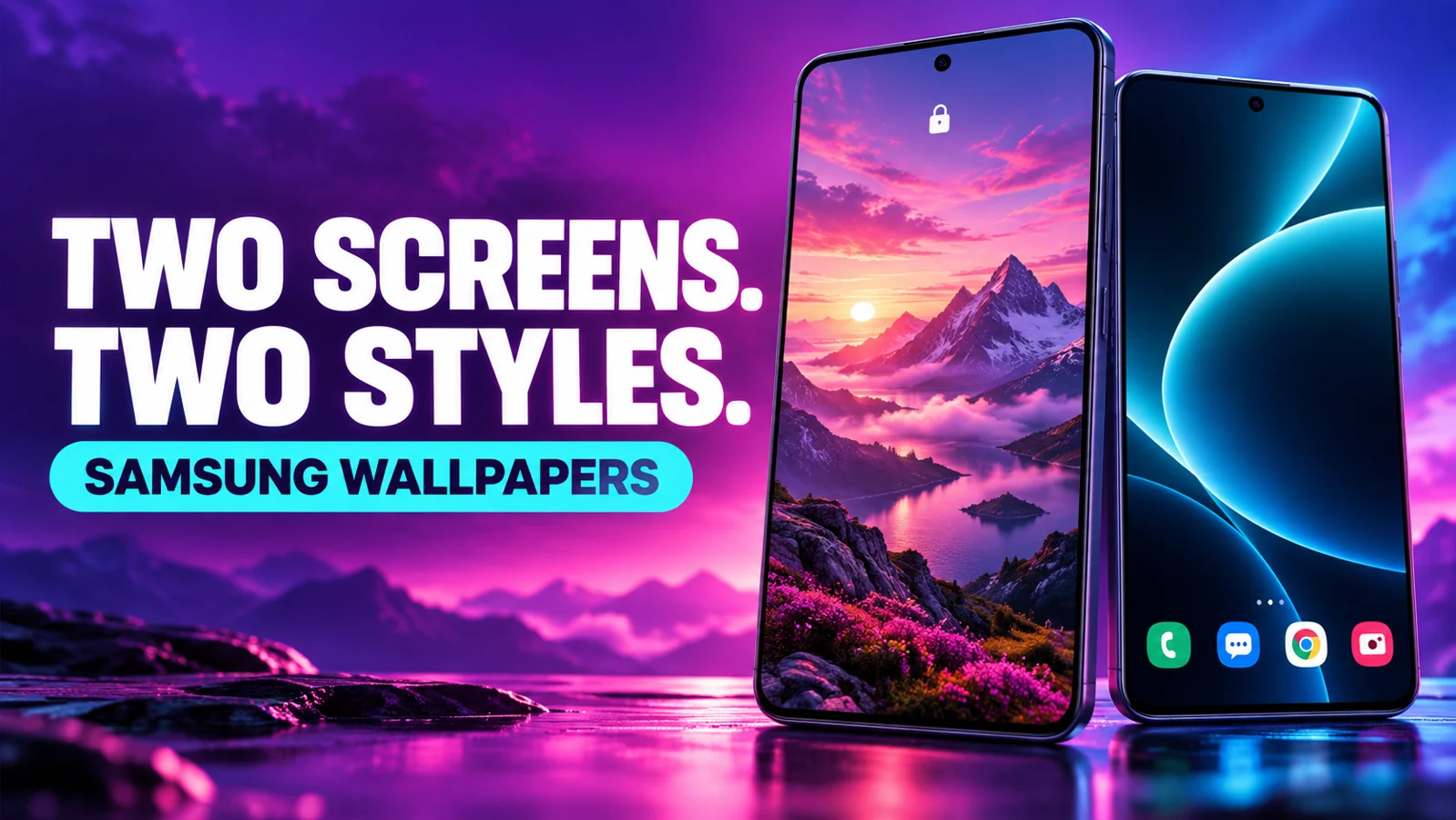
You can use different pictures for the Home screen and Lock screen on a Samsung Galaxy phone. Apply the first image to Home screen only, then apply the second to Lock screen only. Selecting both screens applies the same picture to both, which is the option to avoid when you want two different looks.
This guide focuses on ordinary still-image wallpapers. Foldable cover displays, live wallpapers and third-party launchers can have separate options. Samsung's menu wording also varies by model and One UI version.
Set the Home screen picture
- Touch and hold an empty area of the Home screen and open Wallpaper and style.
- Choose Change wallpapers, then Gallery.
- Select the image you want behind your apps and tap Done.
- When asked where to apply it, select Home screen only, then Next.
- Review the crop and position, then tap Done to apply the picture.
These steps follow Samsung's wallpaper guide. Do not select Lock screen as well if you want to preserve a different lock-screen image.
Set a different Lock screen picture
Repeat the wallpaper-selection process with your second image, selecting Lock screen only. On supported Galaxy models, you can also touch and hold the Lock screen, unlock when prompted, choose Wallpapers → Gallery, select a picture and finish with Done after checking the preview.
For a simpler starting point, open a saved image in Gallery, open More options and choose Set as wallpaper. Select only the destination you want to change. Samsung's UK guide documents this alternative; older software may say Set on Home screen or Set on Lock screen at the final step.
Pick a pair that still works around icons and the clock
A useful pairing is a quiet abstract Home screen and a more detailed landscape Lock screen. Both can share a colour family without repeating the same picture. Browse our phone wallpaper collection, download the original files and compare them in the phone's preview before applying them.
- For Home screen, look for calm areas behind app labels. A detailed photograph can look good by itself yet make small labels difficult to read.
- For Lock screen, keep the main subject away from the clock and notification area. Leave enough surrounding space for the phone's crop.
- Judge the image after it fills the display. A small website thumbnail is not a reliable way to assess sharpness on your phone.
- Save both originals so you can try another crop later without repeatedly downloading the same files.
These are visual selection tips, not a requirement to use a particular wallpaper size. For dimensions and cropping, see our wallpaper-size guide and why a wallpaper looks zoomed in.
If both screens still show the same image
Reopen the destination selection and apply the pictures separately. First set the Home screen, return to it and check the result. Then set the Lock screen and wake the phone to check that result. This simple sequence makes it easier to catch an accidental selection of both screens.
Start with two clearly different still images while checking the setup. Once each screen displays the intended file, switch to your preferred matching pair. This avoids mistaking two similar crops for a setting that failed.
If the Lock screen changes again by itself
Check whether you have enabled Dynamic Lock screen. Samsung describes it as a service that displays different images when the phone wakes; it is different from assigning one static image. Its controls are under Wallpaper and style → Change wallpapers → Wallpaper services on supported devices. See Samsung's Dynamic Lock screen explanation.
If you prefer one saved photo, review the active wallpaper service and return to a static Gallery selection. Do not assume a new download is faulty merely because a rotating wallpaper service is still selected.
Common questions
Does this give each Home screen page a separate wallpaper?
This walkthrough separates Home screen from Lock screen. It does not configure a different image for every page of app icons.
Do I need a paid theme?
No paid theme is part of the Gallery workflow above. You choose pictures already saved on your phone and assign each destination.
Reviewed against the linked Samsung documentation on 29 September 2026. Menu labels may vary; this guide was not tested on every Galaxy model or software release.