Your phone has one notification sound for everything. Every buzz sounds the same — your mum, your bank, a group chat with forty unread messages — and you check all of them, every time, because you can't tell them apart.
The fix isn't changing the phone's default. That helps, but it changes everything at once. The real fix is giving *one app* its own sound, so the important one stands out. And the setting for that is hiding in a place most people never open: the app's notification *categories*.
The core idea: change the category, not the phone
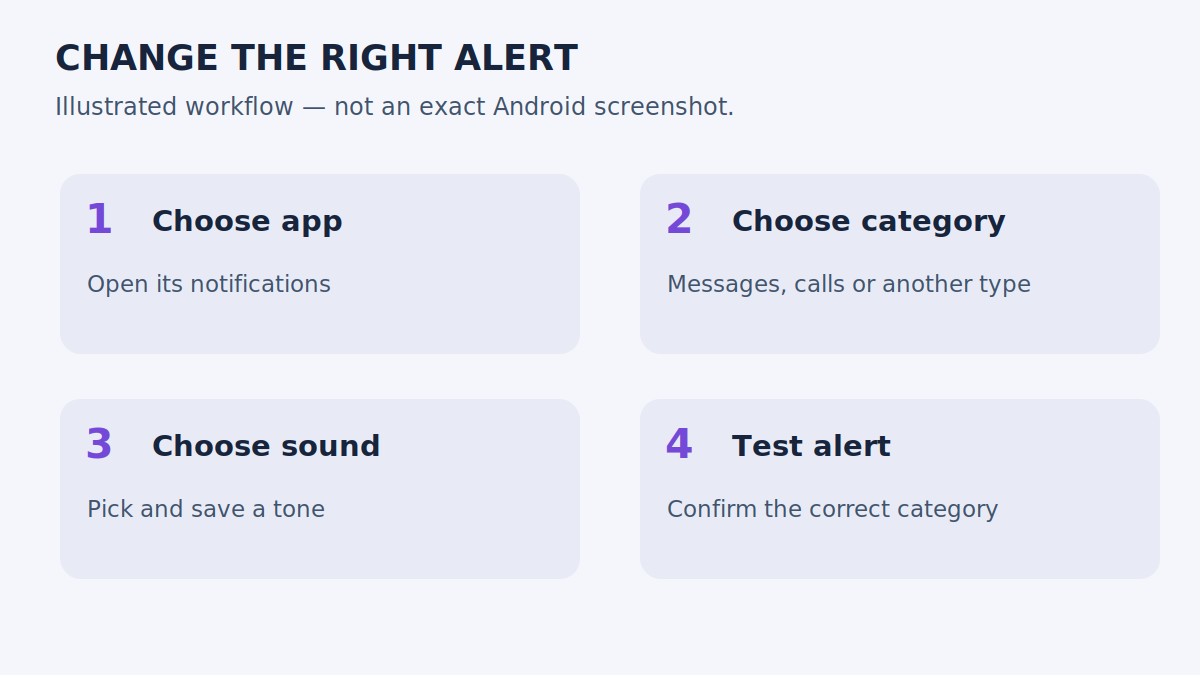
To give an Android app its own notification sound, open its notification settings and find a category — a notification *type* — with a Sound option. Pick the relevant category, choose a tone, save where prompted.
Why categories? Because a messaging app isn't one thing. It has separate categories for messages, calls, and background activity, and each can carry its own sound. So before you change anything, ask: which alert do I actually want to recognise? Start with that category. Changing every setting at once just creates a mess you can't unpick.
On a Google Pixel
Google's route: Settings → Notifications → App notifications → the app's name. Open Notification categories, choose the category, tap Sound, pick a tone, save if the control appears. The names inside the category list depend on the app — some are clear, some are cryptic.
Handy trick: if a notification from that app is already visible, its settings shortcut can take you straight to the relevant app or category. But don't assume two similarly named message categories do the same job. Change one, then request a test notification and confirm it before touching the next.
On a Samsung Galaxy
Newer Galaxy software hides the category controls at first. Open Settings → Notifications → Advanced settings, then switch on Manage notification categories for each app, if it's offered. Next, open the target app's notification settings through Settings → Apps. Select a notification category and its Sound control, then choose the tone.
The tap that matters: tap the category *name*, not just its switch. Flipping the switch turns those notifications off — it doesn't open the sound picker. That's the single most common wrong turn in this whole process, and Samsung's menus vary by model and software version, so follow the labels on your own device.
Using a downloaded sound
On supported Galaxy phones, Samsung documents copying an audio file into the Notifications folder in internal storage using My Files, then returning to the sound picker to find it. If a different Android phone offers an Add or file-selection control, follow that device's picker instead.
Pick something short and clear — not a long song. A spoken phrase can broadcast private information when it plays in public, and a thirty-second effect gets old fast in an active group chat. Preview any sound effect before assigning it. The visual style of a sound button tells you nothing about whether its audio suits an alert.
Give each sound a job
Here's a setup that actually works in daily life: one brief, neutral sound for routine messages, and one unmistakable tone for the app you check promptly. Test both at moderate volume through the phone speaker — two clips that sound totally different in headphones can be impossible to tell apart in a bag or a noisy room.
And resist the urge to give every app its own sound. You don't need one. Start with two important apps, leave the rest on the default or silent. A system you can remember beats a system that's technically complete but impossible to keep straight in your head.
"There's no sound option anywhere"
First, check you opened an actual *category*, not just the app's overall notification page. The overall page has toggles; the category has the sound picker. If you're in the right place and there's still nothing, look inside the app's own settings — some apps manage alert choices there.
And if the category only offers silent behaviour, or the app doesn't expose a selectable tone at all, that's the end of the road for that app. No universal setting can force a feature to appear that the app doesn't offer.
"I set the sound, but it doesn't play"
Run this list in order:
- Notifications allowed for the app *and* the relevant category?
- Category set to alert rather than silent?
- Notification volume up, and no Do Not Disturb or similar mode active?
- Fresh test notification sent from another device or account?
- Compared against a built-in tone — to find out whether your downloaded file is the problem?
That last step matters. Preview playback in the picker only proves the file *can* play there. It doesn't prove an incoming alert is assigned to that category. If you're actually trying to change call audio, not notifications, read ringtone versus notification sound instead — different setting entirely.
Where this comes from
These steps follow Google's Pixel notification sound guidance and Samsung's per-app sound instructions. They're documentation-based, with labels that vary by app and software version.
Two things people ask
Will this change incoming phone calls? Not necessarily. The phone ringtone is separate. Use our Android ringtone guide for ordinary calls.
Why did only some alerts change? The app probably uses more than one notification category, or a separate in-app sound setting. Find the alert type that still uses the old sound and review *that* category.