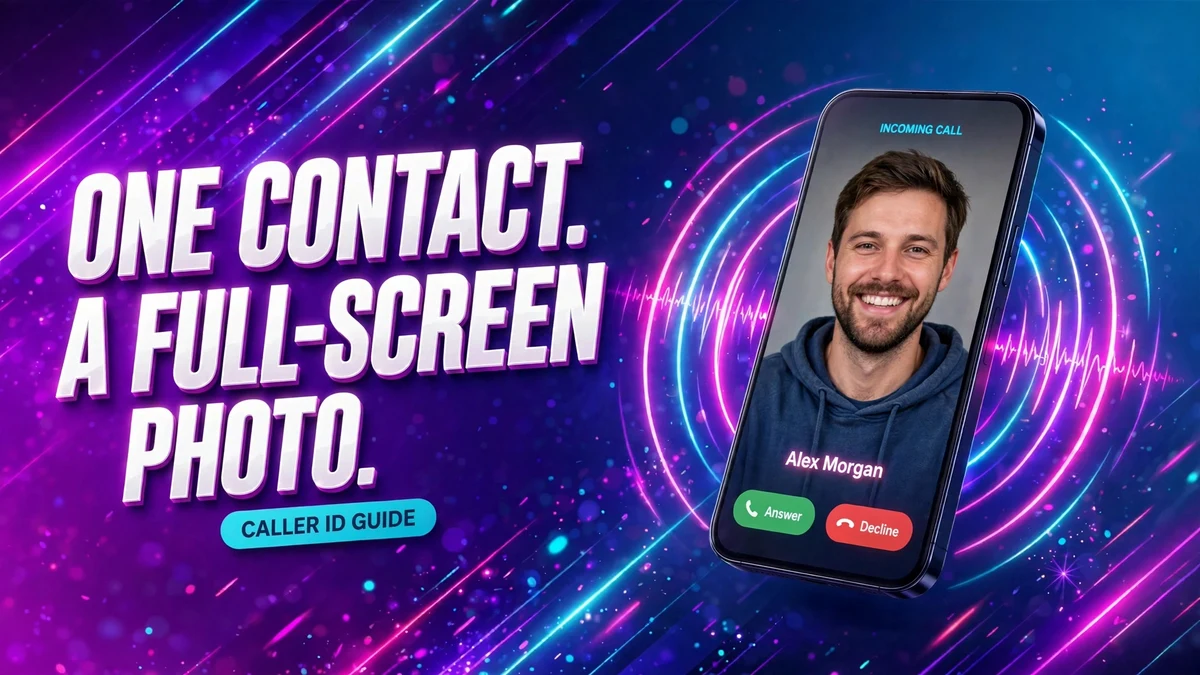
There's something quietly satisfying about glancing at an incoming call and instantly knowing who it is — not from a name on a plain screen, but from their photo filling the whole display. A tiny round thumbnail next to a name is easy to misread at a glance, especially with the phone across the room. A full-screen photo removes all doubt: mom's face fills the display, so you answer.
Both iPhone and Samsung phones can do this, but the feature hides behind menu names you'd never guess: Contact Posters on iPhone and Call Background on Samsung. Set up once, your favourite people arrive with a full-screen photo — and if you make your own poster, your contacts see *you* in full screen too. Here's how it works on both platforms, what it looks like when you answer, and what to do when the photo refuses to appear.
iPhone: Contact Posters (iOS 17 and later)
A Contact Poster is the full-screen visual other people see when you call them — your photo, Memoji, or initials with custom typography, much like a lock screen. It shows in the Phone app, FaceTime calls, and third-party calling apps that support it (for example WhatsApp, when the app opts in). Note that your contacts only see your poster if their iPhone runs iOS 17 or later; on older software, your call arrives with the old plain screen.
- Open the Phone app and tap the Contacts tab at the bottom.
- Tap your name at the top — your My Card.
- Tap Contact Photo & Poster.
- Make sure Name & Photo Sharing is turned on (the people you choose decide who sees it).
- Tap Customize under Poster.
- Choose a style: Camera to take a new photo, Photos to pick one from your library, Memoji, or Monogram for initials.
- Swipe through the filters and tap the name to change the font and colour. Pinch to reposition the photo.
- Tap Continue to preview, then Done to save.
Posters for people who haven't made one
If a contact hasn't set their own poster (or still uses an old iPhone), you can make one for them so *their* calls look full-screen on *your* phone:
- Open Contacts and tap the contact.
- Tap Contact Photo & Poster.
- Choose Camera, Photos, Memoji, or Monogram and design it the same way as above.
- Tap Done. From now on, their calls arrive with your custom poster instead of the plain grey screen.
If that contact later creates and shares their own poster, your version is replaced automatically — they always have the final word on how they look. That's not a bug; it's how Apple designed it.
Samsung: call backgrounds and profile cards
Samsung splits this into two things: a call background (the photo or video shown behind every incoming call screen) and a per-contact profile card. You can even use a short video — a nice option if you want motion instead of a still.
One background for every call
- Open the Phone app and tap the three-dot menu in the top-right corner.
- Tap Settings, then Call background.
- Tap Background to see the featured options.
- Tap the + icon to pick a photo or video from your Gallery (videos must be under 15 seconds; longer ones get a trim prompt).
- Tap Set as call background.
A different full-screen photo per contact
On One UI 5 and later you can give individual contacts their own background, and One UI 6.1 added a full-screen profile card per contact:
- Open Contacts and tap the contact.
- Tap Edit, then tap Create profile card (top of the editor).
- Pick a photo from your Gallery.
- Add optional text, and try the effects — font styles, greyscale or blurred backgrounds, pastel and oil-paint filters, even an AI portrait restyle.
- Tap Done. Their photo now fills your screen when they call.
Pixel and everyone else: the honest answer
Stock Android (Pixel, Motorola, Nothing) shows a large circular contact photo on the call screen, but there's no built-in full-screen photo mode like Samsung's. Your realistic options: add a proper photo to the contact (tap the camera icon in the contact editor), or install a third-party caller-ID app from the Play Store — check recent reviews carefully, since these apps request call-handling permissions.
If full-screen caller photos matter to you, this is one of those quiet areas where Samsung's software is genuinely ahead of stock Android.
When the photo won't show up
- "My contact still sees the old grey screen." They're on iOS 16 or earlier, or your Name & Photo Sharing is off. Both sides need iOS 17 or later for posters to appear.
- "The photo looks blurry on the call screen." The source image is too small. Re-pick the photo and use a high-resolution original; tips for finding crisp source images are in our phone wallpaper image formats guide.
- "Samsung shows the background but not for one contact." Per-contact backgrounds need One UI 5 or newer; the profile-card editor needs One UI 6.1. Check Settings → About phone → Software information.
- "My video background was rejected." Keep it under 15 seconds and under the size limit the prompt shows; trim it first in the Gallery editor.
- "The poster changed by itself." Your contact made and shared their own poster, which replaced yours. Nothing is broken — you can re-customize, but theirs wins.
Quick answers
Does my Contact Poster show on Android phones? No. Posters only render on iPhones running iOS 17 or later. Android callers see a normal incoming-call screen.
Can I use a video as my iPhone Contact Poster? Not a live video — Contact Posters use photos, Memoji, or monograms. Samsung phones, by contrast, accept short videos as call backgrounds.
Will the full-screen photo slow down my phone or eat battery? No meaningful effect. A poster or call background is a static image (or a 15-second clip on Samsung) shown for the few seconds the call rings.
Can contacts opt out of seeing my poster? They can't block one specific poster, but anyone can turn off poster display entirely: their iPhone simply shows the standard call screen.
The limits, plainly stated
- Contact Posters require iOS 17 or later on iPhone XS or newer — older devices never get them.
- Your poster only appears for contacts who also run iOS 17+ and have you saved with Name & Photo Sharing enabled on your side.
- Samsung's per-contact profile card and effects need recent One UI versions and are not available on every budget model.
- These steps were verified against official Samsung support documentation and current iOS guides; menu wording can shift slightly between software versions.
Pair the visual with sound and you'll never misread a call again: a per-contact ringtone on iPhone or on Android means you can identify the caller by both sight and sound without looking closely at the screen.
Official sources
- How to customize the call background on your Galaxy phone — Samsung Support
- How to set a picture or video as the call background — Samsung Support
- Step-by-step: create Contact Posters on iOS 17 — IMP News
- How to remove or turn off a Contact Photo and Poster — Mac Observer
- Samsung Galaxy: enable full-screen caller photo — TechWiser