The default alarm sound in Google Clock is fine. It's also the sound roughly a billion other people wake up to, and if you've ever bolted upright at a friend's house because their phone played "your" alarm, you know the problem.
The fix is simple: Google Clock lets you use any audio file downloaded to your phone as your alarm. A favourite song intro, a gentle chime, a recording of birdsong — whatever actually gets you out of bed without making you hate mornings. It takes a minute to set up, but there are a couple of traps along the way, and the biggest one is mixing this up with your ringtone. Choosing an alarm sound here changes nothing about your incoming-call ringtone. They're separate settings that happen to live near each other.
Get the file ready first
Before you open Clock, sort out the file. You want a local audio file on your phone that you can identify and that you're entitled to use — something you downloaded, recorded, or created yourself.
Give it a descriptive name before you open the picker. A file called morning-chime is easy to spot. A file called audio_4829103_final_v2 is not, especially when your Downloads folder has six other files with nearly identical number-soup names. Rename it now, while you're thinking about it, because the picker will show you exactly what's in the folder and nothing more.
Also, check that the file actually plays. Open it once in your music player or Files app. A half-downloaded file or a link that only streams from a website won't work here — Google Clock needs a real file stored on the device, not a URL.
Most common formats work: MP3, WAV, OGG, and M4A are all fine in practice. If your file is something unusual, convert it to MP3 before you start. And keep the file where it is after you pick it. If you reorganise your Downloads folder later and move or delete it, the alarm can lose its sound — more on that below.
Picking the file for one alarm
- Open Google Clock and tap Alarm.
- Open the alarm block you want to change.
- Tap its current alarm sound.
- Choose Add new and select your downloaded sound file.
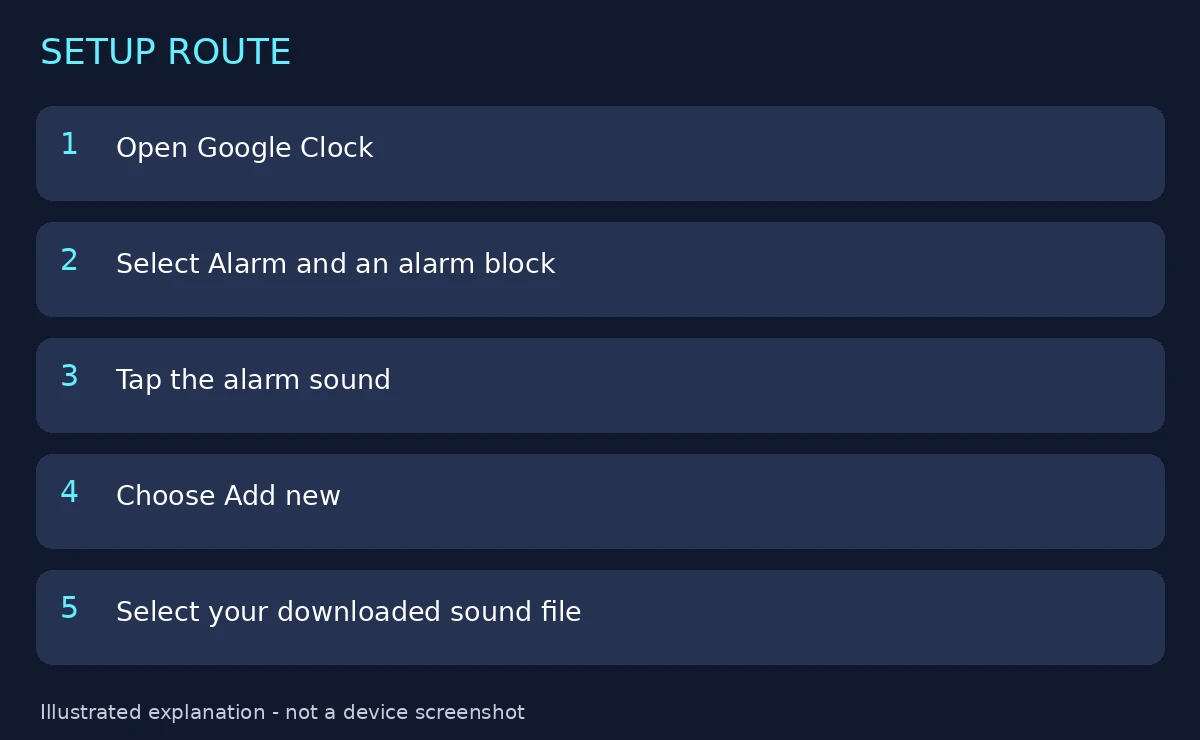
Those are explanatory cards, not device screenshots. And one heads-up: other manufacturers' Clock apps can have different controls. Samsung Clock, Xiaomi's Clock, OnePlus's Clock — they all have their own layouts. This route follows Google Clock specifically. If your phone opened a different Clock app by default, the Add new button might be labelled differently or sit somewhere else.
One more thing worth setting while you're in here: Google Clock has a "gradually increase volume" option on the alarm. If your new sound is a song that starts loud, turning that on gives you a gentler ramp instead of being launched out of sleep at full volume. It's a small toggle that makes a big difference to how the morning feels.
Now prove it works — while you're awake
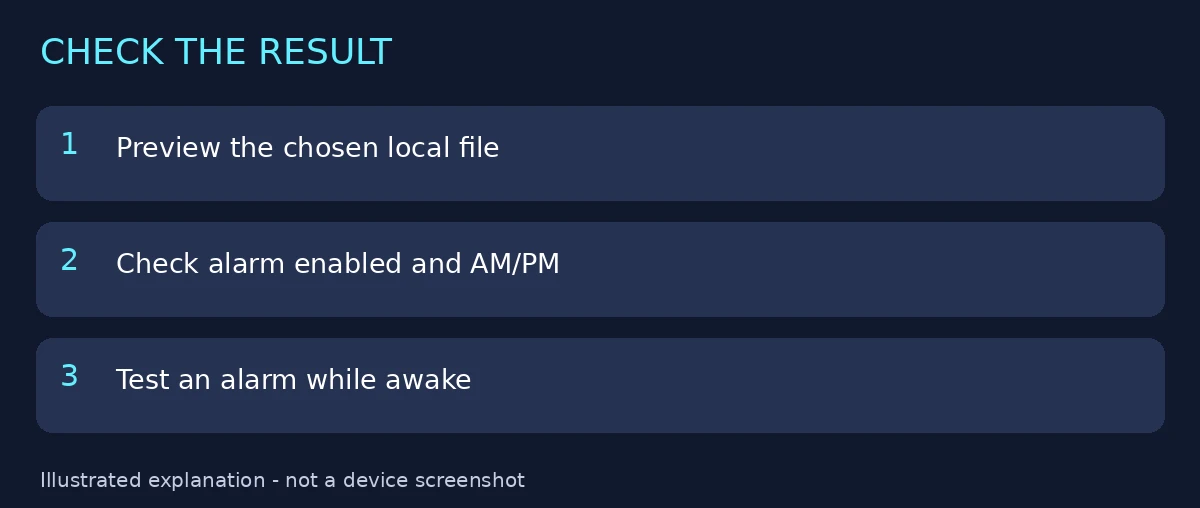
This is the step everyone skips, and it's the step that matters most. Preview your selection in the picker, sure — but a preview is not a test.
Set a temporary alarm two minutes from now, with the new sound, and let it actually go off. Check that the alarm is enabled (the toggle on the alarm block), confirm AM or PM, and check the repeat days. An alarm set for PM when you meant AM is the oldest mistake in the book, and it has ended more mornings than any software bug ever will.
Listen to the actual alarm, not just the file name in the picker.
!Checklist for a custom alarm test Does it play through the phone speaker or did it sneak out to a Bluetooth speaker in the next room? Does it sound right at alarm volume, not just at music-player volume? If anything's off, you want to find out now, at 3 p.m., not at 6 a.m. when it counts.
If the alarm stays silent
First, read any warning Clock shows you. Google's troubleshooting covers the usual suspects: a silent sound selection, low alarm volume, notification permissions, and Do Not Disturb settings. Follow the warning that matches your phone rather than changing every setting at once — if you flip five toggles simultaneously, you'll never know which one fixed it.
The most common silent-alarm causes, in rough order:
- The sound is set to Silent. It happens more easily than you'd think — one wrong tap in the picker, and the alarm has no sound at all. Google notes that an alarm with silent sound and vibration off may not alert you.
- Alarm volume is down. On many Android phones, alarm volume is its own slider, separate from media and ringtone volume. Check Settings > Sound & vibration if the alarm sounds faint.
- Do Not Disturb is blocking it. Most DND setups allow alarms through, but a customised DND rule can interfere. If your alarm only fails on nights when DND is on, that's your prime suspect.
- The file moved. If you cleaned up your Downloads folder after setting the alarm, the sound may be gone. Keep a known working sound available for comparison — switch to a built-in tone and see if the alarm rings. If it does, the problem is the file, not the phone.
Local file or streaming song — pick one
Google Clock also offers streaming-service selections on some devices. That's a different choice from the local-file path in this guide, and it comes with its own catch: if the streaming app logs you out, loses its subscription, or has no connection, your alarm may fall back to something else or stay quiet.
The local-file path needs none of that. No subscription, no connection, no app that can log you out overnight. The trade-off is that you're responsible for the file — keep it in a stable location, and retest after reorganising your downloads.
Related audio help
Read Android custom ringtone setup and ringtone versus notification sounds.
Reviewed source
Google: Set, cancel or snooze alarms. Reviewed 5 October 2026. The instructions were reviewed against documentation; physical-device testing and search volumes are unverified.