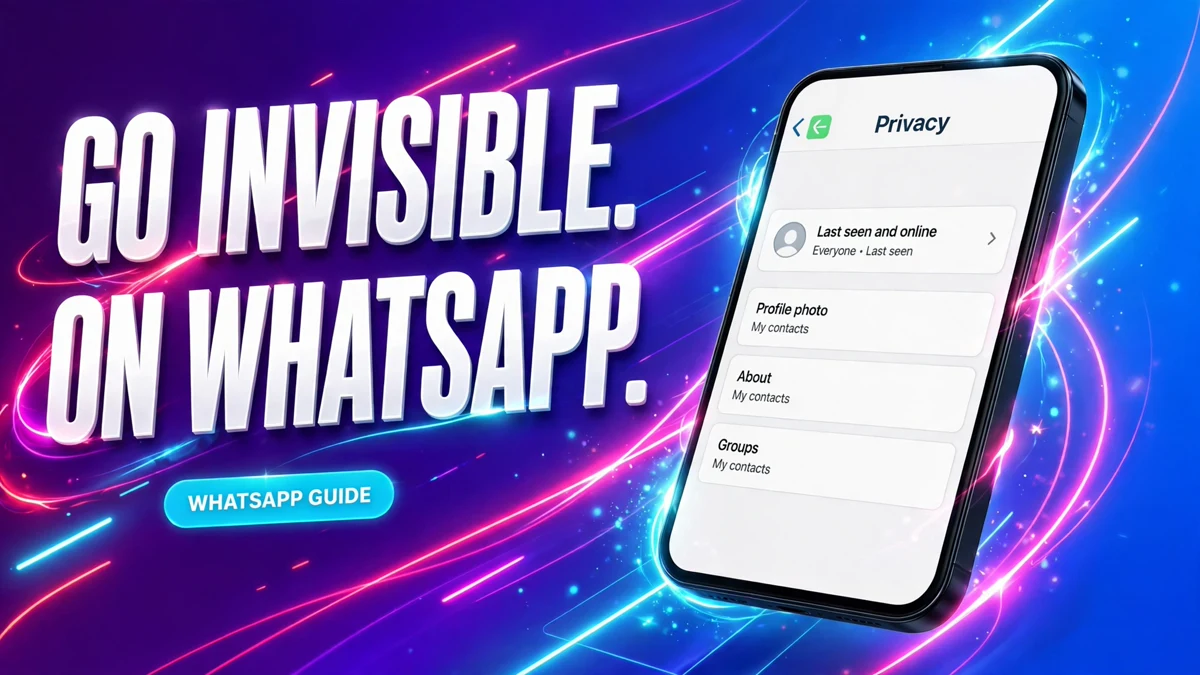
You open WhatsApp to send one quick message, and anyone with your number can see the word "online" under your name the whole time the app is open. There is no way to look busy without looking watched — unless you change the one setting that controls it. WhatsApp does let you hide your online status, but the switch is not where most people expect it, and it comes with a catch that is easy to miss.
Last Seen and Online are two different things
People mix these two up, and the setting only makes sense once you separate them. WhatsApp's own Help Center describes them as one screen with two signals:
| Signal | What it shows | When it appears |
|---|---|---|
| Last Seen | The last time you had WhatsApp open | Under your name in a chat, when you are not currently in the app |
| Online | That you are using WhatsApp right now | Under your name the whole time WhatsApp is open on your device and connected to the internet |
Being online does not mean you have read someone's message — it only means the app is open. But to anyone watching, the two look the same: a live sign that you are there. Hiding one without the other is the mistake most people make, so set both.
Hide your online status on iPhone
- Open WhatsApp and tap Settings in the bottom-right corner. In newer versions of the app this tab is labelled You instead.
- Tap Privacy.
- Tap Last Seen & Online.
- Under Who can see my last seen, tap Nobody.
- Under Who can see when I'm online, tap Same as last seen.
That is the whole setup. The moment you leave the screen, your name stops showing "online" to anyone, and your last-active time disappears with it.
Hide your online status on Android
- Open WhatsApp and tap the three-dot menu in the top-right corner.
- Tap Settings, then tap Privacy.
- Tap Last seen and online.
- Under Who can see my last seen, tap Nobody.
- Under Who can see when I'm online, tap Same as last seen.
On the newest versions of WhatsApp for Android, Settings lives under the You tab at the bottom right instead of behind the three-dot menu. Either route opens the same Privacy screen, so use whichever one your phone shows.
The four Last Seen choices — and what each does to Online
Last Seen has four audiences. Online has only two: Everyone or Same as last seen. There is no standalone Nobody option for Online — it can only follow whatever audience you picked for Last Seen. That is why the two settings have to be chosen together:
| Last Seen set to | Online set to Same as last seen | Who sees you online |
|---|---|---|
| Everyone | Everyone sees your last-active time; Online follows it | Everyone who has messaged or called you before, or saved your number |
| My contacts | Only people saved in your contacts | Only your contacts |
| My contacts except… | Everyone in your contacts except the people you pick | The same set as Last Seen — the people you excluded see neither |
| Nobody | Nobody sees your last-active time | Nobody at all |
The My contacts except… option is the quiet power choice: hide from a boss, a relative, or one persistent contact, and everyone else keeps seeing you normally. Pick just one person there and you have hidden your online status from exactly one person.
The trade-off: what you lose
WhatsApp privacy is symmetric, and this is the price of hiding. The Help Center puts it plainly: if you do not share your Last Seen or online, you cannot see other people's Last Seen or online either.
- Set Last Seen to Nobody, and you lose everyone's Last Seen and online labels — not just the people you hid from.
- Set it to My contacts except…, and you keep seeing everyone except the people you excluded. That is the gentler version of the same rule, and for most people it is the right one.
- The setting is free and completely reversible. Change it back to My contacts or Everyone at any time and everything returns to how it was.
There is no way to pay nothing and see everything. If watching other people's activity matters to you, choose My contacts except… for one or two people instead of Nobody for the whole world.
What hiding does — and what it does not do
Hiding your online status is a narrow switch. It changes exactly two labels, and the rest of your WhatsApp keeps working the same way:
| After you hide your online status | What happens |
|---|---|
| Your "online" label | Hidden from the audience you chose |
| Your Last Seen time | Hidden from the same audience |
| The "typing…" indicator | Still shows while you type in a chat — hiding does not cover it |
| Your replies and calls | Still reveal that you are active, because you chose to respond |
| Your profile photo and About | Still visible to them, under their own separate settings |
| Read receipts (blue ticks) | Unaffected — a separate switch under the same Privacy screen |
| Your Status updates | Unaffected — hiding a status is a separate setting |
| Whether they are notified | They are not. WhatsApp sends no alert when you change your privacy audience |
| WhatsApp Web and Desktop | Follow the setting on your phone, which is where the switch lives |
There is no single "invisible mode" button in WhatsApp. The closest thing is this pair of settings plus the habits around them: if you are actively typing in someone's chat, they will see "typing…" and know you are there, whatever your privacy settings say.
Third-party "hide online" apps are not worth it
Search for a way to hide your online status and you will find apps that promise to do it better — invisible modes, activity trackers, tools that claim to hide you completely. You do not need any of them, and the built-in setting above already does everything WhatsApp allows.
Many of these apps are scams or malware, and they ask for the kind of access — notification access, accessibility permissions, sometimes your account details — that has no business in a privacy tool. Some are modified WhatsApp clients, which WhatsApp does not support. If an app promises to hide your typing indicator or make you fully invisible, that is the sign to delete it: WhatsApp does not offer those controls to any app, official or not.
If someone can still see you online
Work through these in order before assuming the setting is broken:
- You left Online on Everyone. Open Settings, then Privacy, then Last seen and online, and read both lines. Last Seen on Nobody with Online still on Everyone means the live label is still visible. Change Online to Same as last seen.
- You are typing in their chat. The typing indicator is separate from Last Seen and Online. While you type, they see "typing…" — close the chat or stop typing and the label goes away.
- You only hid your Last Seen. There is no way to hide Online on its own while leaving Last Seen visible to everyone. Online can only follow your Last Seen audience, so narrowing Last Seen is the only route.
- You changed the setting on the wrong device. The switch lives on your phone. Changing privacy settings in WhatsApp Web or Desktop does not exist as a separate route — set it on the phone and the rest follows.
- The app is out of date. If the Last seen and online row is missing from your Privacy screen, update WhatsApp from the App Store or Google Play, force-close it, and open it again.
- They are guessing from your replies. A fast reply, a voice note, or a call still tells someone you are around. No privacy setting can hide the fact that you answered.
FAQ
Can I hide my online status from just one person?
Yes. Go to Settings, then Privacy, then Last seen and online, choose My contacts except… for Last Seen, select only that one contact, and set Online to Same as last seen. That person sees neither your Last Seen nor your online label, while everyone else keeps seeing both exactly as before. You will also stop seeing that one person's Last Seen and online status.
If I hide my online status, can I still see when others are online?
No — not from the people you hid from. WhatsApp applies the rule both ways: if you set Last Seen to Nobody, you lose everyone's Last Seen and online labels. If you use My contacts except…, you keep seeing everyone except the people you excluded.
Does hiding my online status also hide my Last Seen?
They are linked, not identical. Online follows your Last Seen audience through the Same as last seen option, so to hide both from everyone you set Last Seen to Nobody and Online to Same as last seen. If you set Last Seen to My contacts and Online to Same as last seen, your contacts still see both — the pair moves together.
Will people know I hid my online status?
WhatsApp does not notify anyone when you change your privacy settings. The person simply stops seeing "online" under your name and stops seeing a last-active time. They may notice the absence if they were watching for it, but nothing on their screen points to the setting.
Does it work on WhatsApp Web and Desktop?
Yes. The setting is stored on your account from your phone, and WhatsApp Web and Desktop follow it. There is no separate online-status switch on the computer — set it once on your phone and it applies everywhere you use WhatsApp.
Can I hide my online status but keep my Last Seen visible?
No. Online has no independent Nobody option — it can only be Everyone, or follow your Last Seen audience. If you want nobody to see you online, you also have to narrow who sees your Last Seen. That is the design of the setting, not a bug in it.
Do I need an app to hide my online status on WhatsApp?
No. The built-in setting does it, and it is the only route WhatsApp supports. Third-party "hide online" apps are not needed, many are scams or malware, and modified WhatsApp clients are not supported by WhatsApp. If you want more privacy, use the official controls — and for the rest of your WhatsApp privacy, our guide to turning off read receipts on WhatsApp, our guide to hiding your WhatsApp Status from specific contacts and our guide to changing your WhatsApp DP without losing quality cover the photo, the ticks and the status side of the same Privacy screen.
Sources checked on 2026-11-09: WhatsApp Help Center: About last seen and online, TechPP: The Ultimate WhatsApp Privacy Setup Guide, Best for Android: How to Hide Your Last Seen and Online Status on WhatsApp, Dr Viram: Hide Last Seen on WhatsApp 2026, Techsith: How To Hide Your Online Status On Whatsapp.