Here's a situation most iPhone owners have run into at some point. You want your ringtone quiet — maybe you're in meetings all day, or you just don't like your phone blasting every time someone calls. But your morning alarm? That one needs to be loud enough to actually wake you up. For years, those two volumes were tied together, so turning one down turned the other down too.
On iOS 27, Apple finally split them apart. There's a setting that lets your alarms and timers run at their own volume, completely separate from your ringtone. It takes about thirty seconds to change, but it's tucked in a spot most people never open. And if you follow an old guide written for an older iOS version, you'll end up hunting for a switch that doesn't exist on your screen.
The one switch that unties them
Open Settings, then Sounds & Haptics. Scroll until you see the Alarms and Timers section. Inside it, there's a toggle called Match Ringtone Volume. Turn that off.
The moment you do, a volume slider appears underneath. That slider now controls your alarms and timers — and only your alarms and timers. Your ringtone volume stays exactly where it was.
There's a second, separate matching control on the same screen for Alerts and System Sounds. That one is about notification pings and system noises, not your alarm. Leave it alone unless you actually want those tied to your ringtone too. It's easy to flip the wrong toggle when you're scrolling quickly, so check the section heading before you tap anything.
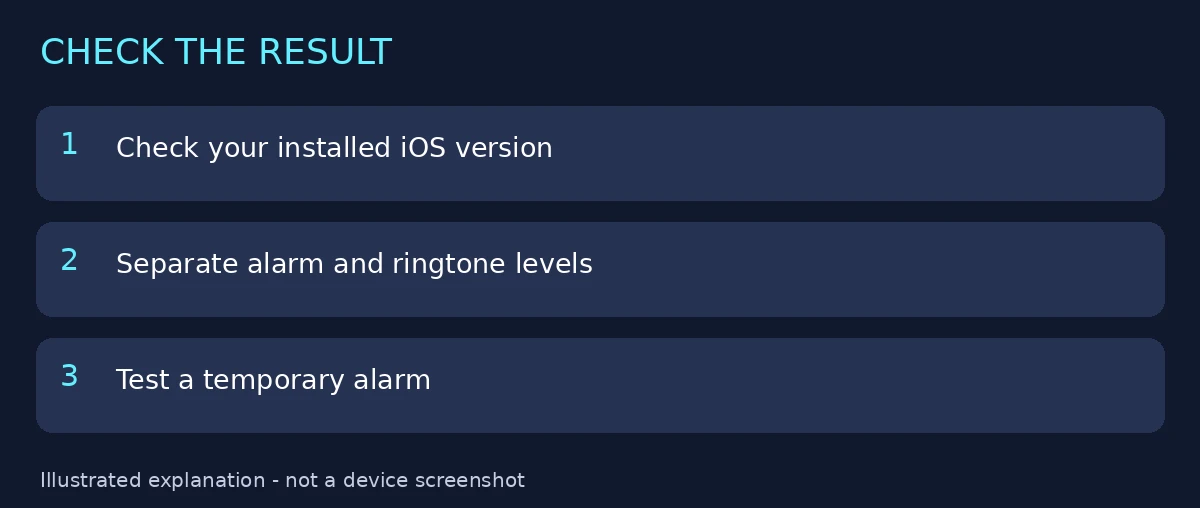
One thing worth knowing: this guide follows Apple's current iOS 27 instructions. Older versions lay this screen out differently, and the switch might not be there at all. So before you change anything, check which iOS version you're running in Settings > General > About. If a control is missing, that's usually a version difference — not a broken speaker, and not a reason to start resetting things.
Setting your alarm volume, step by step
- Open Settings and tap Sounds & Haptics.
- Find the Alarms and Timers section.
- Turn off Match Ringtone Volume in that section.
- Drag the volume slider that appears to a level that would actually wake you.
That's the whole job. But "a level that would actually wake you" is doing a lot of work in that last step, so don't just eyeball the slider and move on. The number on screen means nothing until you've heard it from the place your phone actually sleeps.
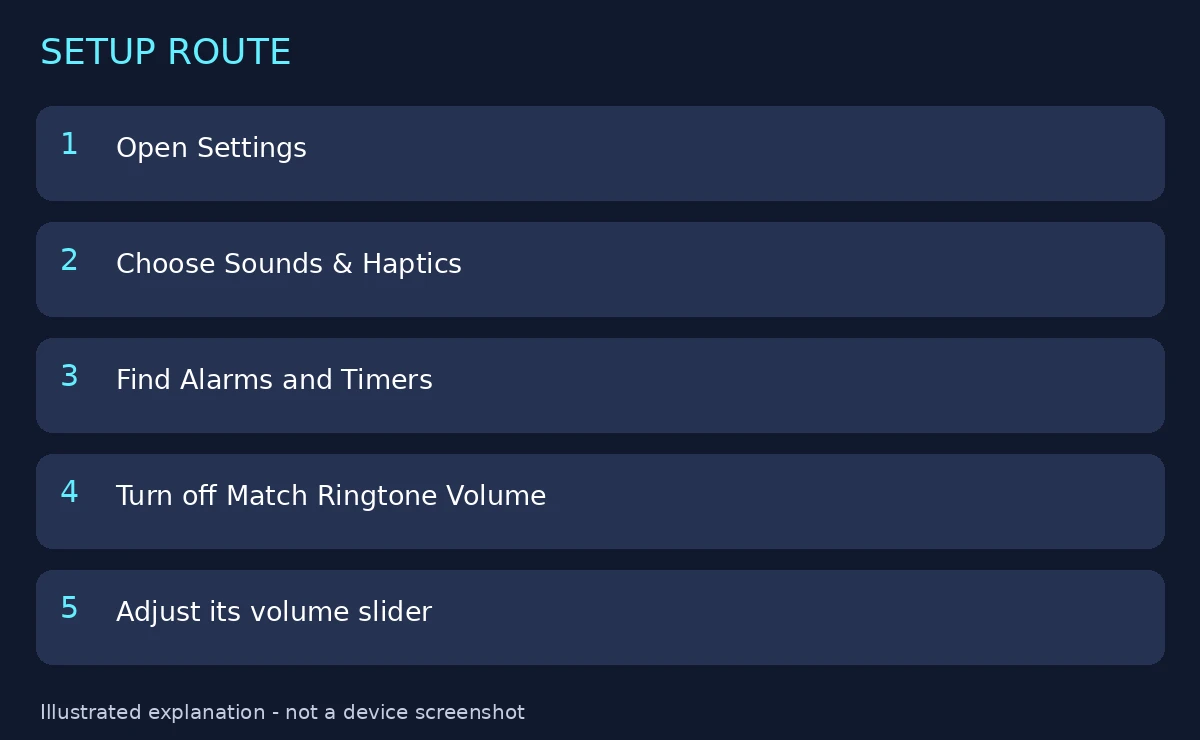
The image above walks through the settings route — it's an explanatory illustration, not a screenshot of a real iPhone. Apple also lists the ringer's Change with Buttons option separately on this screen. That one controls whether the side volume buttons change your ringtone volume. It doesn't set your newly independent alarm level, so don't assume pressing the side buttons after this change is adjusting your alarm. It isn't.
Why you'd bother splitting them at all
Think about the two opposite problems this fixes.
First, the light sleeper problem. Your ringtone is loud because you don't want to miss calls during the day, but at 6:30 in the morning that same volume feels like a fire alarm. With the volumes split, you can keep the ringtone loud and set the alarm to something firm but humane.
Then there's the reverse, which is actually more common. You keep your ringtone low — quiet office, sleeping baby in the next room, a partner who gets up an hour after you — and then one morning you sleep straight through an alarm that was whispering at ringtone volume. Splitting them means your alarm can be loud while your ringtone stays polite.
Timers benefit too, because they share this slider. If you use timers for cooking, workouts, or the laundry, they now play at the alarm level you chose, not at whatever your ringtone happens to be set to. That's a small thing until the one time a timer saves dinner.
Test it before you trust it with your morning
Do not set this up at 11 p.m. and trust it blind. Test it while you're wide awake.
Create a temporary alarm a couple of minutes in the future. Give it an obvious label — something like "TEST - DELETE ME" — so there's no chance of confusing it with your real alarm later. Then put your phone exactly where it normally spends the night: on the nightstand, on the charger, face up, face down, whatever your real setup is. Walk to the other side of the room, or into the hallway, and listen.
Is it loud enough from there? Does it sound different from what you expected? Change one setting at a time and repeat the test. If you move the slider and switch the alarm sound and move the phone all at once, you won't know which change did what.
When you're happy with it, delete the temporary alarm.
!Three checks before relying on the new alarm level A test alarm left behind has a way of becoming an unwanted 3 p.m. daily reminder three weeks later, and you'll have no idea where it came from.
What if the matching switch isn't there?
First, compare your version against the iOS 27 guide linked at the bottom of this article. If you're on an older version, the menu genuinely looks different, and following a screenshot from another software version by guessing at a similar-looking slider is how people end up changing the wrong setting.
If you do need help from Apple Support, note the exact menu you see — the section names, which toggles are present, which are missing. "My Alarms and Timers section doesn't have a Match Ringtone Volume toggle" gets you a useful answer. "My alarm volume is broken" gets you twenty questions.
And one last habit that saves future-you a headache: leave your existing morning alarm untouched while you test all of this. Build the test alarm separately. Your real alarm is the one thing standing between you and a missed Monday meeting — don't experiment on it.
Sound settings that pair with this one
For a different task, see one-contact text tones and account-specific Mail sounds.
Reviewed source
Apple: Change iPhone sounds and vibrations. Reviewed 5 October 2026. Instructions were checked against documentation, not tested on a physical iPhone.