
Work email and personal email sound exactly the same on your iPhone. So every buzz could be your boss, or it could be a newsletter about socks. You check both, every time, and it slowly drives you a bit mad.
Apple Mail has a fix for this that most people never find: you can give each email account its own notification sound. A short, bright tone for work. Something softer for personal. After a day or two, you stop checking the sock newsletters.
The setting is buried — Settings → Apps → Mail → Notifications → Customize Notifications — which is probably why so few people know it exists. But once you've set it, it just works. Here's how.
Before you touch anything: decide who gets the loud sound
Figure out which two accounts you actually use in Mail, and decide which one deserves the more noticeable tone. My suggestion: give work the sharp, unmistakable one and personal mail something gentler. That way, the sound that cuts through a noisy room is the one that might actually need you.
That's a suggestion, not an iOS requirement. The point is to choose deliberately instead of assigning two tones at random and forgetting which is which by Thursday.
One more thing to know going in: these controls only apply to Apple Mail. If you read your email in Gmail, Outlook, or Spark, those apps have their own notification settings, and nothing you do in Mail will touch them.
Setting the first account
- Open Settings, then Apps → Mail → Notifications.
- Make sure Allow Notifications is on. (If it isn't, nothing below matters.)
- Open Customize Notifications and pick your first email account.
- Turn on Alerts. Open Sounds and choose an alert tone or ringtone.
- Go back to the account list, pick the second account, and choose a *different* sound.
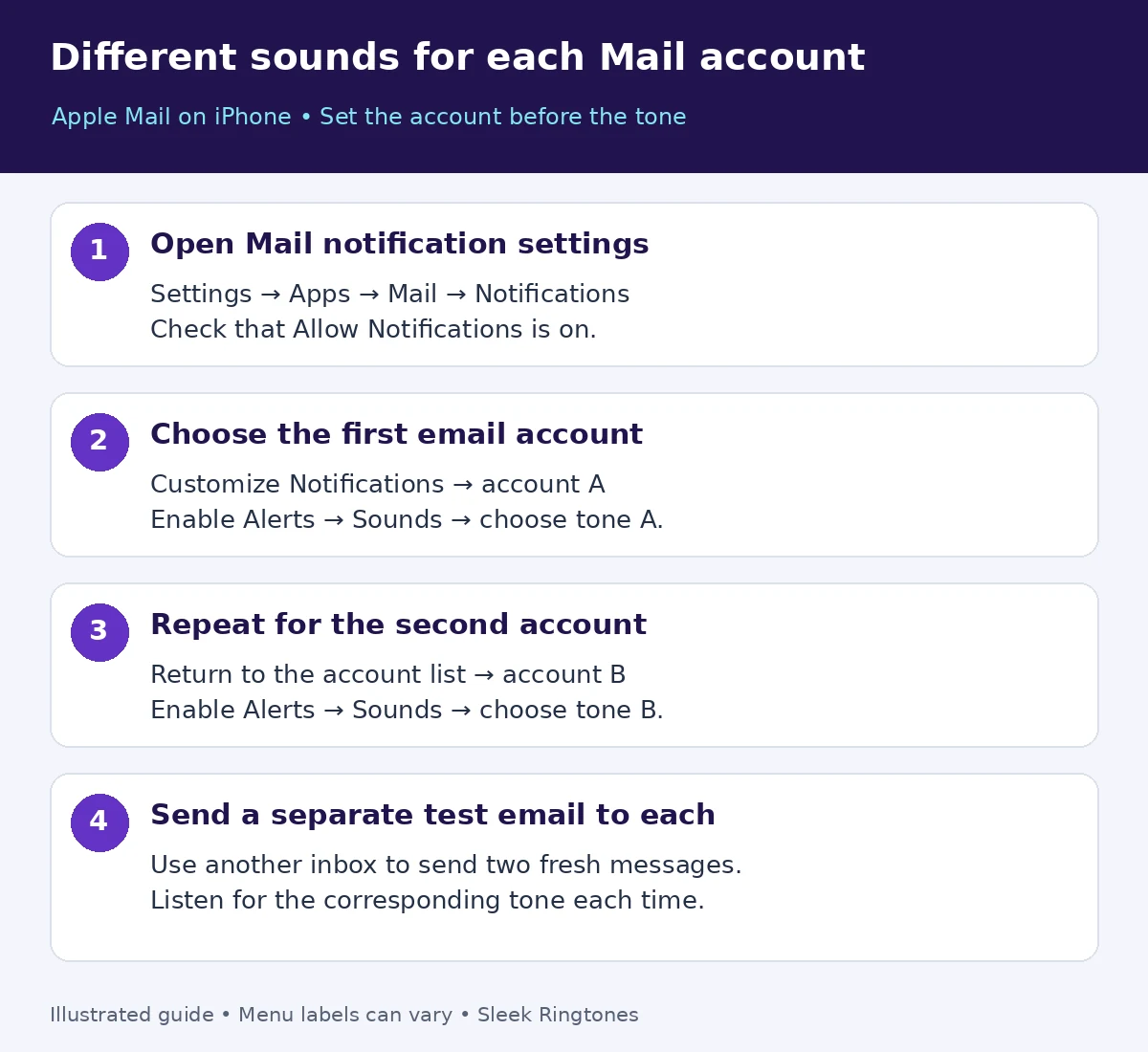
Illustrated guide, not a device screenshot. Menu placement can vary with software. The account controls above follow Apple's Mail notification instructions.
Two things that confuse people here. First, badges — those little red unread counts — are a separate choice from audible Alerts. Turning on a badge doesn't make a sound, and picking a tone doesn't add a badge. Second, picking a tone doesn't override a silenced phone. If your iPhone can't make an audible notification at all right now, the sound assignment isn't the problem. Check that the phone can ring before deciding your setup failed.
The test: one inbox at a time
Send a fresh message from another account to your first inbox, with Mail out of the foreground — not sitting open on screen. Listen for the tone you chose. Then send a separate message to the second inbox and listen again.
Write down which account each message went to before changing anything. It sounds fussy, but it keeps two different problems apart: a message that never arrived (delivery) and a message that arrived silently (sound). If you change the tone while the message was never delivered, you'll chase your tail.
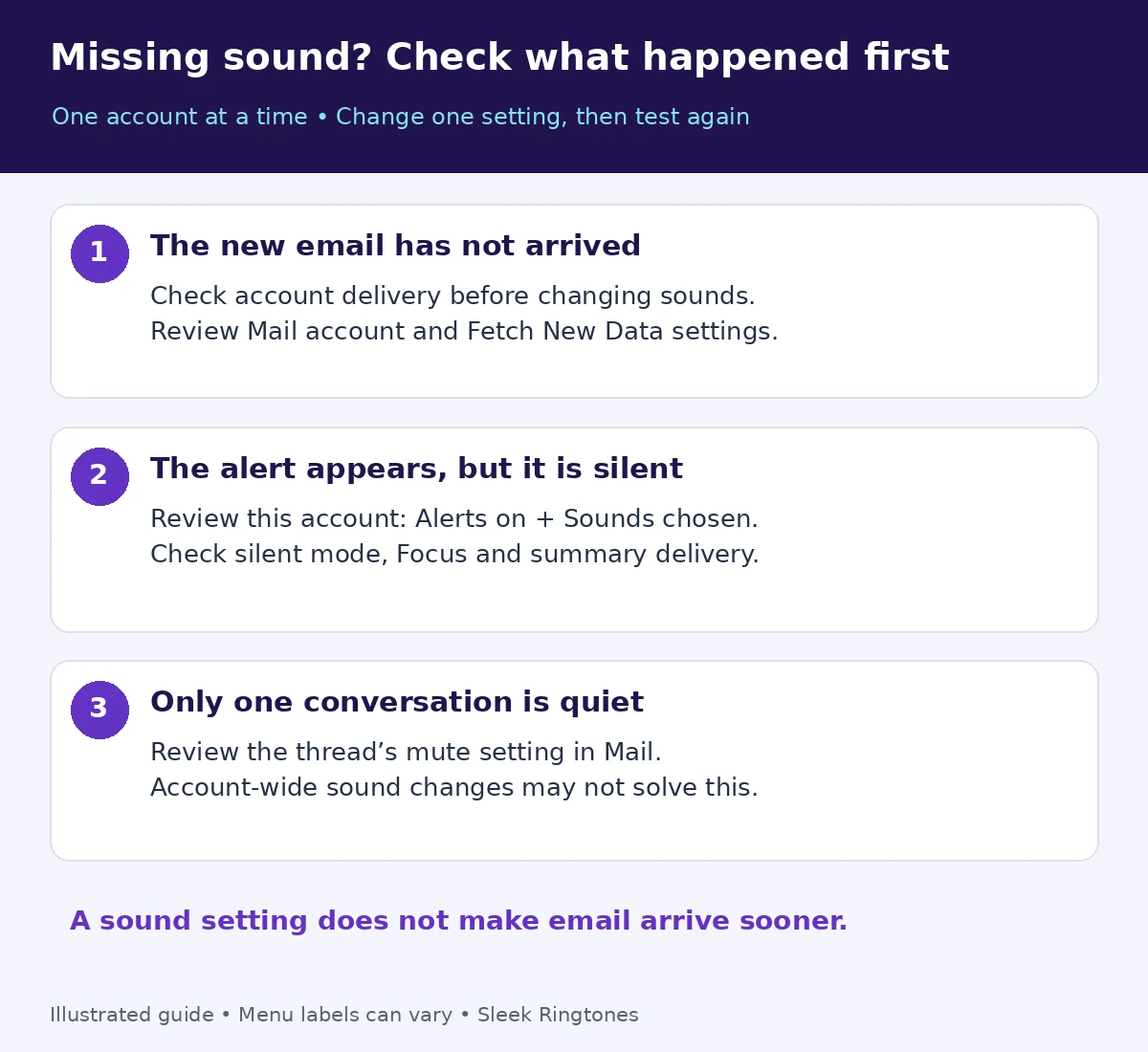
It arrived, but silently — now what?
Go back to that specific account and check Allow Notifications, then reopen its Alerts and Sounds. Confirm the tone is still what you picked. Then check silent mode and whatever Focus is currently active. And if Mail is part of a Scheduled Summary, check its delivery choice — a summary can hold your alerts and deliver them in a batch, which feels exactly like "no sound" until you look.
Apple's notification settings guide explains immediate delivery, summaries, and Focus delays. A saved sound and immediate delivery are two different settings, and you need both.
One more sneaky case: if only *one conversation* is quiet while everything else works, don't touch the account tones. That thread itself might be muted — Mail lets you mute a conversation from its Reply menu. It also offers Notify Me for replies you specifically want to follow. See Apple's email notification guide.
The email itself shows up late
This one is not a sound problem at all. Sound selection changes the alert, not when the inbox receives the message. If mail arrives in batches or an hour late, look at the account and its Fetch New Data settings in Mail settings. Apple documents fetch scheduling in its Mail settings guide.
Resist the urge to keep changing tones while delivery is still unconfirmed. You'll just end up with a tone you hate and the same late mail.
Three quick questions
Will this change the sound of incoming calls? No — these steps only change Mail account alerts. If you're unsure which sound is which, our ringtone versus notification sound guide untangles the two.
Can I give one person a different text alert instead? That's a separate Messages contact setting, not a Mail one. Follow our iPhone text tone for one contact guide.
What if my preferred custom tone isn't there? Pick a tone that's already available in Sounds for your first test — get the system working before you complicate it. If you're preparing a new tone from scratch, our GarageBand custom iPhone ringtone guide covers that separate workflow. And remember: downloading an audio file doesn't mean it's installed as a selectable tone. Recheck the account's sound list after you've actually gone through the export.