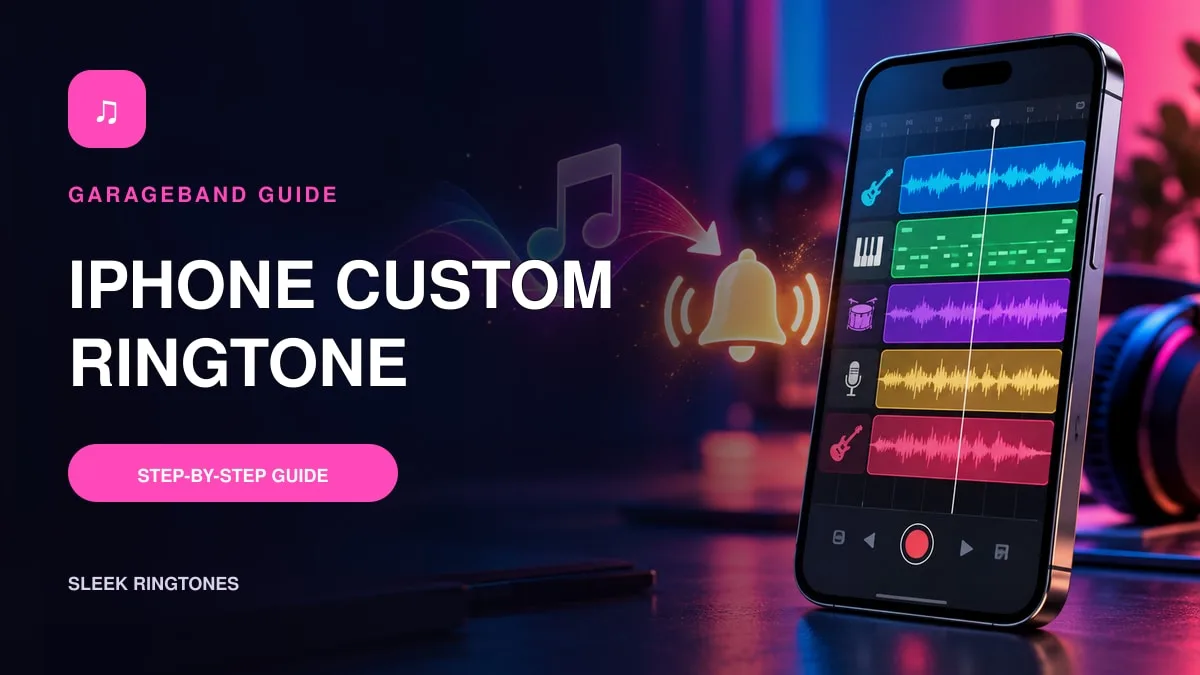
iPhone doesn't have a "set this MP3 as my ringtone" button. It never has. What it does have is GarageBand — a free app from Apple that can turn an audio file, or a song you made yourself, into a proper ringtone, right on the phone, no computer involved.
The process is import, trim, save, share as ringtone. It sounds fiddly the first time. The second time, it takes about three minutes. And unlike most iPhone workarounds, this one uses Apple's own app, so it keeps working after updates instead of breaking. Here's the whole thing.
What you need before you start
Keep the source file in the Files app, or somewhere GarageBand can reach it. Use audio you created or have permission to use — protected streaming tracks won't be available for import, and that's not a bug you can work around. If a song only exists inside a streaming subscription, GarageBand can't touch it.
Button positions and ringtone options shift a little with iOS and GarageBand updates, but the shape of the workflow stays the same.
Getting the audio into GarageBand
- Install and open GarageBand from the App Store.
- Start a new Audio Recorder project.
- Switch to Tracks view.
- Open the Loops browser.
- Choose Files and browse items from the Files app.
- Press and drag the audio file into the track area.
If the file shows up dimmed or unavailable, check two things: is it stored locally (not cloud-only), and is it in a supported format? A protected song from a subscription service will stay unavailable no matter what you do to it.
Trimming: where ringtones are won and lost
Drag the edges of the audio region to keep the most recognisable section. Start close to the first useful sound — a ringtone that opens with four seconds of silence is a ringtone that gets sent to voicemail.
Listen through the phone speaker, not just headphones. A beginning that sounds fine in earbuds can be harsh or muddy through the speaker, and the speaker is what everyone in the room will actually hear. Smooth out any harsh start or abrupt ending.
Keep the project short. GarageBand can shorten a longer project during export, but editing the exact section yourself means you decide what survives — not an algorithm.
Exporting
- Tap the navigation button and return to My Songs.
- Touch and hold the project.
- Tap Share.
- Choose Ringtone.
- Enter a short, clear name — you'll thank yourself when you're hunting for it in a list later.
- Tap Export.
After export, GarageBand may offer to use the sound right away. You can set it as the standard ringtone, assign it to a contact, or finish and choose it later in Settings. Pick the option that matches what you actually wanted — "standard ringtone" changes everyone's calls, and that's a common accidental tap.
Selecting it in iPhone Settings
Open Settings → Sounds & Haptics → Ringtone. Your exported sound should be sitting there with the available tones. Tap it to make it the default call ringtone.
To use it for one person instead, open Contacts, select the contact, tap Edit, choose Ringtone, and save your selection.
"The audio won't import"
Go down this list:
- Save a local copy in the Files app.
- Confirm the file plays outside GarageBand.
- Use an ordinary supported audio format.
- Check whether the song is protected or streaming-only.
- Restart GarageBand and try a fresh project.
And a safety note: don't feed private recordings to unknown converter sites. GarageBand itself, or a reputable offline editor, is the safer place for personal audio.
"I exported it, but it's not in the list"
Go back to My Songs and confirm the export actually completed without an error — a failed export leaves nothing behind. Use a unique name so it's easy to spot. Then reopen Settings → Sounds & Haptics → Ringtone, or restart the iPhone if the list hasn't refreshed. Lists don't always update the instant an export finishes.
Privacy and copyright, in plain terms
Don't make spoken ringtones that announce private details in public — your full name, your address, your appointments. A phone ringing in a quiet office is a broadcast. And don't use a real person's cloned voice without consent, or publish copyrighted audio you don't control. A custom ringtone made for personal use still needs a lawful source file.
Three quick questions
Do I need a computer? No. GarageBand creates and exports a ringtone directly on a compatible iPhone.
Can I use an MP3 file? GarageBand imports common audio files, but protected or cloud-only media may need downloading first — or may stay unavailable.
Can I assign the ringtone to one contact? Yes. Open the contact, tap Edit, choose Ringtone, and select the exported sound.
The final test
Ask someone to call after setting the new tone. Check its starting point and volume through the iPhone speaker. If it begins too slowly, go back to GarageBand, trim the project again, and export a revised version with a clear name. Version two takes half the time version one did — and it's usually the one you keep.
Where to go next
For a message alert assigned to one person, see the iPhone contact text-tone guide. To understand which setting to change, compare ringtones and notification sounds.