You set a beautiful wallpaper on Monday, and by Thursday you're already bored of it. That's the exact itch Pixel's Daily wallpaper feature is meant to scratch — a fresh background every day, chosen from one of Google's own collections, with zero effort from you.
But then you try to point it at your own photos, and it just... won't. No option, no toggle, nothing. Before you assume your phone is broken or the feature is missing, here's what's actually going on: Daily wallpaper only works with Google's preset categories. Your personal photos and live wallpapers are deliberately excluded. That's not a bug, and it's not something a settings tweak can fix.
What Daily wallpaper really does
When you turn it on, your phone picks a new image from the category you chose — landscapes, textures, that kind of collection — and swaps it in once a day. You don't pick the individual pictures. You pick the pool, and Google's rotation does the rest.
That distinction matters, because it explains almost every frustration people have with this feature. A picture you downloaded from a website isn't automatically enrolled in a daily rotation just because it exists on your phone. Downloading something and putting it in a rotation are two different actions, and Daily wallpaper only draws from the preset pools.
This guide is about the built-in Pixel feature, not a third-party slideshow app. If you want your own photos to rotate, third-party apps exist for that — but that's a different setup with its own quirks, and it's not what we're covering here. Menu labels and available collections can also vary with your software version, so your screen might not match a screenshot from someone else's Pixel exactly.
Turning it on
- Touch and hold an empty part of the Home screen.
- Open Wallpaper & style, then Change wallpaper.
- Choose a wallpaper category.
- Tap Daily wallpaper at the top right and confirm with OK.
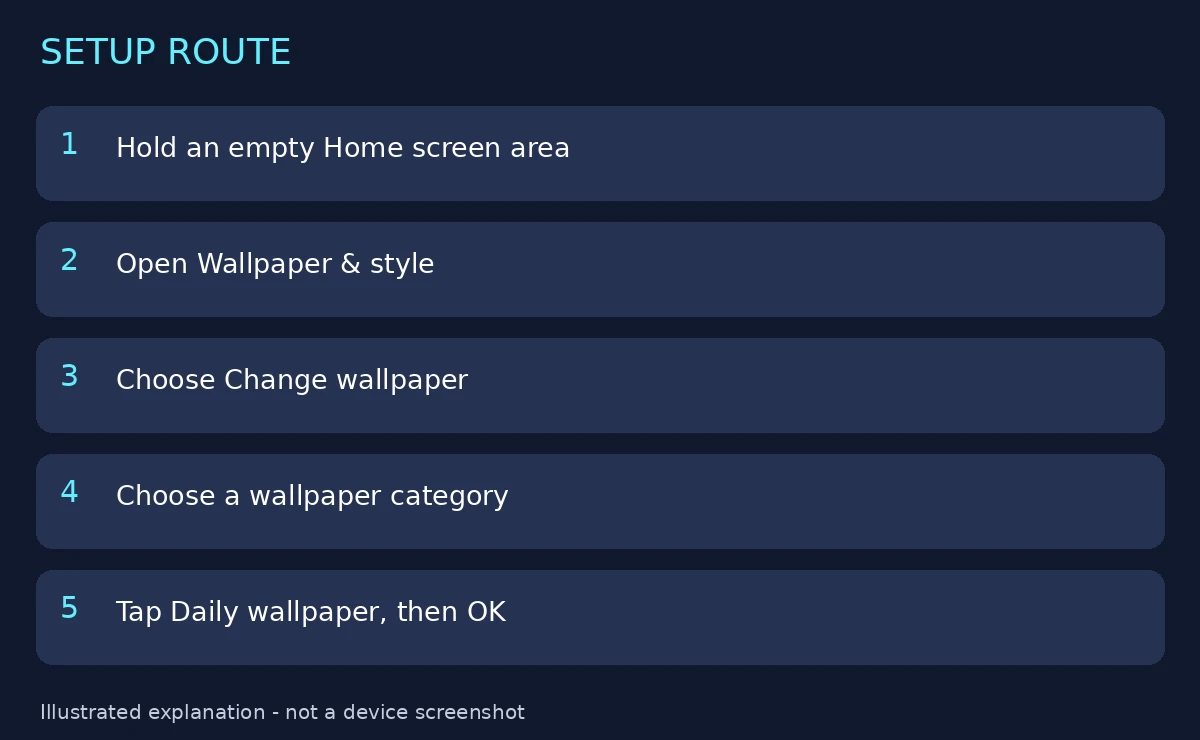
The image above is an explanation of the route, not a captured Pixel screen. Before you leave the picker, preview the choice on the screen you actually want to personalise — lock screen, home screen, or both. A category that looks great behind your apps might bury your lock-screen clock, and it's much easier to notice that now than at 7 a.m. tomorrow.
One detail people miss: you pick the category first, then switch on Daily. If you go in looking for a "Daily" button on the main picker screen, you'll scroll past it. The toggle lives inside the category view, at the top right.
So why can't you use your own photos?
Short answer: Google built it that way. Daily wallpaper is designed around curated collections that Google can keep stocked and sized correctly. Personal photos and live wallpapers are excluded from this particular feature.
That exclusion is annoying if you have a folder of holiday photos you'd love to rotate through. I get it — it feels like the obvious use for the feature. But the feature was built as "fresh artwork every day," not "slideshow of my camera roll." Knowing that saves you from hunting through every submenu for a toggle that was never there.
What you can do instead: if you want one specific photo as your background, use Choose a photo for a static image. Pick it, crop it, preview it, apply it. It just won't rotate. And don't look for a rotation toggle inside every individual downloaded image — there isn't one, and tapping around the photo picker for twenty minutes won't conjure one up.
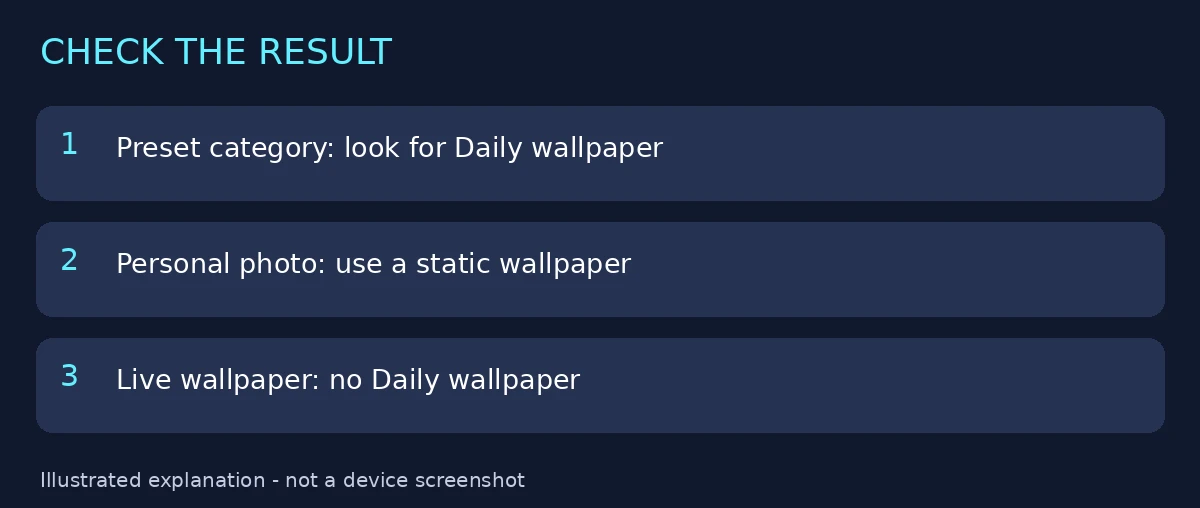
The comparison above sums it up: preset categories rotate, personal photos and live wallpapers don't. Live wallpapers are out for the same reason — they're animated, and the Daily rotation deals in still images from a fixed pool.
A quick sanity check before you dig deeper
Write down — mentally is fine — which of the three things you actually selected: a preset collection, a personal photo, or a live wallpaper. That single distinction prevents most wasted troubleshooting. People regularly spend ages "fixing" Daily wallpaper when they were actually trying to rotate a personal photo, which was never going to work.
Same idea for a static download that looks wrong: compare your crop with the original file before deciding the file itself is bad. A photo that looks zoomed-in or soft after applying is usually a crop problem, not a corrupt download.
When Daily wallpaper doesn't show up at all
Go back into a category and look at its available controls. Not every category offers Daily — if the toggle isn't in the one you're browsing, try another collection before concluding the feature is gone.
If it's missing everywhere, record three things before seeking help: your Pixel model, your software version, and the collection name you were browsing. "Daily wallpaper is missing on my Pixel 8, Android 16, in the Landscapes category" is a question someone can actually answer. "Daily wallpaper doesn't work" isn't.
And don't assume every wallpaper option carries the same features. Some collections have Daily, some don't, and live wallpapers and personal photos never do. That's the pattern, not an inconsistency.
Related guides and images
See wallpaper crop and zoom fixes, wallpaper size guidance, and our wallpaper collection.
Reviewed source
Google: Change wallpaper on your Pixel phone. Reviewed 5 October 2026. No physical-device test or search-volume claim is made.