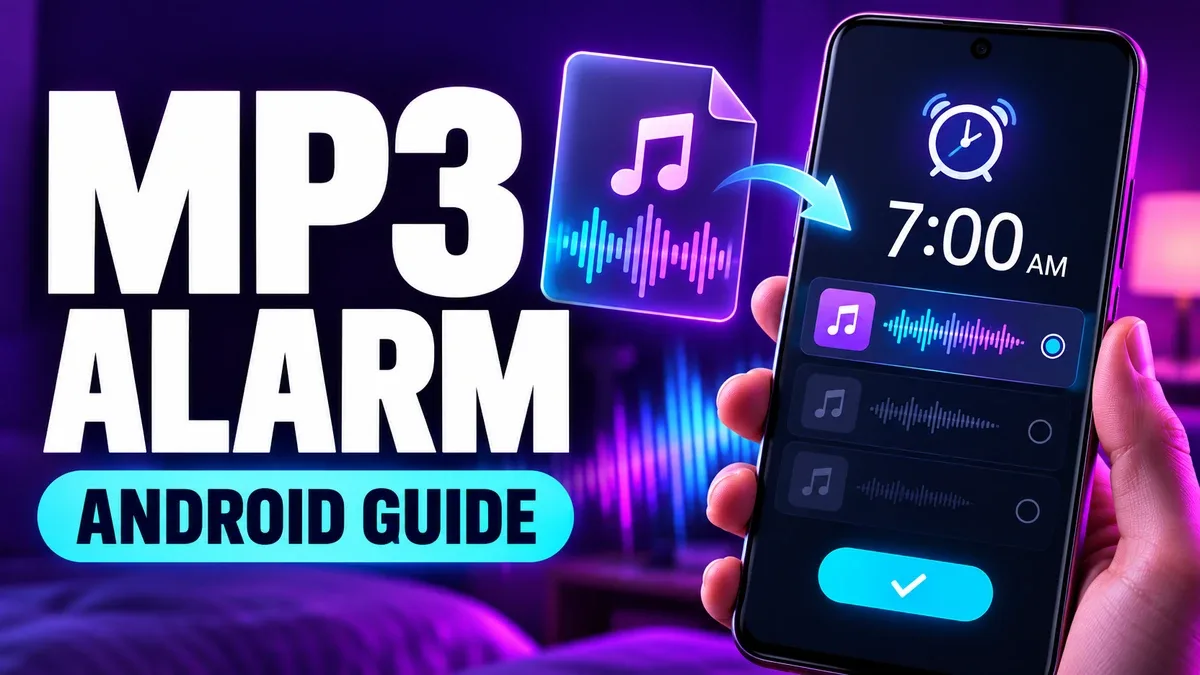
There are two kinds of morning people in the world: the ones who leap out of bed to a gentle chime, and the ones who need something with actual conviction behind it. Either way, the default alarm tones that ship with your phone probably aren't it. The good news is that on Android, your alarm doesn't have to be one of those built-in sounds. Any MP3 on your phone — a song intro, a soft instrumental, a recording of rain — can be your alarm.
The catch is that the path to get there depends on which Clock app your phone uses. Google Clock and Samsung Clock both support custom alarm sounds, but they get there through different menus with different labels. Follow the wrong app's guide and you'll be hunting for a button that doesn't exist on your screen.
First: make sure the file is really on your phone
Download an MP3 you have the right to use and open it in your phone's Files app. Play it once, all the way through, to confirm the file is complete, audible, and stored locally.
That "stored locally" part matters more than it sounds. An audio link that only streams from a website is not the same as a downloaded file — if your connection drops overnight, a streaming alarm has nothing to play. A file sitting in your Downloads or Music folder works whether you're on Wi-Fi, on data, or in airplane mode.
If you want a gentle sound, browse instrumental ringtones, preview one, and save its MP3. A ringtone can be used as an alarm only if your Clock app lets you select that local file — being a "ringtone" doesn't automatically make it available everywhere. The file is just a file; each app decides whether to let you pick it.
One more prep step that saves confusion later: give the file a name you'll recognise in a picker. "morning-piano.mp3" beats "track_07_final.mp3" when you're scrolling through a list at arm's length.
Google Clock: add your own sound
- Open Clock and tap Alarm.
- Open an existing alarm or add a new one. Tap the current alarm sound.
- Choose Add new, then select Your sound file. Browse to the downloaded MP3 and select it.
- Return to the alarm, make sure it is switched on, and set a test time a few minutes ahead.
These controls follow Google's Clock instructions. A manufacturer's Clock app can use different labels or offer a different file picker, so if you don't see Add new, confirm which Clock app you are using before trying a path from another device. On a Pixel, you're almost certainly in Google Clock. On a Galaxy, you might be in Samsung Clock without realising it — the icons look similar, and both just say "Clock."
While you're in the alarm settings, it's worth checking two extras Google Clock offers: the "gradually increase volume" option, which ramps the sound up instead of starting at full blast, and the vibration toggle.
Samsung Galaxy: check the alarm's own sound control
On a Galaxy phone, open Clock > Alarm, open the alarm, and look for Alarm sound. Samsung documents this control and its volume slider in its Galaxy alarm guide. If a file picker or plus button appears on your model, select your locally saved MP3 and save the alarm.
Two things to know about the Samsung route. First, the exact picker varies by phone and software version — do not assume the Google Clock path applies to Samsung Clock. Second, Samsung's alarm screen has its own volume slider inside Alarm sound, separate from your general media and ringtone volumes. If your alarm sounds too quiet after setting it, that slider is the first place to look, not your main volume settings.
Samsung Clock also lets you set the alarm to use Bixby or a voice briefing on some models. That's a different feature from a custom MP3 — if you see voice options where you expected a file picker, you've wandered into a different menu.
When the alarm is silent or the MP3 is missing
This is where most people end up if they skip the testing step. Work through these in order, and check one thing at a time:
- Check alarm volume, which may be separate from media and incoming-call volume. On Galaxy, inspect the slider inside Alarm sound. Test with the phone speaker at a safe volume — not through Bluetooth headphones sitting on your desk, which is where the sound may actually be going.
- Make sure the alarm is enabled, scheduled for the correct day, and has a sound rather than Silent. Google notes that an alarm with silent sound and vibration off may not alert you. An alarm set for "weekdays" won't ring on Saturday, and an alarm with AM/PM mixed up won't ring when you expect it to.
- Find the MP3 in Files and play it there. If you moved or deleted it after selection, the alarm may have lost its sound. Choose the file again from its current location — and then leave it there.
- If the picker cannot see the MP3, move or copy it to a normal internal-storage folder and try again. Avoid relying on a temporary download or cloud-only file. Files that live only in a cloud drive app often don't show up in pickers, because the picker is browsing local storage.
- Set a short test alarm while you are awake. A test catches the wrong alarm, wrong time, unexpected Bluetooth output, and an inaudible sound before you depend on it. Two minutes of testing beats one ruined morning.
Alarms, ringtones, and notifications are three different jobs
Phone-call ringtones, notification sounds, and alarms are distinct settings. Setting an MP3 as your alarm does not make it your ringtone, and setting it as your ringtone does not make it your alarm. If your goal is an incoming-call sound, use our Android ringtone setup guide. For a short audio file, see ringtone length and format.
That's actually a feature, not a flaw. It means your 6 a.m. alarm can be a gentle piano piece while your ringtone is something punchy you'd actually hear in a noisy street — and neither interferes with the other.
Reviewed sources: Google Clock Help and Samsung Galaxy alarm Help. Menu wording was checked against those documents; it was not tested on every phone model.