
Here's the test your lock screen wallpaper has to pass: can you read the time on it, at a glance, half asleep, with three notifications stacked on top?
If not, it doesn't matter how beautiful the artwork is. The best anime lock screen isn't the prettiest image in the collection — it's the one that leaves the clock alone.
That's the lens for all fifteen ideas below. They link to original AI-assisted illustrations in our Anime wallpaper collection. One honest spec note before you start: these downloads are 768 × 1376 pixels, not 4K. On a higher-resolution display they can look a little soft, especially if you zoom. Preview one on your own screen before committing.
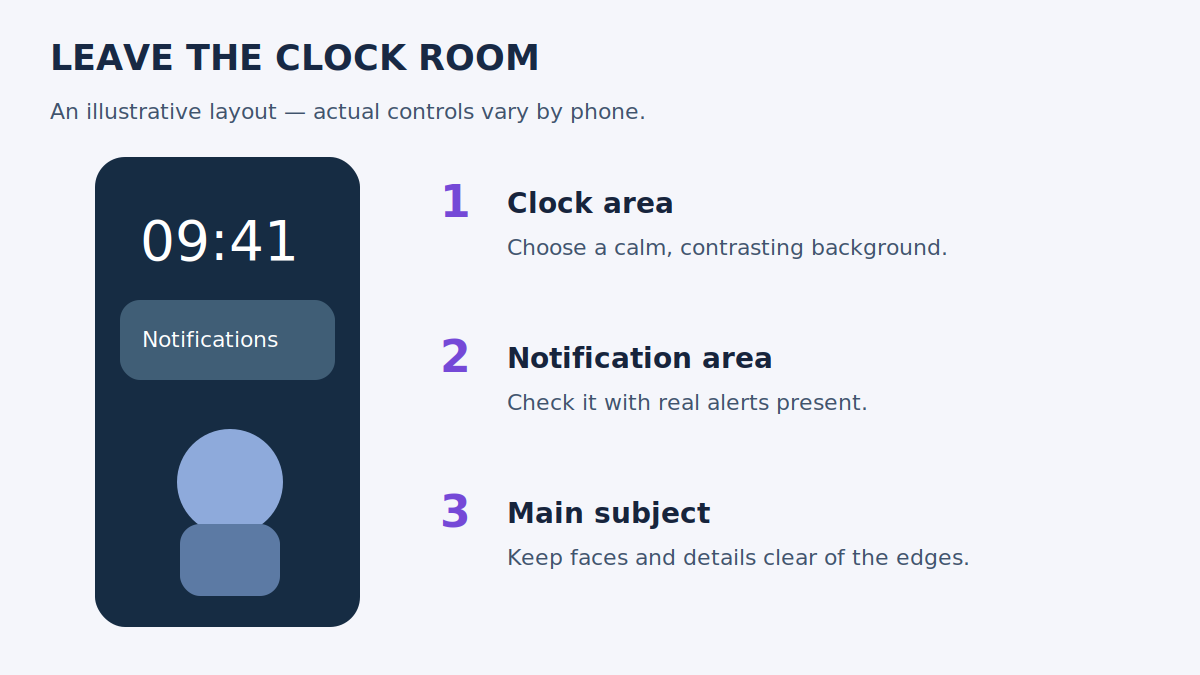
Fifteen to compare
Clock position and customisation controls vary by device, so treat these as composition suggestions — not a promise that every image fits every phone without cropping.
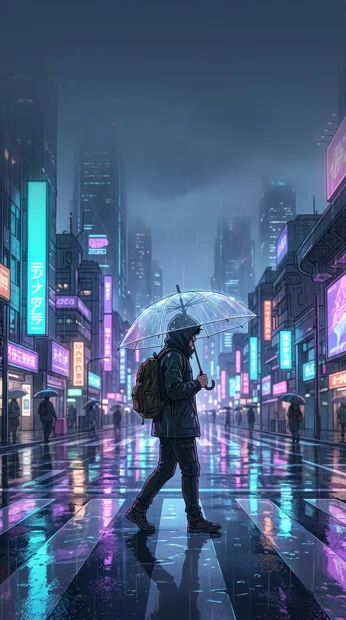
1. Rainy Neon Crossing
A neon street with a colourful lower scene. Keep the traveller away from the clock, and check whether the bright signs fight with white clock numbers. Preview and download.
2. Moonlit Samurai Ridge
Mountain silhouette — the quieter alternative to a city scene. Park the clock over plain sky, not over the moon. Preview and download.
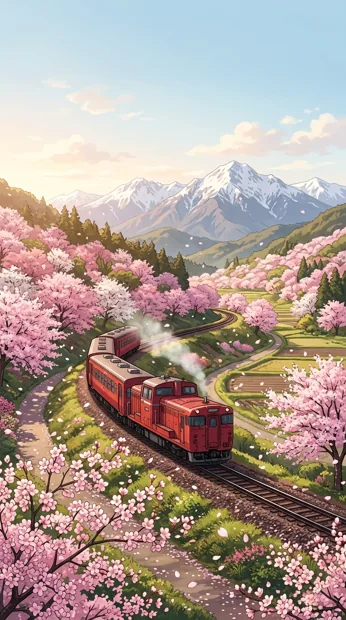
3. Cherry Blossom Train
The train anchors the bottom of the frame. Watch the blossom branches: light petals behind pale clock text can wash the numbers out. Preview and download.
4. Floating Sky Islands
Clouds and floating islands, full fantasy. Keep the biggest island below the time display, and check what notifications do to the lower scene. Preview and download.
5. Lantern River Town
Warm evening look, river reflections. Keep the bridge visible after cropping, and pick clock text that stands apart from the lantern glow. Preview and download.
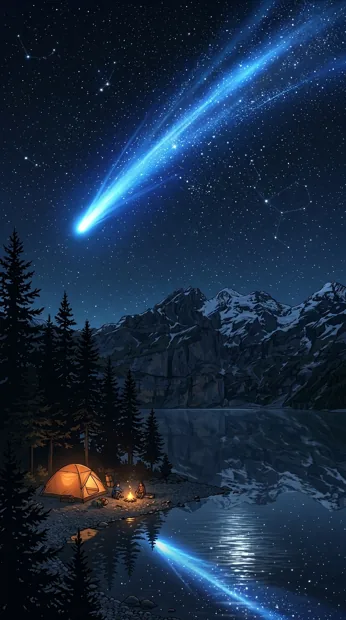
6. Blue Comet Lake
Lake plus night sky, calm by design. Leave the comet visible instead of parking the time right on its brightest point. Preview and download.
7. Sunset Rooftop Dream
The rooftop character works as a lower focal point. A tighter crop can delete the skyline, so compare two positions before you apply it. Preview and download.
8. Crimson Cyberbike
Bold red bike — the busiest choice here. Save it for a screen with a compact clock and few widgets, or the composition turns chaotic. Preview and download.
9. Bamboo Forest Guardian
Nature-led, quieter. In the preview, watch the antlers — neither the crop nor the clock should cut through them. Preview and download.
10. Snowy Shrine Path
Snow and a shrine, seasonal and calm. Dark clock text is often easier to read against the pale snow — depends on where you place it. Preview and download.
11. Ocean Cloud Horizon
Open coastal sky. Keep the horizon lower than the clock, and don't crop away all the foreground — that's what gives it depth. Preview and download.
12. Violet Space Voyager
Astronaut and planet, sci-fi theme. Leave room for the planet instead of zooming into the figure alone. Preview and download.
13. Golden Dragon Clouds
The dramatic one. Treat it as an expressive choice and move the clock away from the detailed cloud edges. Preview and download.
14. Emerald Spirit Forest
Green forest layers, soft fantasy atmosphere. Compare the clock against both the dark leaves and the bright shafts of light — it needs to survive both. Preview and download.
15. Midnight Cat City
A cat and a night city, playful. Check the cat at the final crop size, and don't let notification cards sit on top of it. Preview and download.
The three-part preview check
Before you commit to any of these, run this quick check:
- Clock vs. background. Look at the time against the brightest *and* darkest areas behind it. If the digits disappear in either, change the clock colour where your phone allows it, or move the picture.
- Subject intact. A face, moon, or animal shouldn't be sliced by the screen edge. If it is, re-crop or pick another image.
- Notifications on. View the screen with notifications present. A composition that looks great empty can turn crowded the moment three message cards land on it.
And handle the Home screen separately. App labels and widgets sit in different places than a Lock screen clock, so a simpler matching background for the Home screen is often more practical than forcing one image to do both jobs.
The zoom trap
Cropping changes which part of the image you see. It doesn't add detail. So download the original file rather than screenshotting a browser preview, and start with the widest framing your wallpaper editor allows. If the image still looks too close, read why wallpapers appear zoomed in.
Three things people ask
Will these pictures move? No — they're static downloads. An anime art style doesn't make a file a live wallpaper.
Can I keep the entire picture visible? Only if its shape fits the available screen area, or your editor allows padding. A tall phone crops the sides of an image when it fills the display. Our wallpaper size guide explains the difference between image dimensions and screen proportions.
Should I use the same picture for my profile? A square portrait is generally easier as a DP. Our anime DP ideas show options built around a smaller, circular display.