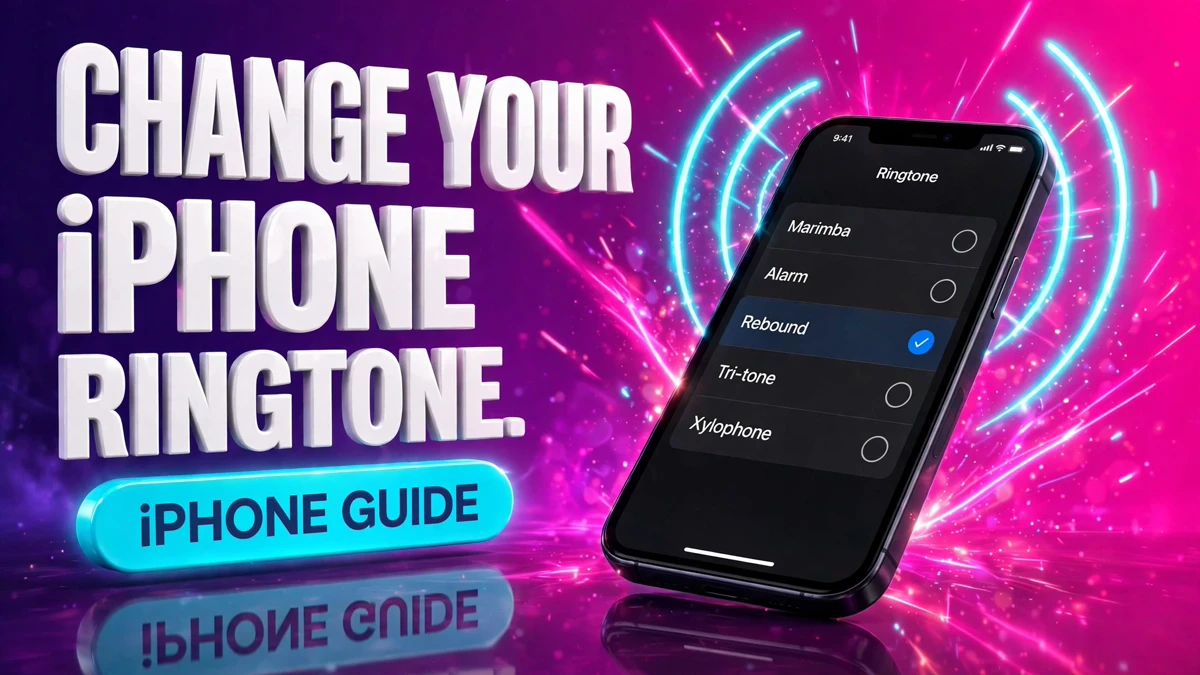
Your iPhone's ringtone is the sound the whole room hears when someone calls you, yet most people keep the factory default for years simply because they never open the setting. Changing it takes about ten seconds, and the same menu also lets you buy new tones, re-download old purchases onto a new phone, or use a tone you made yourself.
Everything below works with the built-in Settings app. No extra apps and no computer are needed for the basics.
Change the ringtone in Settings
This sets the default ringtone for every incoming call.
- Open the Settings app (the grey gear icon).
- Scroll down and tap Sounds & Haptics. On older iPhones this menu is just called Sounds.
- Tap Ringtone. The tone with the checkmark is your current one.
- Tap any tone to hear a preview. The last tone you tapped becomes your ringtone — there is no Save button to press.
- Leave Settings. You are done.
Two details worth knowing before you start tapping:
- Previews play at your current ringer volume. If you tap tones and hear nothing, your ringer volume is down or the phone is in Silent mode. Turn the volume up with the side buttons while you are on the Ringtone screen.
- One caller can still sound different. If a specific person plays another tone after you change the default, that contact has their own custom ringtone assigned. A default change never overrides it.
Try the Classic tones
If you miss the old iPhone sounds, tap Classic near the top of the Ringtone screen. This reveals the heritage tones such as Marimba — the sound that defined the iPhone for a decade. Apple also adds new tones in newer iOS versions, so it is worth scrolling through the full list once in a while instead of assuming nothing changed.
Buy new ringtones from the Tone Store
When the built-in list is not enough, you can buy tones directly on the phone:
- Go to Settings → Sounds & Haptics → Ringtone.
- Scroll to the very top and tap Tone Store.
- Browse by genre or search for a specific song or sound.
- Tap the price to buy. You will be offered a choice: set it as your default ringtone, set it as your text tone, or assign it to a contact.
- Confirm with your Apple ID.
Purchased tones are tied to your Apple ID, not to the phone — which matters when you upgrade to a new iPhone.
Get your purchased tones back on a new iPhone
Because tones follow your Apple ID, you do not have to buy them again:
- Sign in with the same Apple ID you used to buy them.
- Go to Settings → Sounds & Haptics → Ringtone.
- Tap Tone Store, then look for Download All Purchased Tones.
- Download them. They appear at the top of your ringtone list, above Apple's built-in tones.
One caveat: this option only shows up if you actually have purchases that are not on the phone yet, and a small number of very old tones can no longer be re-downloaded.
Use a tone you made yourself
Tones you add yourself — for example one exported from GarageBand on the iPhone — also appear at the top of the Ringtone list. If you want a song or recording of your own as your ringtone, follow our step-by-step guide: how to make a custom ringtone on iPhone with GarageBand.
Give one contact their own ringtone
The default ringtone does not have to apply to everyone. You can assign a different ringtone or text tone to individual contacts, so you know who is calling without looking at the screen. Full walkthrough here: how to give one contact a different ringtone on iPhone.
Pair the ringtone with a vibration
On the Ringtone screen, tap Haptics at the top to choose the vibration pattern that plays along with the sound — or record your own tapping pattern. Useful when the phone is in your pocket on vibrate. See how to create custom vibration patterns on iPhone.
What changing the ringtone does NOT change
- Text tone stays the same. Change it separately under Sounds & Haptics → Text Tone.
- Alarm volume is independent of the ringer. See how to set iPhone alarm volume separately from your ringtone.
- Per-contact ringtones keep overriding the default until you change them individually.
Troubleshooting
I tap tones but hear nothing.
Your ringer volume is down or the phone is in Silent mode. Raise the volume with the side buttons while on the Ringtone screen, and flip the Silent switch (or Action button) off while testing.
My ringtone is still too quiet at full volume.
This is often Attention Aware Features lowering the volume when you look at the screen. Here is the fix: iPhone ringtone volume low.
A tone I bought is missing.
Make sure you are signed in with the Apple ID that bought it, then use Download All Purchased Tones in the Tone Store (steps above).
My own tone is not in the list.
Custom tones must be exported correctly as ringtones — the classic method caps them at around 30–40 seconds. Re-export from GarageBand and check the very top of the list, above the built-in tones.
FAQ
Does changing my ringtone cost anything?
No. Switching between the built-in tones is free. Only Tone Store purchases cost money.
Will my ringtone move to a new iPhone automatically?
Built-in tones do not need moving — they are on every iPhone. Purchased tones re-download through your Apple ID. Custom tones have to be added again.
Can I use a song from Apple Music as a ringtone directly?
Not directly from the Music app, because of licensing. Buy the tone version in the Tone Store, or make your own from an audio file you own.
Why does one caller play a different sound?
That contact has a custom ringtone. Open their contact card, tap Edit, then Ringtone to change it or set it back to Default.
Limitations
- Custom ringtone exports are length-capped (roughly 30–40 seconds with the classic method); longer audio gets trimmed.
- A few very old purchased tones cannot be re-downloaded.
- The default ringtone never overrides per-contact ringtones — those have to be changed one by one.
Official source
- Apple Support: Use tones and ringtones with your iPhone or iPad — the official steps for changing ringtones, buying tones in the Tone Store, and assigning tones to contacts.